

A workflow is your automated sales assistant. It sends a series of timed messages—like a follow-up today, another in 3 days, and a final check-in next week—so you can nurture contacts without lifting a finger.
Here is how to build one.
📝 Before You Start
-
Plan it out: Decide how many messages you need (max 9).
-
Keep it short: Each message must fit within 3 SMS segments.
-
Draft first: It helps to write your content in a doc before building it in the app.
Step 1: Start a New Workflow
-
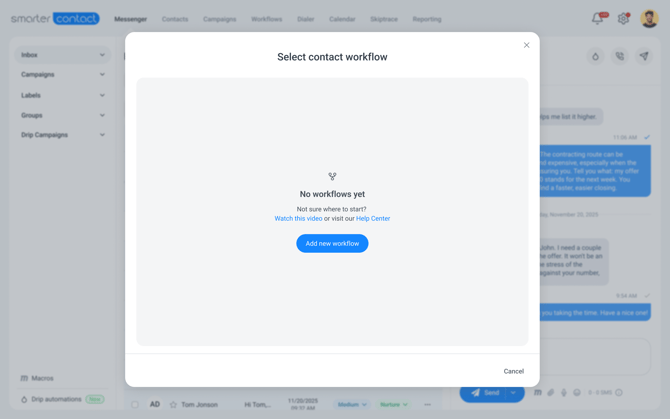
Navigate to Workflows > Contact Workflows.
-
Click Add new workflow.
-
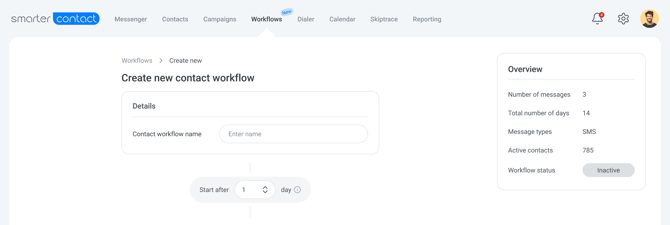
Name it: Be descriptive! Include the purpose and timeline so you can find it easily later.
-
Bad Name: "Follow up"
-
Good Name: "New seller - 14 Day Nurture"
-
Step 2: Create Message #1
-
Set the Delay: Use "Start after X days" to decide when this starts.
-
Set to
0for immediate sending. -
Set to
1or more to delay the start.
-
-
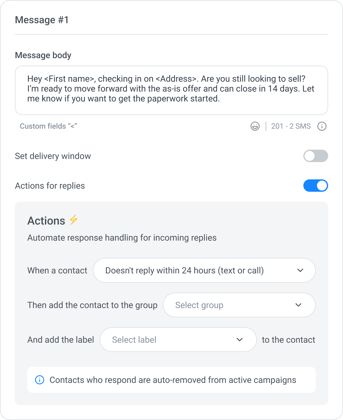
Write the Message: Enter your text in the "Message body." Keep an eye on the character counter—you cannot save if you exceed 3 segments.
💡 Pro Tip: Personalize It
Type < to open the custom fields menu. You can instantly insert the contact's name or property address.
Example: "Hi
<First name>, just checking in..."Note: Remember that
<First name>might look short here, but "Christopher" is long. Plan your character count accordingly!
Step 3: Add Follow-Up Messages
Click + Add message to grow your sequence (up to 9 messages total).
-
Set the Wait Time: This is the gap between messages.
-
Example: If Message 1 starts on Day 0, and you set Message 2 to "Wait 7 days," it will send one week later.
-
-
Set Delivery Windows (Optional): Toggle this ON to ensure messages only send during business hours (e.g., 9 AM - 6 PM, Mon-Fri). If a message is scheduled for 8 PM, it will queue up for the next morning.
Step 4: Automate Actions (Optional)
You can set rules for what happens if a contact replies.
-
Trigger: Choose if the rule applies to text replies, calls, or both.
-
Action: Automatically add them to a specific Group or apply a Label.
⚠️ Vital Reminder:
If a contact replies to ANY message in the workflow, the system automatically removes them from the workflow. The automation stops immediately to prevent you from sounding like a robot.
Step 5: Save & Activate
Once you are done, click Save.
-
Your workflow will save as Inactive.
-
It becomes Active automatically the moment you add your first contact to it.
Troubleshooting: Why can't I save?
If the Save button is grayed out, check these common blockers:
-
Missing Name: Did you name the workflow?
-
Empty Message: Does every step have text in the body?
-
Too Long: Check for red warnings. Does any message exceed 3 segments?
-
Limits: Did you try to add more than 9 messages?
3 Pro Tips for Success
-
Start Small: Don't overcomplicate it. Start with a simple 3-message sequence over 7–14 days. You can always expand later.
-
Front-Load Value: Make Message #1 (Day 0) immediate and valuable. Answer their question or confirm their request to set a positive tone.
-
Naming Matters: Include the duration in the title (e.g., "Motivated seller - 30 Days"). When you are rushing to add a contact later, you’ll thank yourself for the clear label.
Ready to launch? Click here to learn how to add contacts to your new workflow.
With 💙,
Smarter Contact Team