---
title: Integrating DataSift with Smarter Contact
description: Learn how to connect DataSift to Smarter Contact — sync contacts, map dispositions, and push updates between both platforms to keep your real estate pipeline current.
---
[](https://smartercontact.com/)
☰
Solutions
- [Real Estate Investing](https://smartercontact.com/real-estate-investing/)
- [Real Estate Agent](https://smartercontact.com/real-estate-agent/)
- [General Sales/Marketing](https://smartercontact.com/general-sales-marketing/)
- [Automotive](https://smartercontact.com/automotive/)
- [Event Promotion](https://smartercontact.com/event-promotion/)
- [Gym/Fitness](https://smartercontact.com/gym-fitness/)
- [Staffing](https://smartercontact.com/staffing/)
Features
- [Texting Automation](https://smartercontact.com/sms-automation/)
- [Calling](https://smartercontact.com/calling/)
- [Reporting](https://smartercontact.com/reporting/)
- [Built-in CRM](https://smartercontact.com/built-in-crm/)
- [Custom Campaigns](https://smartercontact.com/custom-campaigns/)
- [Calendar](https://smartercontact.com/calendar/)
- [Integrations](https://smartercontact.com/integrations/)
[Pricing](https://smartercontact.com/pricing/)
Resources
- [Launch Control vs Smarter Contact](https://smartercontact.com/launch-control-vs-smarter-contact/)
- [Smarter Contact Managed](https://smartercontact.com/managed-plans/)
- [Our Team](https://smartercontact.com/our-team/)
- [Tutorials](https://smartercontact.com/tutorials/)
- [Our Story](https://smartercontact.com/our-story/)
- [Help Center](https://support.smartercontact.com/?hsLang=en)
- [Blog](https://smartercontact.com/blog/)
[Affiliate Program](https://lp.smartercontact.com/affiliates) [Dialer](https://smartercontact.com/dialer/)
[Log in](https://app.smartercontact.com/login) [Get started now](https://app.smartercontact.com/signup)
[Skip to content](https://support.smartercontact.com/datasift-integration#main-content)

Open main navigation
Close main navigation
- [Go to App](https://app.smartercontact.com/?utm_source=knowledge_base)
[Go to App](https://app.smartercontact.com/?utm_source=knowledge_base)
How can we help you?
- There are no suggestions because the search field is empty.
1. [Help Center](https://support.smartercontact.com/?hsLang=en)
2. [Connected Apps](https://support.smartercontact.com/connected-apps?hsLang=en)
August 6, 2026
# Integrating DataSift with Smarter Contact
## Two Platforms. One Pipeline.
If you're managing your real estate pipeline in DataSift — foremely known as REISift — you can connect it directly to Smarter Contact and keep both platforms in sync. Contacts flow in from DataSift, you work them in Smarter Contact, and when you're ready, dispositions push back with a single click. Neither tool falls behind.
### Before You Start
A couple of things to have ready before you connect:
- Confirm you're on a **Pro or Elite plan**
- Make sure your **Property Statuses** and **Phone Tags** are already set up in DataSift — the integration maps against these, so they need to exist before you configure the connection
- Two-way sync requires a **DataSift Business plan or above**
### Setting Up the Integration
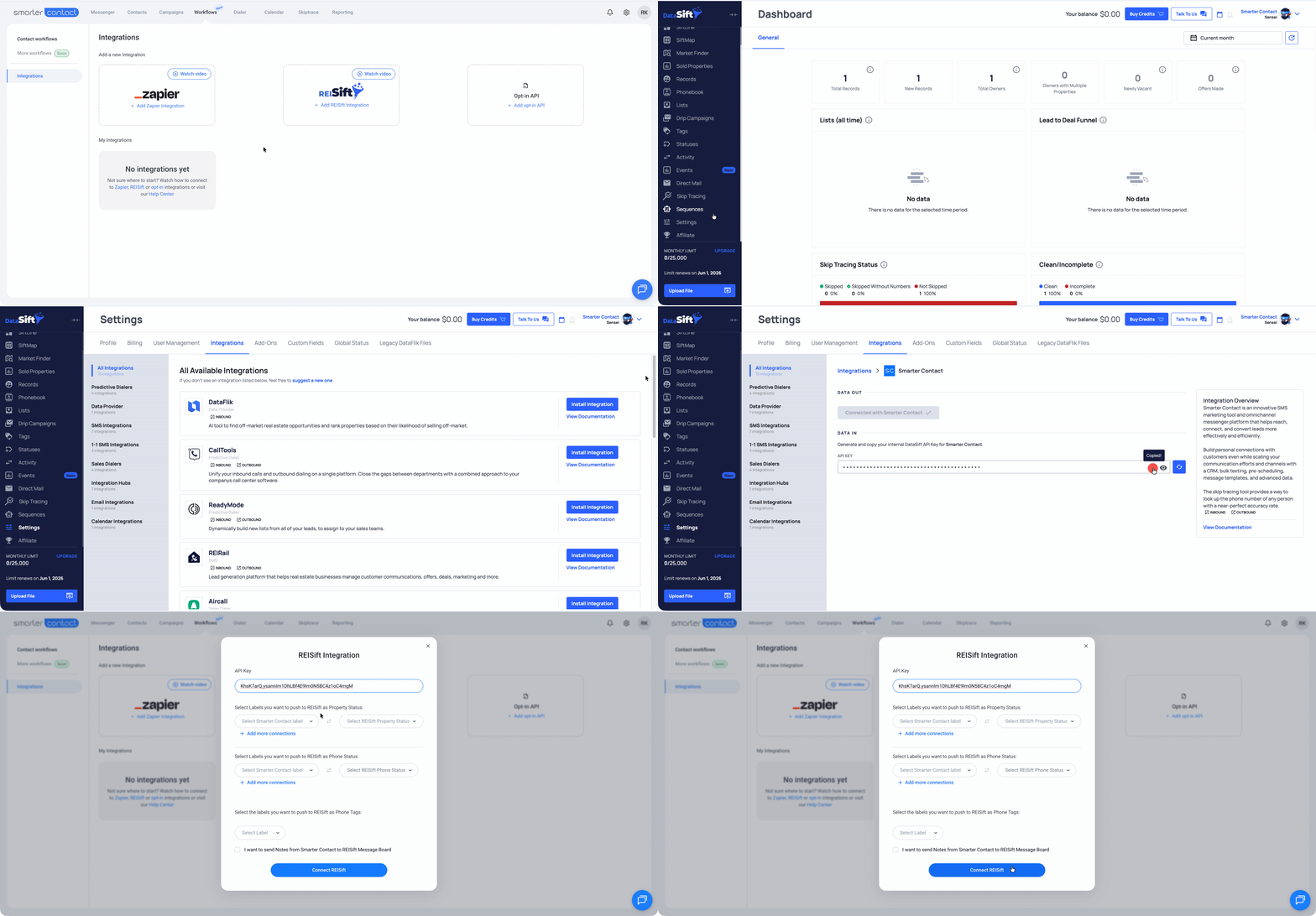
1. In Smarter Contact, open the **Workflows** tab and click **Integrations**
2. Select **Add DataSift Integration** to open the setup form
3. Switch over to your DataSift account and go to **Settings → Integrations → Smarter Contact**
4. Copy your **API key** and paste it into the form in Smarter Contact
The **Connect DataSift** button stays disabled until a valid API key is entered — so make sure it's pasted in correctly before moving on.
### Mapping Your Labels
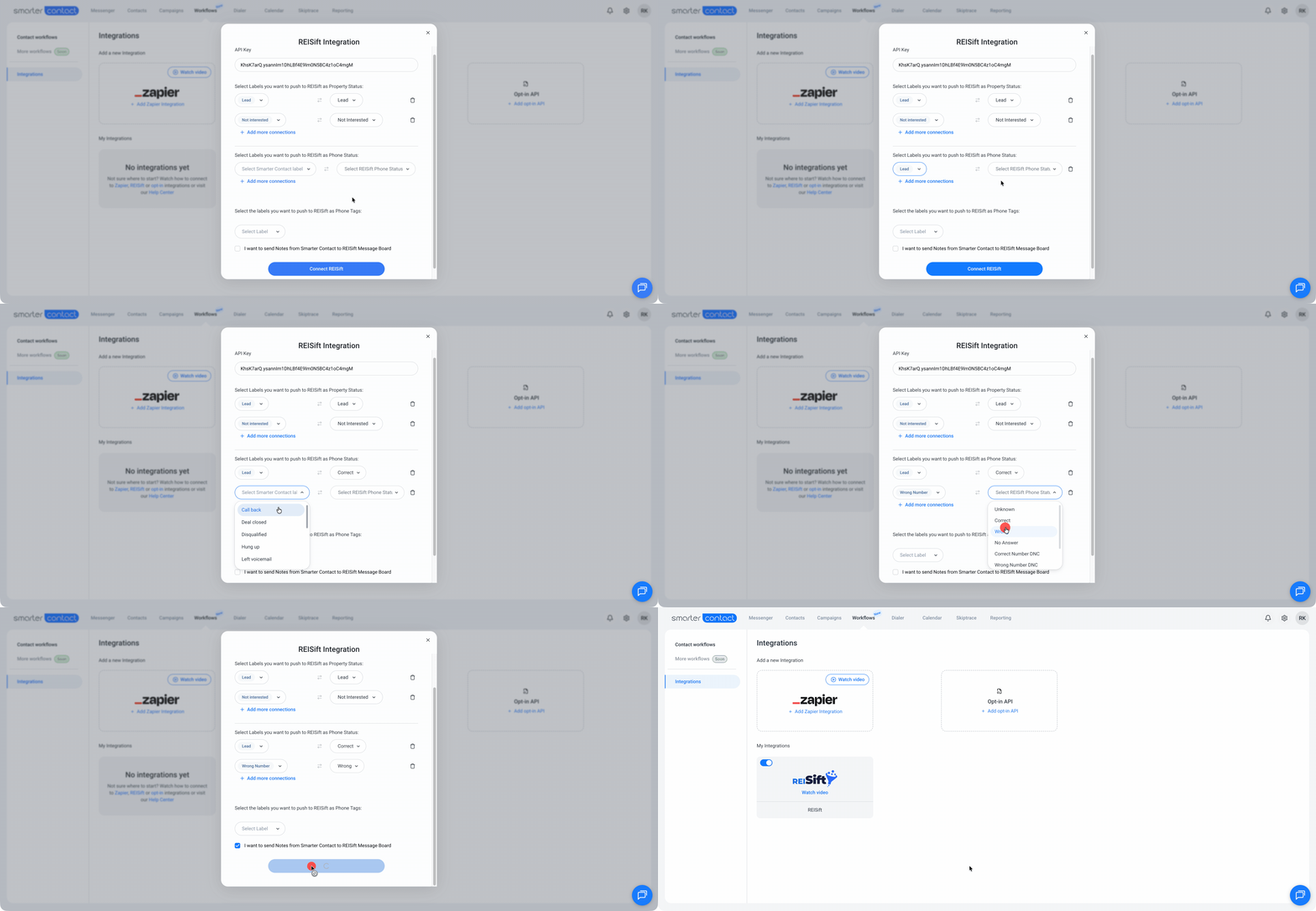
This is where you tell Smarter Contact how to translate your dispositions into DataSift. There are three mapping areas to configure:
##### Property Status Mapping
Match your Smarter Contact labels to the corresponding DataSift property statuses. For example, map *"Disqualified"* in Smarter Contact to *"Not Interested"* in DataSift. Click **+ Add More Connections** to add as many mappings as you need.
ℹ️ Only default labels are supported here — custom labels are not available for property status mapping.
##### Phone Status Mapping
Map your Smarter Contact call labels to DataSift phone statuses. For example, *"Do Not Contact"* → *"Wrong."* Multiple connections are supported.
##### Phone Tags
Select which Smarter Contact labels you want to push to DataSift as phone tags. If a contact has multiple matching labels assigned, all of them will appear on the DataSift property record — not just one.
##### Notes
Check the notes option if you want to sync a contact's full notes from Smarter Contact to the DataSift Message Board.
Once everything is configured, click **Connect DataSift**. The integration goes live immediately and moves from *Add a New Integration* into your **My Integrations** section.
### Pushing Contacts from DataSift into Smarter Contact
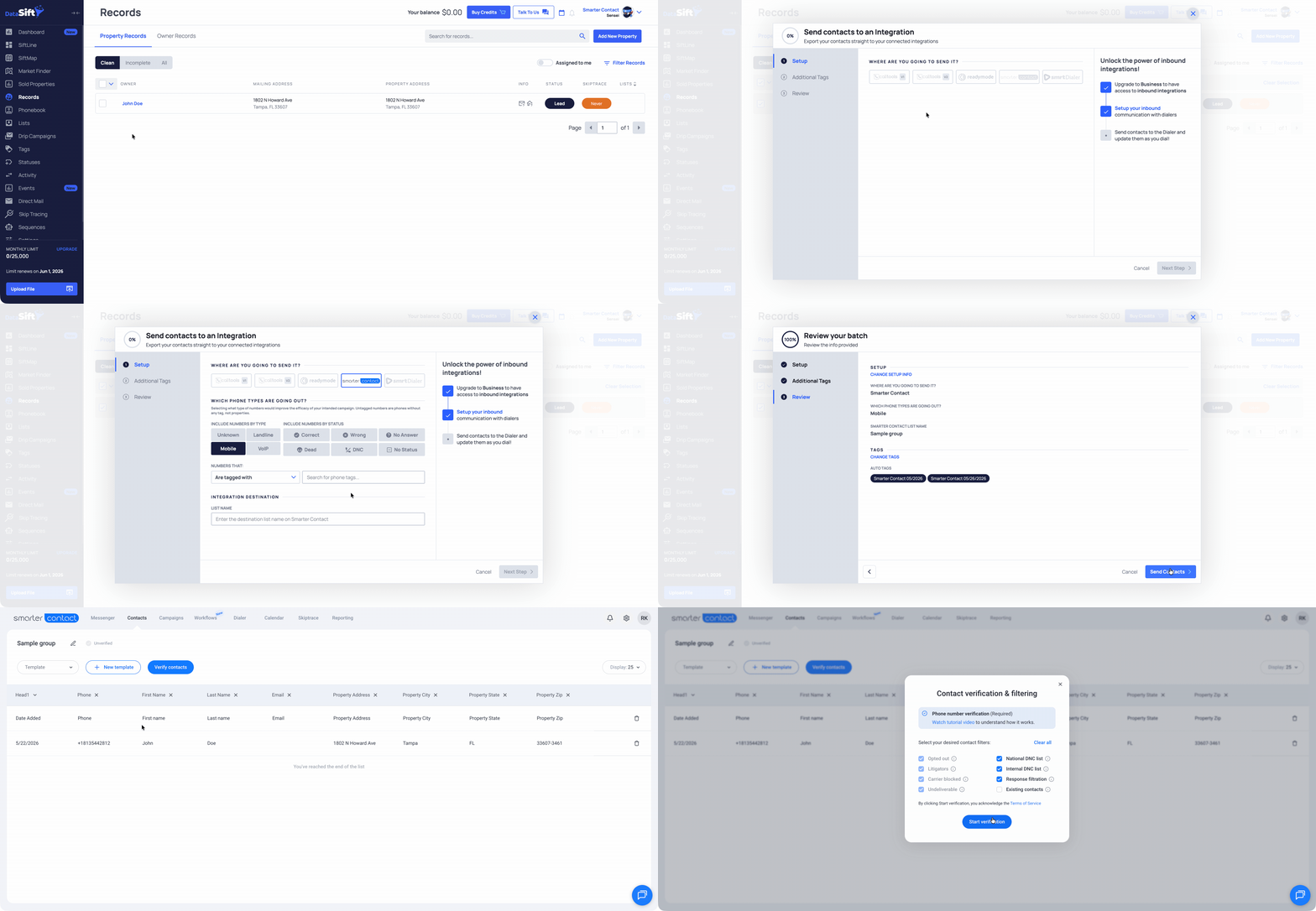
To import contacts, select the records you want from your DataSift list and push them over. Before sending, you can filter by phone type, status, and tags to make sure only the right numbers come through. Name the list, add any tracking tags, review, and confirm.
Once the transfer completes, your contacts land in Smarter Contact as an **unverified group.** Run them through verification before launching any campaigns — this scrubs the list against opt-outs, litigators, carrier blocks, and DNC registries so only clean, compliant numbers make it through.
### Exporting Contacts Back to DataSift
As you work leads in the Messenger and apply labels — Interested, Not Interested, Callback — those dispositions are ready to push back to DataSift whenever you're ready.
##### Exporting individually
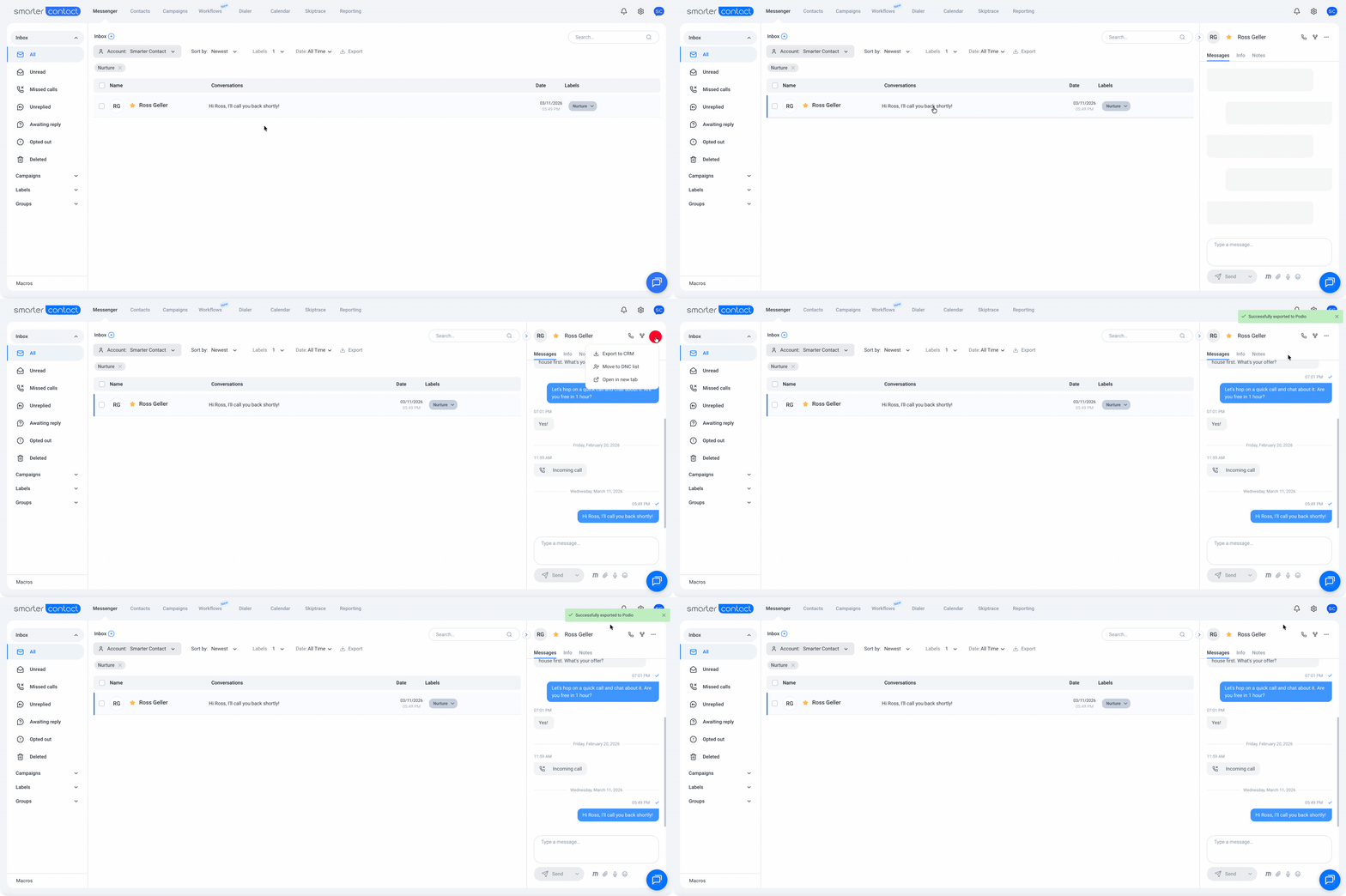
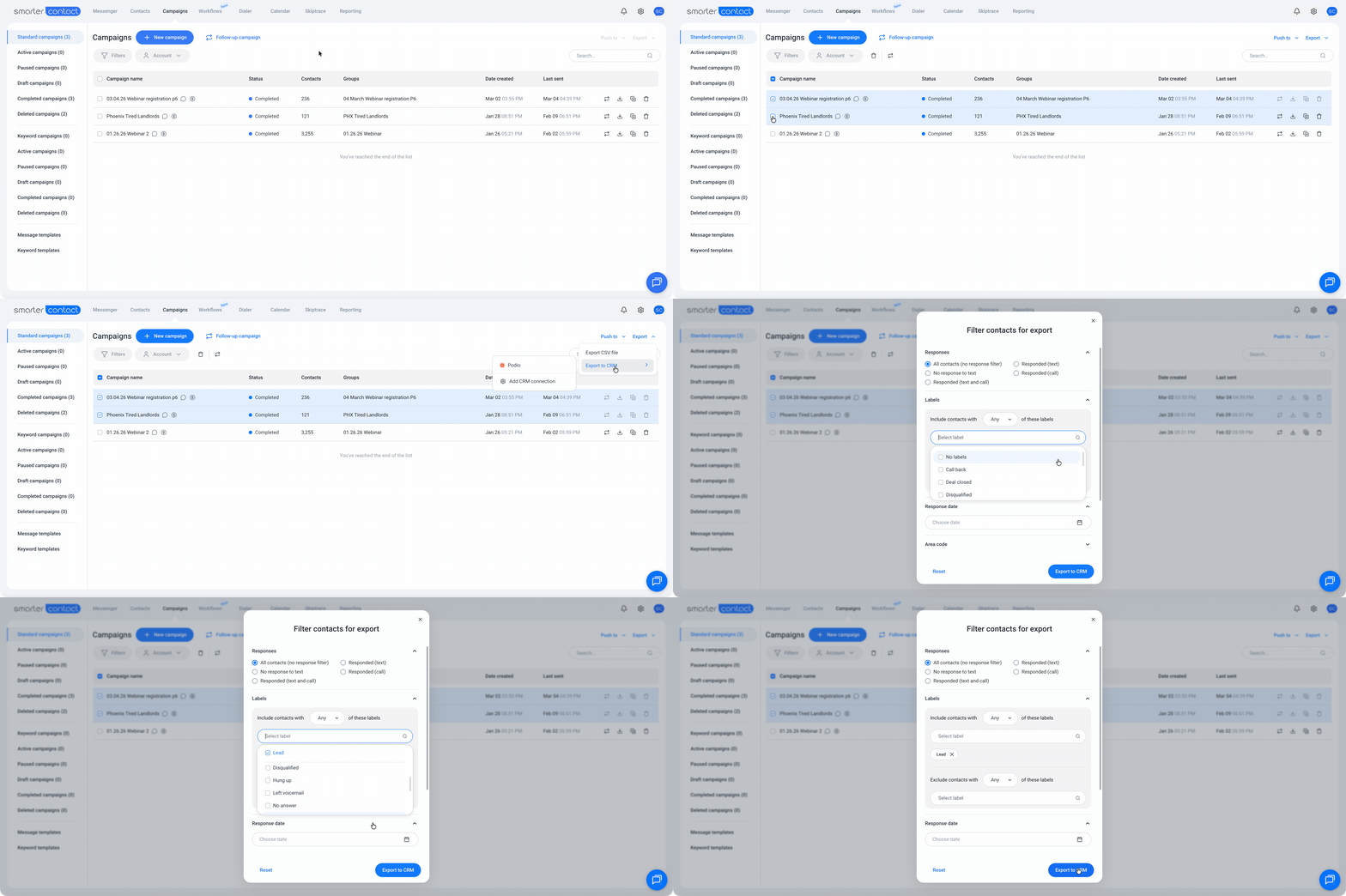
Open a conversation in the Messenger, click **Export to CRM**, and select DataSift. A confirmation toast will confirm the export was successful.
##### Exporting in bulk
Use the **Export to CRM** button in **Campaigns → Completed Campaigns** to export all conversations from a selected campaign. You can apply filters to narrow down exactly which contacts go over. During the export, the button changes to *"Exporting…"* and locks until the process finishes. Once complete, you'll see a summary: *"X out of Y successfully exported."*
#### What Gets Pushed to DataSift
| Field | What It Sends |
| --- | --- |
| **Phone Number** | Matched to the corresponding DataSift property record |
| **Property Status** | Mapped from your Smarter Contact label |
| **Phone Status** | Mapped from your Smarter Contact call label |
| **Phone Tag(s)** | All matching labels selected in Phone Tags settings |
| **Notes** | Full notes from the contact record, if the notes option is enabled |
⚠️ The integration updates existing records only — it cannot create new ones. DataSift is the source of truth for property records. If a contact doesn't already exist in DataSift, the export will fail.
#### Export Errors
If an export fails, here's what the error means and what to do:
| Error | Cause |
| --- | --- |
| *Property with same address not found in DataSift* | No matching property record exists in DataSift for this contact |
| *DataSift Property Status not found* | The mapped status doesn't exist on the DataSift side — check your status setup in DataSift |
| *Export to DataSift failed: \*\*\* fields cannot be blank* | One or more address fields on the contact record are empty |
| *Please try again or contact customer support* | An unexpected error occurred — reach out to support if it persists |
### Managing the Integration
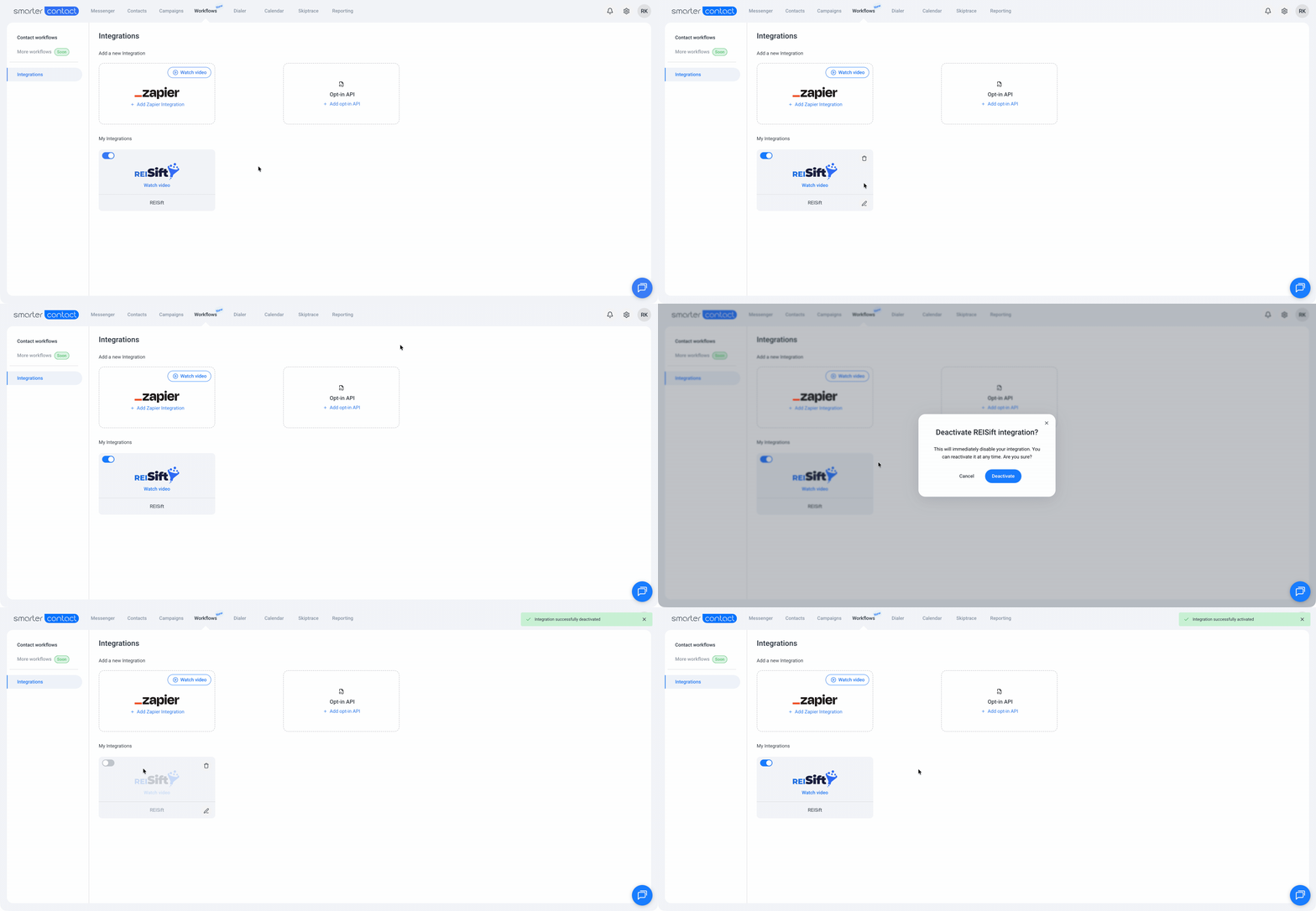
All management options are available from the **My Integrations** section.
##### Edit
Click **Edit** to reopen the configuration modal and update your API key, label mappings, phone status mappings, phone tags, or notes settings at any time.
##### Deactivate / Reactivate
Click **Deactivate** to pause the integration. Your configuration is preserved and you can reactivate at any time — no need to go through setup again.
##### Delete
Click **Delete** to permanently remove the integration and all its configuration. The DataSift export option will disappear from the Messenger, and DataSift will reappear under *Add a New Integration.* You'll need to go through the full setup again if you want to reconnect.
ℹ️ Only **one DataSift integration** can be active in Smarter Contact at a time. If you're also running Zapier, that's fine — both can stay on simultaneously.
### What's Next?
Once your contacts are verified and your labels are mapped, you're ready to launch. Head to **Campaigns** to build your first sequence and start working your DataSift pipeline directly from Smarter Contact.
[Explore Drip Campaigns →](https://support.smartercontact.com/drip-campaigns-overview?hsLang=en)
With 💙,
Smarter Contact Team
- [Contact Us](https://smartercontact.com/contact-us/)
[](http://smartercontact.com)
###### ###### [Product](https://smartercontact.com/pricing/)
[Messaging Plans](https://smartercontact.com/messaging-plan/)
[Calling Plans](https://smartercontact.com/calling-plan/)
[Mobile App](https://smartercontact.com/mobile/)
[What’s New](https://smartercontact.com/whats-new/)
[Pricing](https://smartercontact.com/pricing/)
###### Company
[Privacy Policy](https://smartercontact.com/privacy-policy/)
[Terms & Conditions](https://smartercontact.com/terms-and-conditions/)
[mailto:support@smartercontact.com](mailto:support@smartercontact.com)
Copyright © 2026, Smarter Contact
#### Product
- [Messaging Plans](https://smartercontact.com/messaging-plan/)
- [Calling Plans](https://smartercontact.com/calling-plan/)
- [Mobile App](https://smartercontact.com/mobile/)
- [What’s New](https://smartercontact.com/whats-new/)
- [Pricing](https://smartercontact.com/pricing/)
#### Company
- [Privacy Policy](https://smartercontact.com/privacy-policy/)
- [Terms & Conditions](https://smartercontact.com/terms-and-conditions/)
#### Solutions
- [Investors](https://smartercontact.com/real-estate-investors/)
- [Agents](https://smartercontact.com/real-estate-agents/)
- [Brokers](https://smartercontact.com/real-estate-brokers/)
- [Wholesalers](https://smartercontact.com/real-estate-wholesalers/)
- [Land Flippers](https://smartercontact.com/real-estate-land-flippers/)
- [Fix and Flippers](https://smartercontact.com/real-estate-fix-and-flippers/)
- [Land Developers](https://smartercontact.com/real-estate-land-developers/)
- [Property Developers](https://smartercontact.com/real-estate-property-developers/)
#### Comparison
- [Launch Control vs Smarter Contact](https://smartercontact.com/launch-control-vs-smarter-contact/)
- [Batch Leads vs Smarter Contact](https://smartercontact.com/batch-leads-vs-smarter-contact/)
- [Lead Sherpa vs Smarter Contact](https://smartercontact.com/lead-sherpa-vs-smarter-contact/)
- [ReplySmart vs Smarter Contact](https://smartercontact.com/replysmart-vs-smarter-contact/)
- [ZeitBlast vs Smarter Contact](https://smartercontact.com/zeitblast-vs-smarter-contact/)
- [Sendivo vs Smarter Contact](https://smartercontact.com/sendivo-vs-smarter-contact/)
- [HighLevel vs Smarter Contact](https://smartercontact.com/highlevel-vs-smarter-contact/)
- [XLeads vs Smarter Contact](https://smartercontact.com/xleads-vs-smarter-contact/)
- [ReadyMode vs Smarter Contact](https://smartercontact.com/readymode-vs-smarter-contact/)
- [BatchDialer vs Smarter Contact](https://smartercontact.com/batchdialer-vs-smarter-contact/)
- [PhoneBurner vs Smarter Contact](https://smartercontact.com/phoneburner-vs-smarter-contact/)
- [Roor vs Smarter Contact](https://smartercontact.com/roor-vs-smarter-contact/)
#### Resources
- [Tutorials](https://smartercontact.com/tutorials/)
- [Help Center](https://support.smartercontact.com/?hsLang=en)
- [Careers](https://smartercontact.hurma.work/public-vacancies)
[](https://smartercontact.com)
[](https://apps.apple.com/us/app/smarter-contact/id1637673379) [](https://play.google.com/store/apps/details?id=com.smartercontactapp&pli=1)
© 2026 Copyright Smarter Contact.
All Rights Reserved.
```json
{
"@context" : "https://schema.org",
"@type" : "VideoObject",
"caption" : {
"@type" : "MediaObject",
"contentUrl" : "https://support.smartercontact.com/media-transcripts/213648710190/en.vtt",
"inLanguage" : "en",
"name" : "en Captions"
},
"contentUrl" : "https://21860142.fs1.hubspotusercontent-na1.net/hubfs/21860142/video_assets/213648710190/inherited/web_optimized.mp4",
"dateModified" : "2026-05-26T18:01:47.492Z",
"duration" : "PT3M5S",
"height" : 1080,
"name" : "REISift Integration",
"thumbnailUrl" : "https://support.smartercontact.com/hubfs/REISift%20Integration.mp4/medium.jpg",
"uploadDate" : "2026-05-26T18:01:11.536Z",
"width" : 1920
}
```