

The Do Not Call (DNC) list is one of the most important compliance tools in Smarter Contact. Whenever a lead asks to stop hearing from you — or you flag a number you never want to contact again — adding them to the DNC list ensures they're permanently excluded from every future campaign across your account.
Using this feature consistently keeps you aligned with TCPA and 10DLC requirements, protects your sender reputation, and respects your leads' wishes. This guide covers every way to add contacts to DNC, plus how to bring them back if a mistake was made.
Adding Contacts to DNC
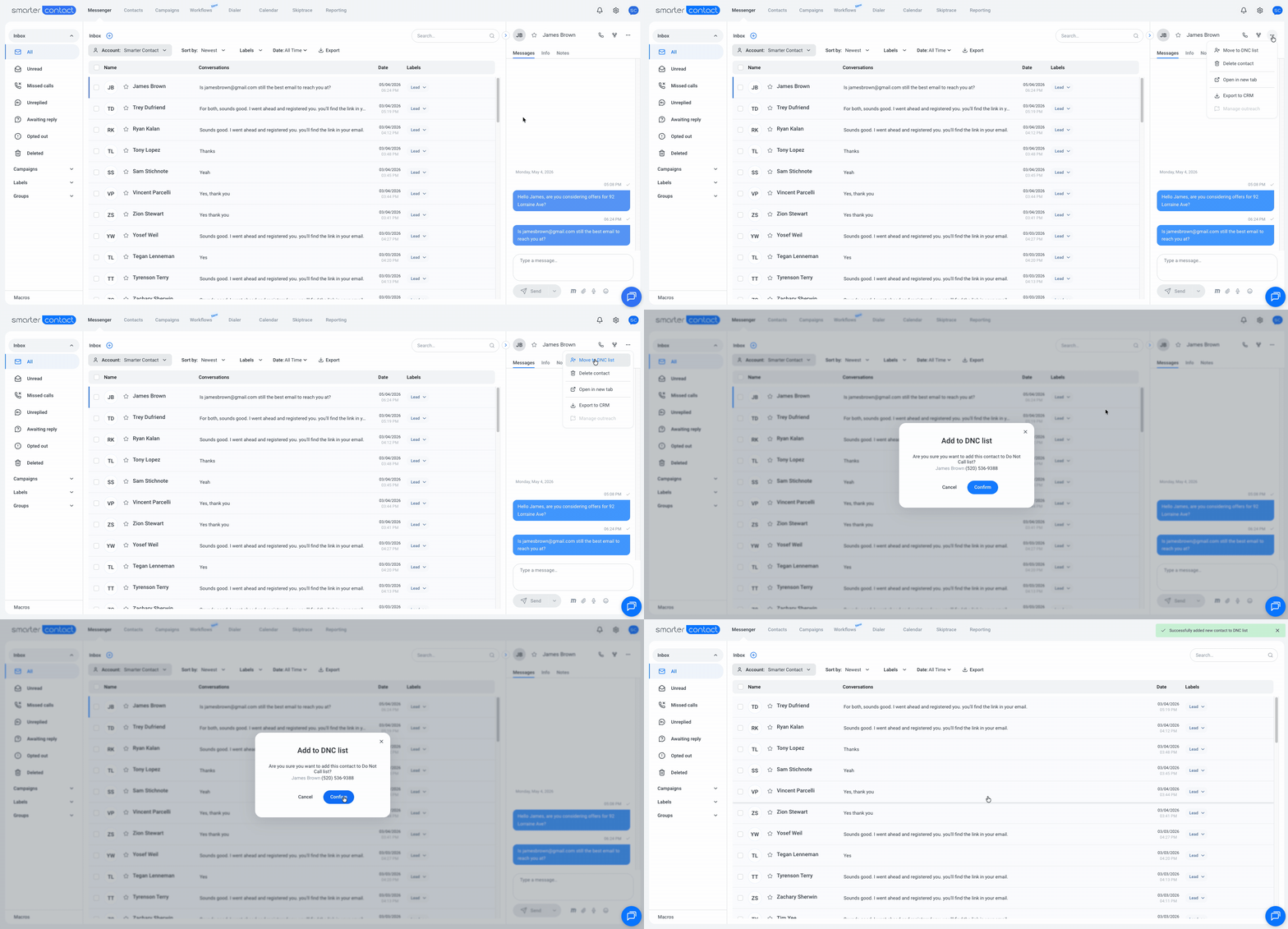
DNC a Contact Mid-Conversation
This is the most common DNC scenario you'll run into. A lead replies, asks to be left alone, and you need to honor that request immediately — both to stay compliant and to keep your inbox focused on the conversations that still matter.
-
Open the Action Menu: Inside the conversation, tap the three horizontal dots in the top-right corner.
- Select "Move to DNC List": The contact is suppressed instantly and removed from any active or future campaign in your account.
One action covers your legal obligation and clears the lead from your active campaigns, or any scheduled messages in a single step.
DNC a Number That Isn't in Your Database
Sometimes you'll want to block a number you haven't messaged yet — maybe a former client you don't want to re-engage, a referral source you'd like to protect, or a contact flagged by another platform. The DNC list lets you preemptively suppress these numbers before they can ever land in a campaign.
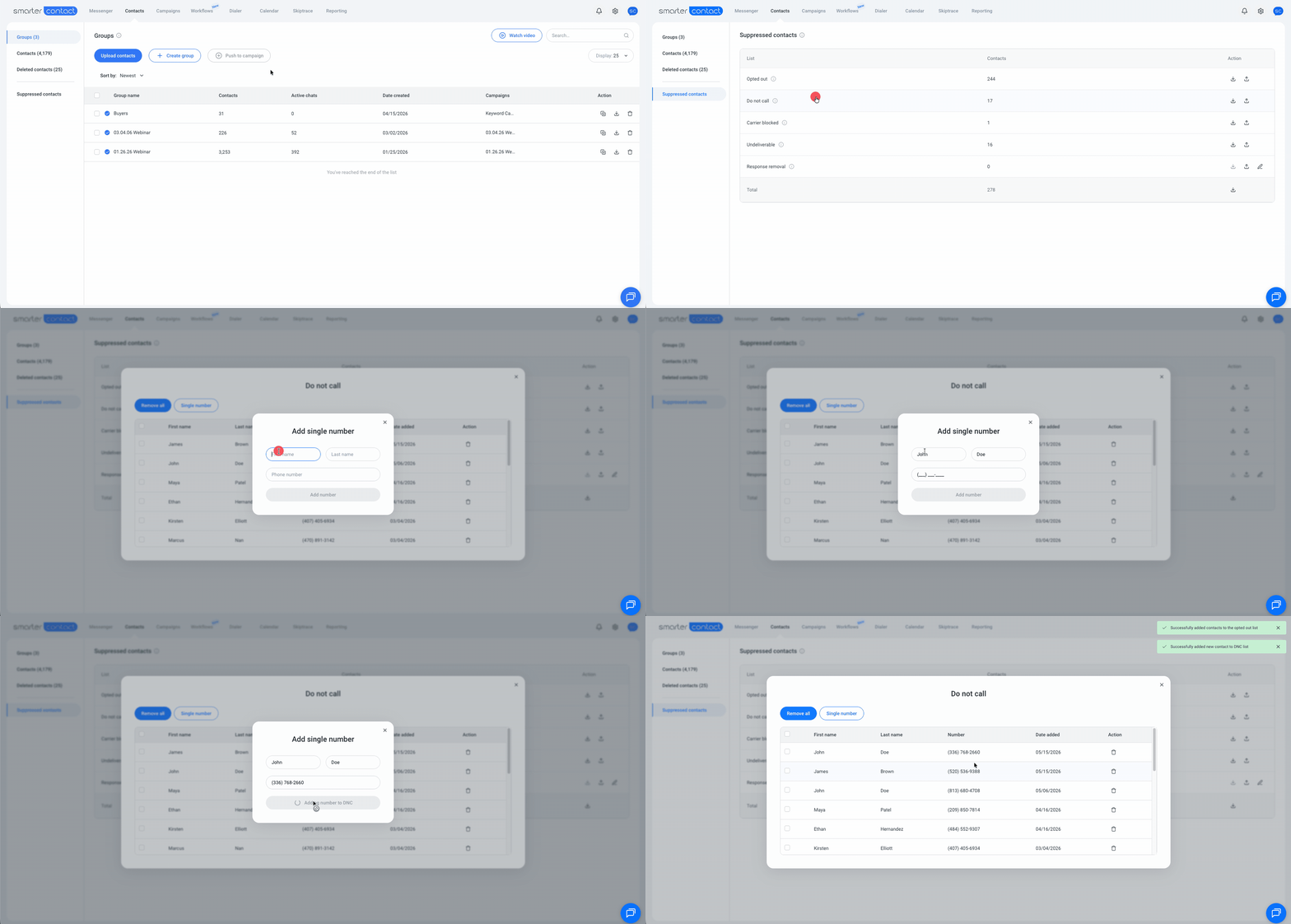
- Head to the Contacts tab and open Suppressed Contacts from the left sidebar.
- Click Do Not Call, then select Single Number.
- Enter the number you want to block and save.
A simple safeguard against accidentally pulling a sensitive number into a future blast.
Adding Multiple Contacts to DNC at Once
When the situation calls for suppressing more than a handful of contacts — after a campaign generates a wave of opt-outs, or when you're migrating a DNC list from another platform — there are two efficient ways to handle it in bulk.
Option 1: Export Labeled Contacts Straight to DNC
If you've been tagging conversations with a "DNC" label throughout the day (a habit worth building), you can suppress them all in one move without leaving the Messenger.
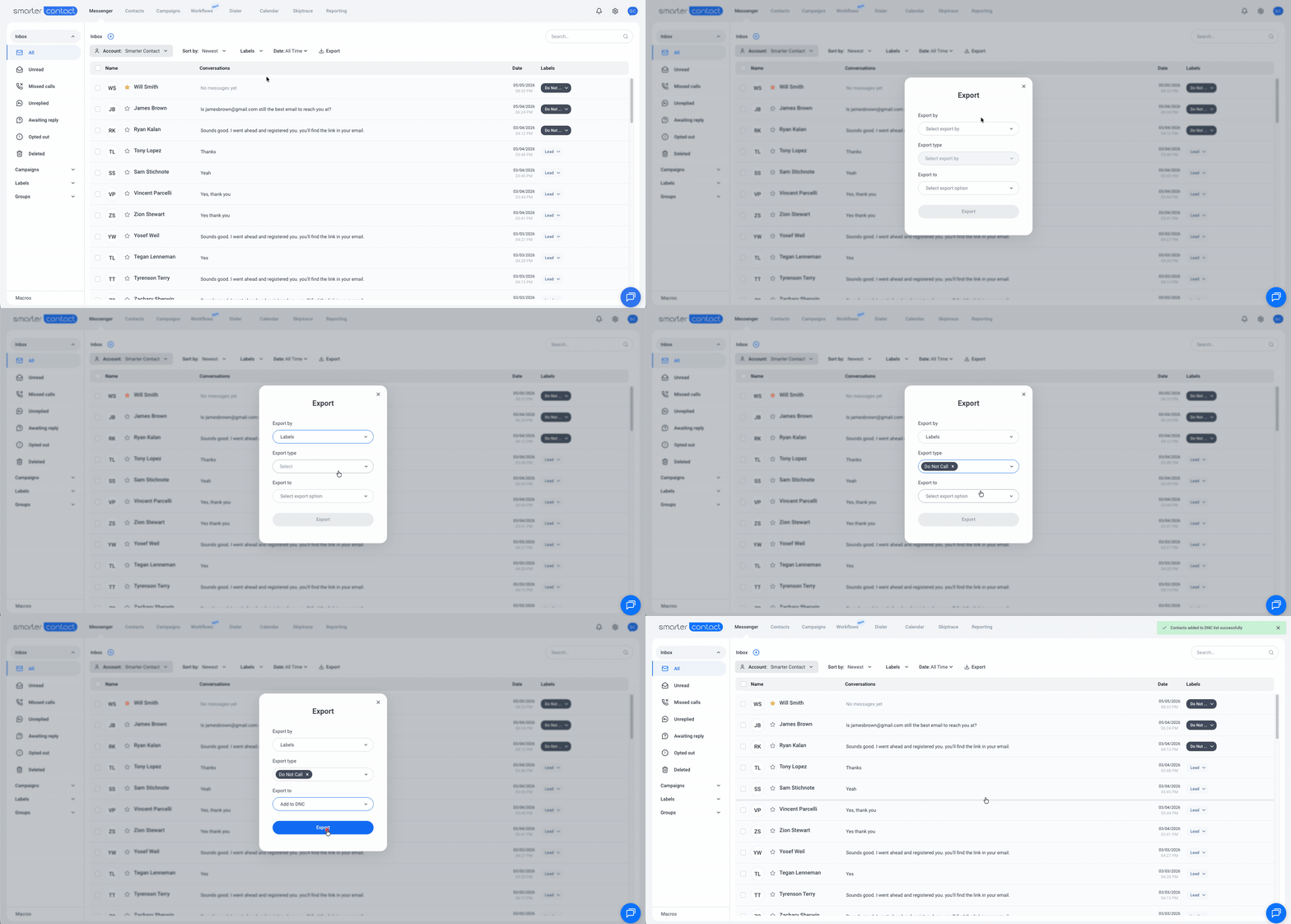
- From the Messenger tab, click Export.
- Choose Export by Labels and pick the label(s) you want to suppress.
- Export the selection directly to DNC.
The cleanest way to push a day's worth of opt-outs onto the master list in one go.
Option 2: Upload a List from Your Computer
If your DNC list lives outside Smarter Contact — or you want to suppress a group of contacts that aren't currently labeled — you can import them as a file instead.
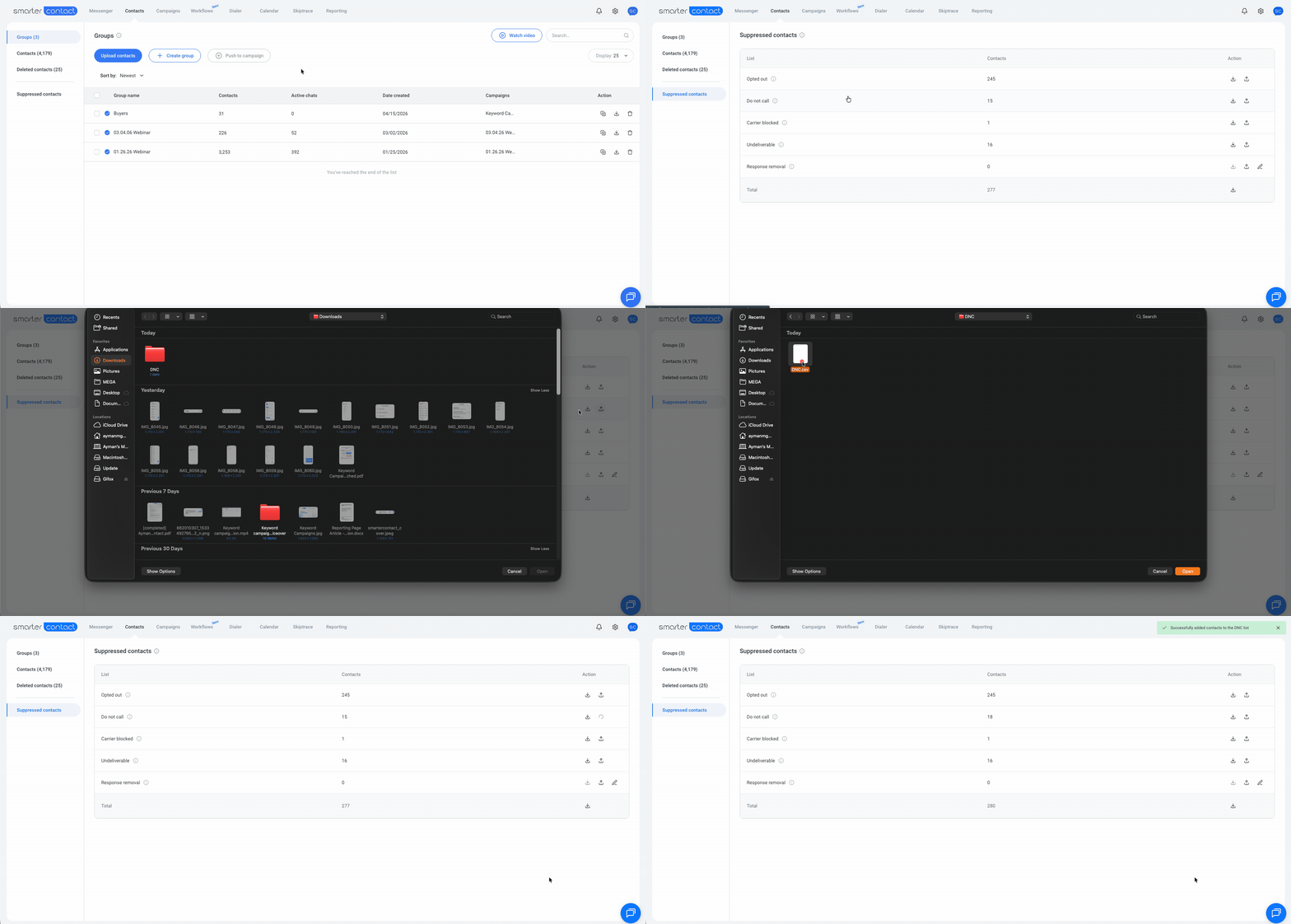
- Download your labeled contacts (or any list) to your computer as a CSV.
- Go to Contacts → Suppressed Contacts.
- Next to Do Not Call, click the upload icon (the upward-pointing arrow).
- Import your file.
- Every number in that file will be permanently excluded from future campaigns.
Recovering Contacts from the DNC List
Mistakes happen. A wrong label, a misclick, a bulk action that swept up more than intended. The good news: nothing on the DNC list is permanent, and any contact can be brought back into your active database in just a few clicks.
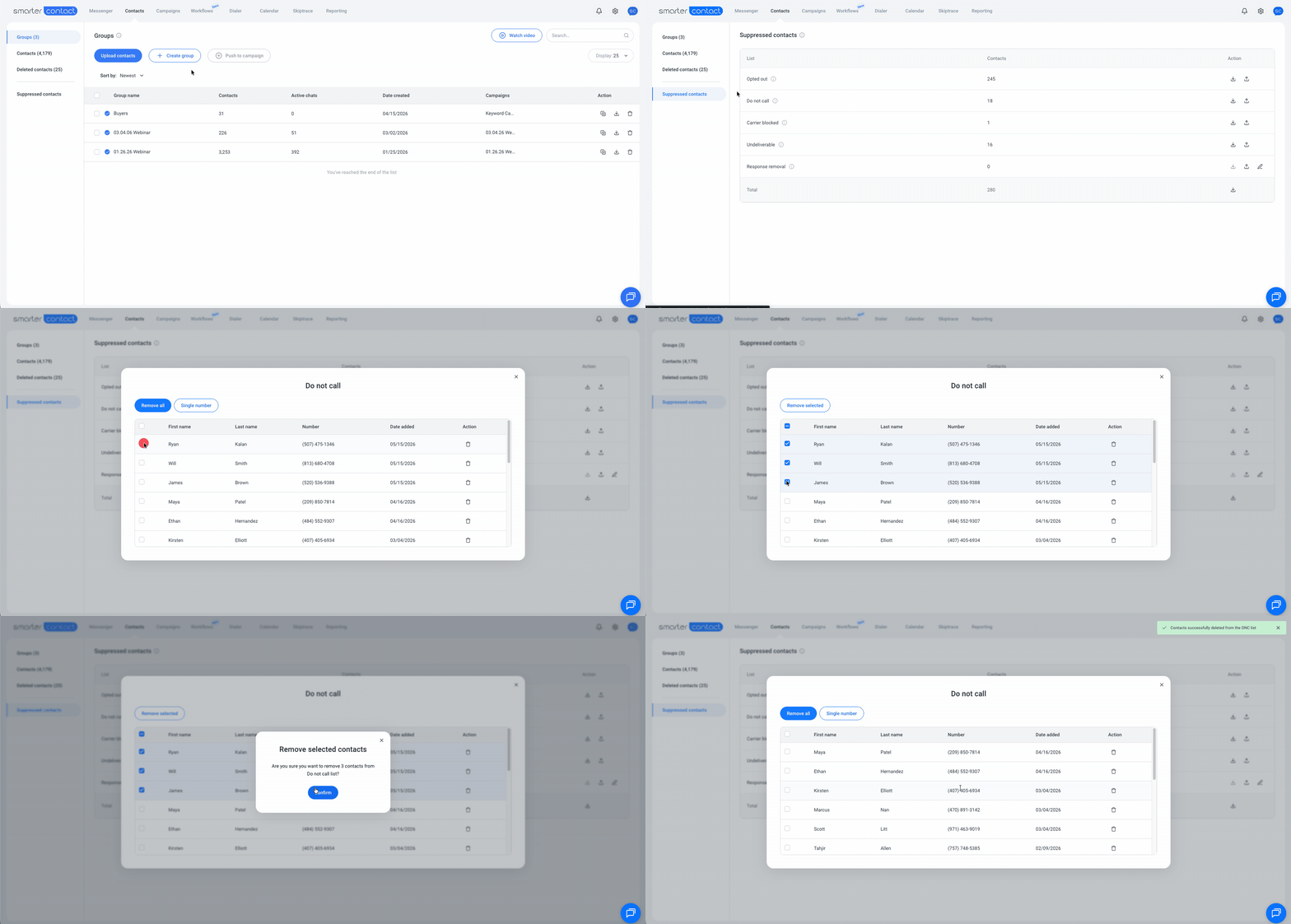
- Open the Contacts tab and click Suppressed Contacts in the left sidebar.
- Select Do Not Call to see every contact currently suppressed.
- Pick the contacts you want to restore — individually or in bulk — and recover them.
Once a contact is removed from the DNC list, they reappear in your inbox and can be included in campaigns again as normal.
The DNC list is more than a compliance checkbox — it's one of the most powerful protective tools in your account. Using it consistently keeps your reputation strong, your deliverability high, and your messaging focused on the people who actually want to hear from you.