

A Drip Campaign is a sequence of scheduled messages sent automatically to your contact lists. It provides consistent outreach and persistent follow-up until a contact responds. Because SMS boasts significantly higher response rates than email, Drip Campaigns are one of the most effective ways to scale your pipeline development.
How Drip Campaigns Work
-
Automated Persistence: The system follows up on your behalf at intervals you define.
-
Smart Stops: Once a contact replies, the sequence automatically stops for them, allowing you to take over the conversation personally.
-
Capacity: You can set up to nine messages per campaign with a minimum interval of one day between sends.
-
Availability: Drip campaigns are available on Pro and Elite plans.
Creating Your First Drip Campaign
Drip campaigns are built within the Campaigns page. Any "Standard" campaign becomes a drip campaign the moment you add more than one message.
1. Initial Setup
-
Go to Campaigns and click New Campaign → Standard Campaign.
-
Enter a name for your campaign and select your Contact Group.
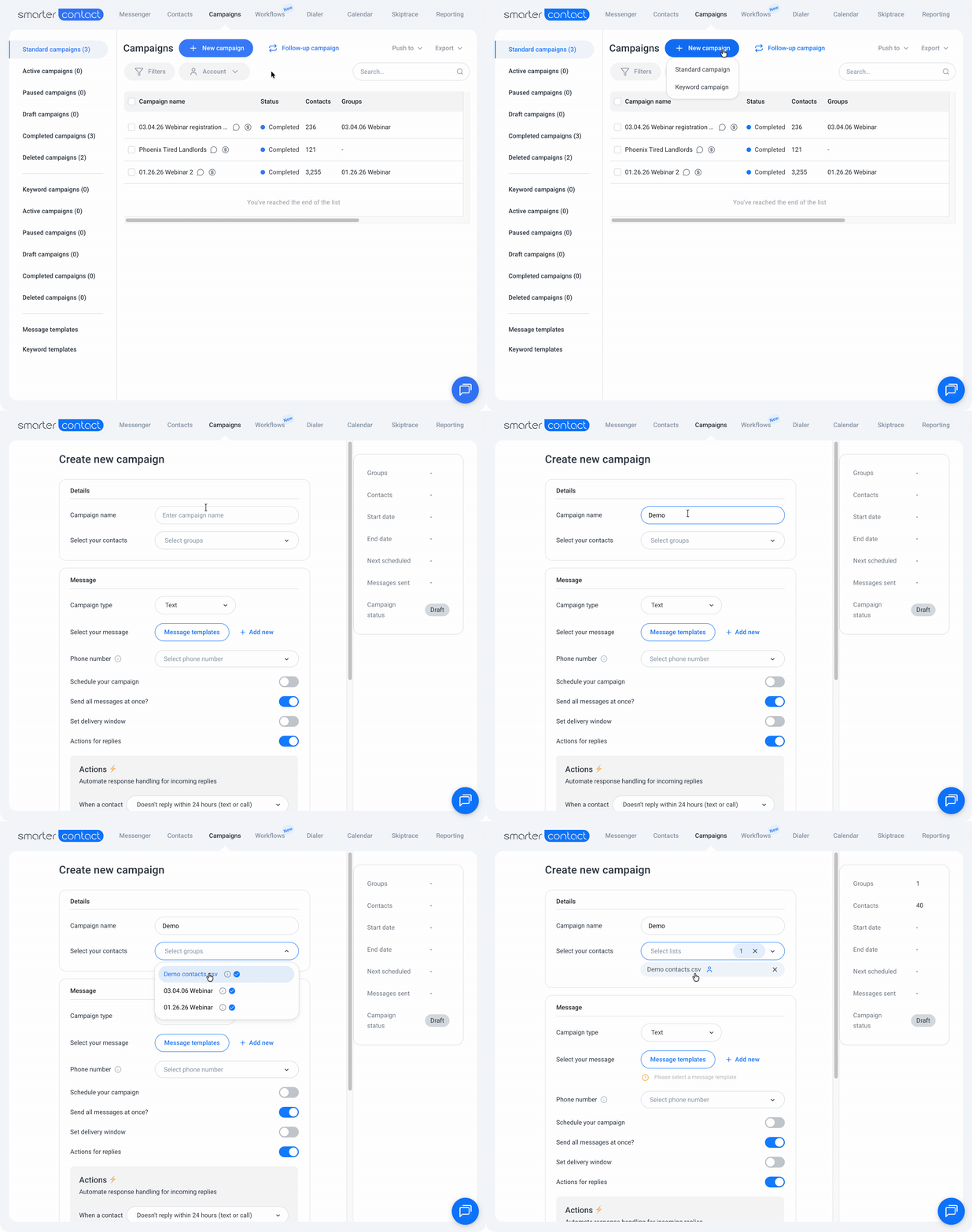
You can select up to 10 groups per campaign. If a contact appears in multiple groups, the system automatically identifies the duplicate and treats it as a single entry.
2. Configure Message #1
-
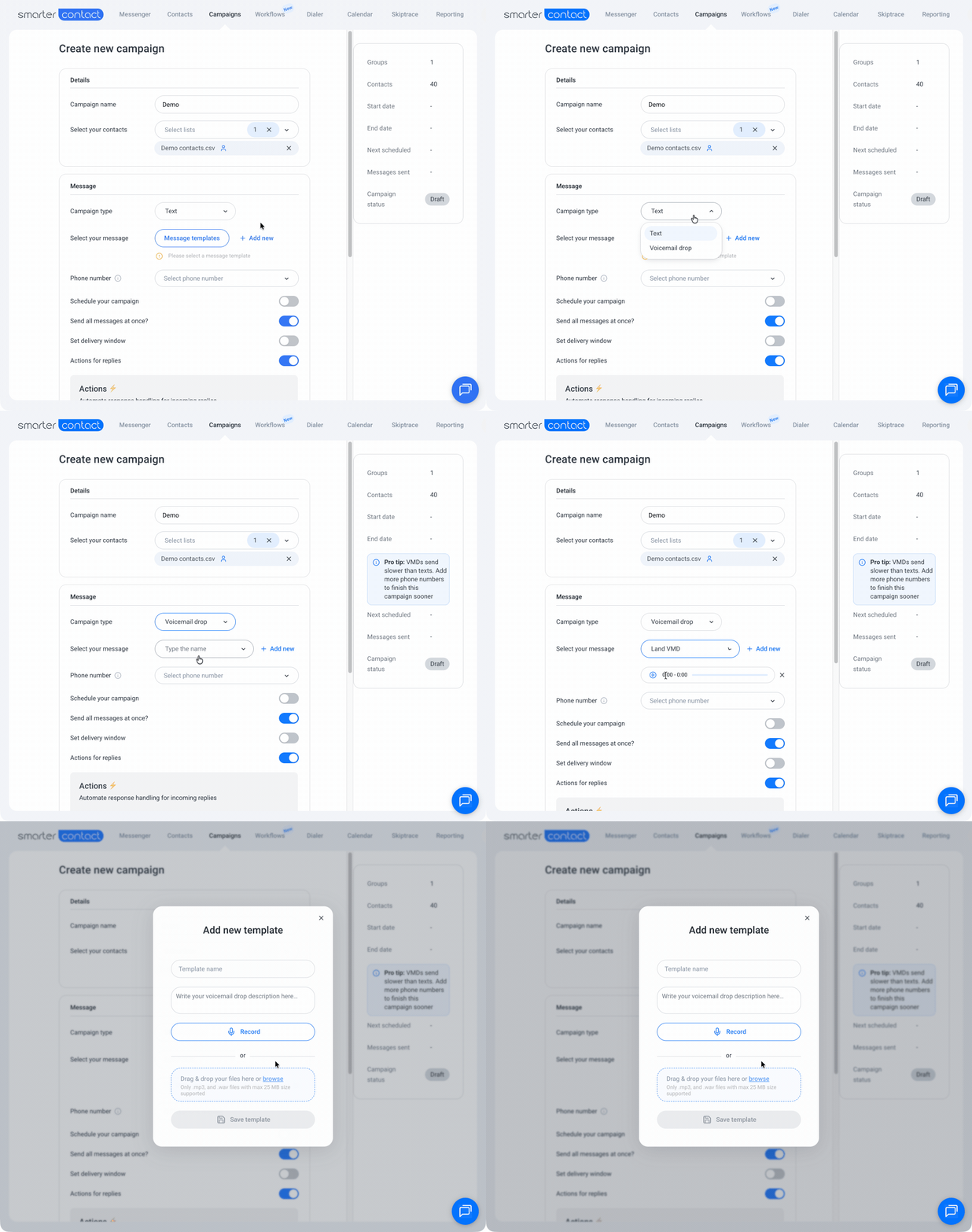
Message Type: Choose Text for SMS or Voicemail Drop for a pre-recorded message.
-
Using Templates: Click Message Templates to choose a saved one, or + Add New to create one.
-
Drip Logic: For your first message, select Text (Initial). For all subsequent messages, use Text (Follow-up).
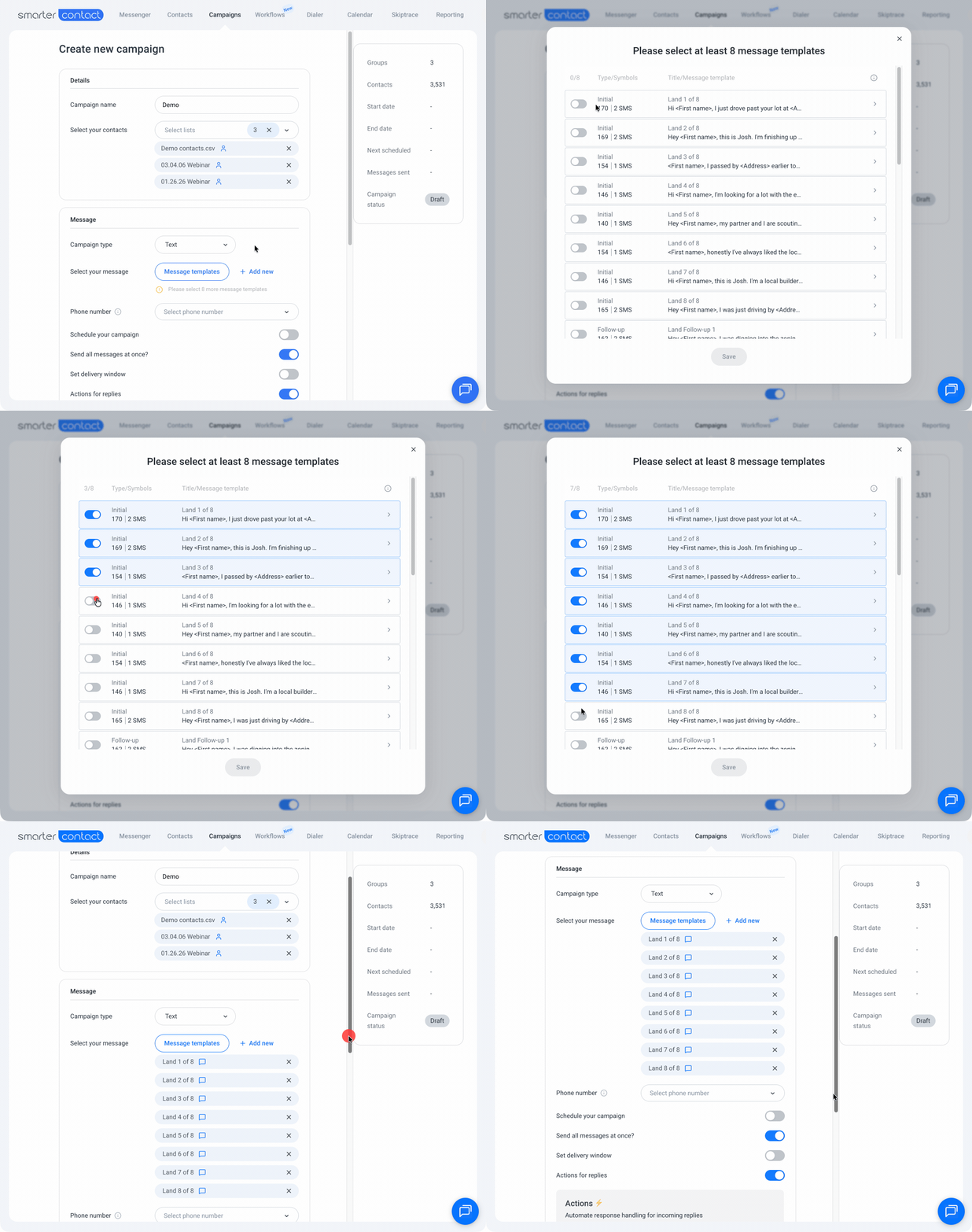
The system automatically calculates the minimum number of templates required based on your total contact volume. This requirement caps at eight templates, therefore, we recommend always creating at least eight unique variations for your initial message to ensure optimal deliverability and carrier compliance.
To protect your sending reputation, aim for at least one unique template per 1,000 contacts. If you’re stuck on the writing, let our AI Template Assistant do the heavy lifting. It generates high-quality scripts while simultaneously checking for delivery risks to ensure your messages hit the inbox.
3. Adding Voicemail Drops
Voicemail drops act as a bridge between SMS and live calls. They provide a personal touch without interrupting the lead's day.
-
Best Use: Retargeting leads who didn't reply to your initial text. This creates a "warm call" effect, significantly increasing future callback rates.
-
Setup: Record audio directly in the app or upload a file (.mp3 or .wav, max 25MB).
Voicemail drops typically have longer delivery times than SMS. To optimize campaign performance, we recommend placing voicemails as the final step in your sequence. To increase your overall delivery speed, consider adding more phone numbers to your campaign pool to improve throughput.
4. Campaign Settings
-
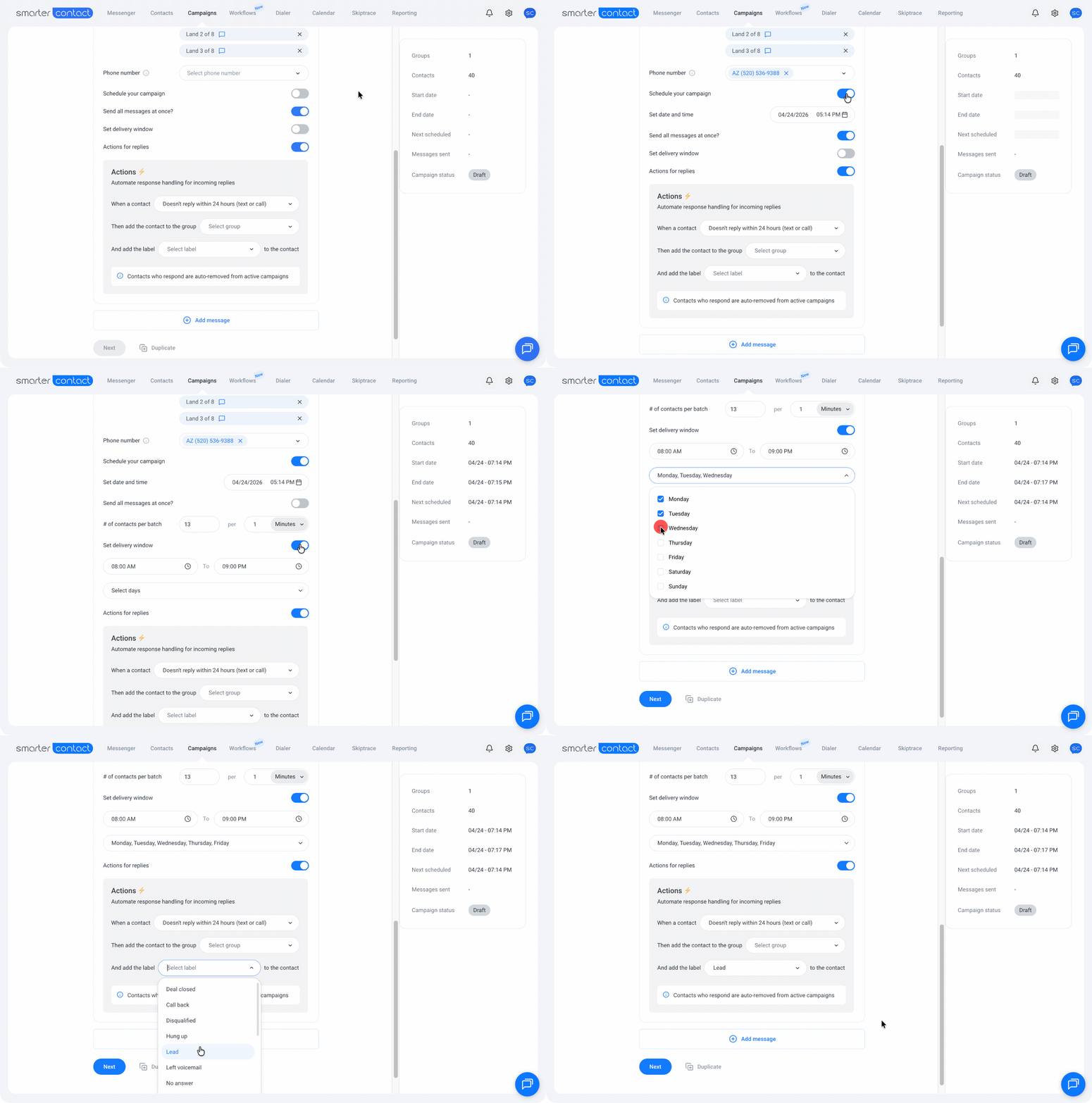
Phone Numbers: Select the numbers you want the system to rotate through.
For campaigns with fewer than 2,500 records, a minimum of one phone number is required. For lists of 2,500 records or more, you must have at least three lines to launch. As a general rule of thumb, we recommend adding one phone number for every 1,000 contacts to ensure the best deliverability results.
-
Schedule: Toggle this ON to start the campaign at a specific date and time.
-
Sending Speed: When enabled, your campaign will run at the maximum throughput permitted by your account. Toggle 'Send all messages at once' OFF if you prefer to throttle the delivery speed or customize your outreach schedule by specific hours and days.
-
Delivery Window: Define the permitted days and hours for your message delivery. If your sequence includes multiple messages, use this tool to precisely control the delivery windows for your follow-ups.
-
Actions for Replies: Streamline your lead management by automatically assigning Labels or moving contacts to a specific Group the moment they respond. You can also trigger these actions for contacts who don't reply within 24 hours of delivery.
5. Adding the "Drip" (Messages 2–9)
-
Waiting Time: Set the interval for your follow-up. The minimum delay is 1 day, but you can schedule intervals for up to 1 year for long-term automation sequences.
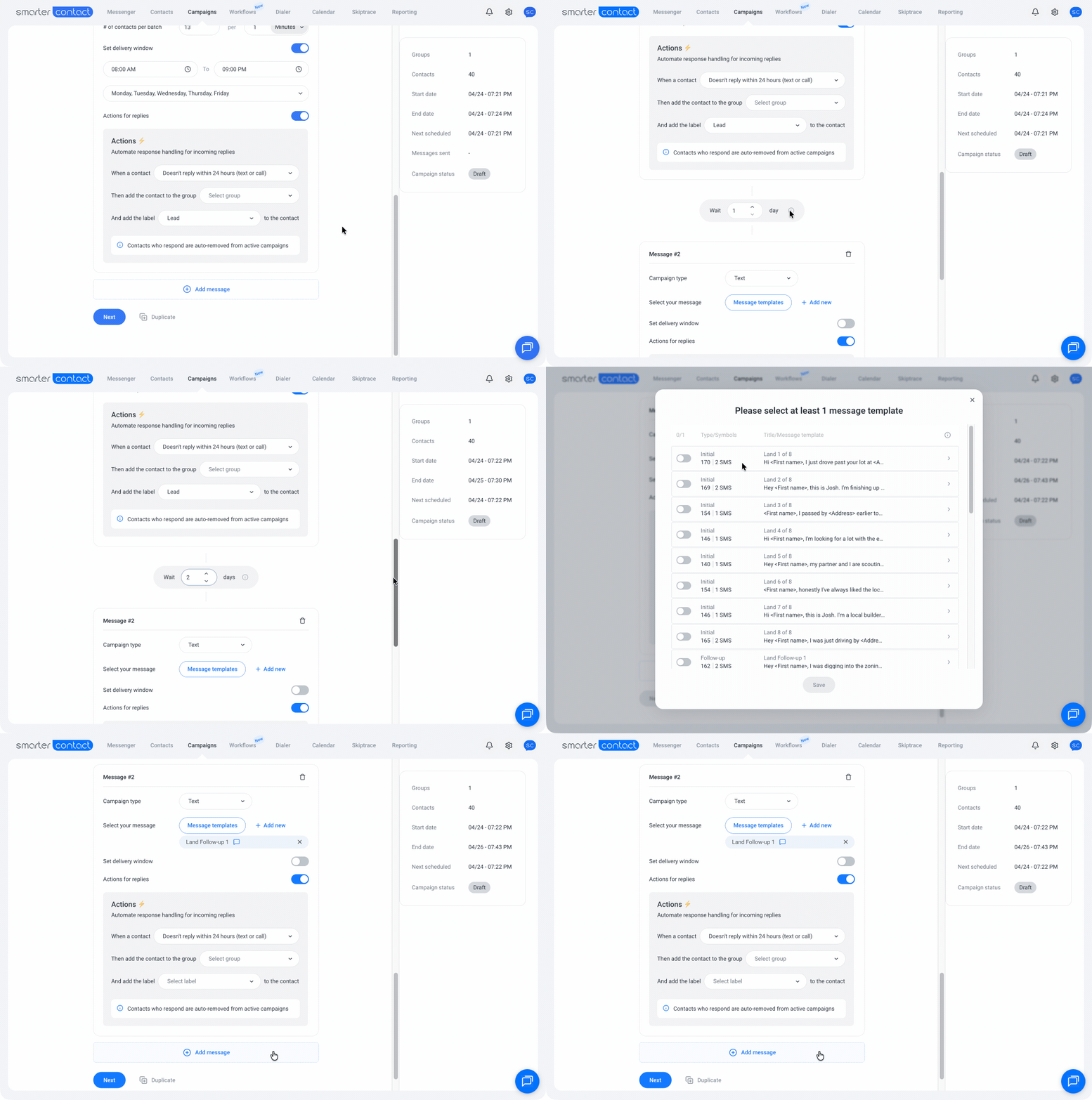
The system is designed to intelligently adjust 24-hour message gaps by approximately 30 minutes. This ensures your outreach doesn't appear robotic to recipients while maintaining the highest possible delivery rates.
- Mix & Match: You can alternate between SMS and Voicemail drops to keep your outreach varied and natural.
-
Templates: While only one template is required for each follow-up, we recommend adding multiple variations to diversify your outreach and improve engagement.
6. Clickthrough & Compliance
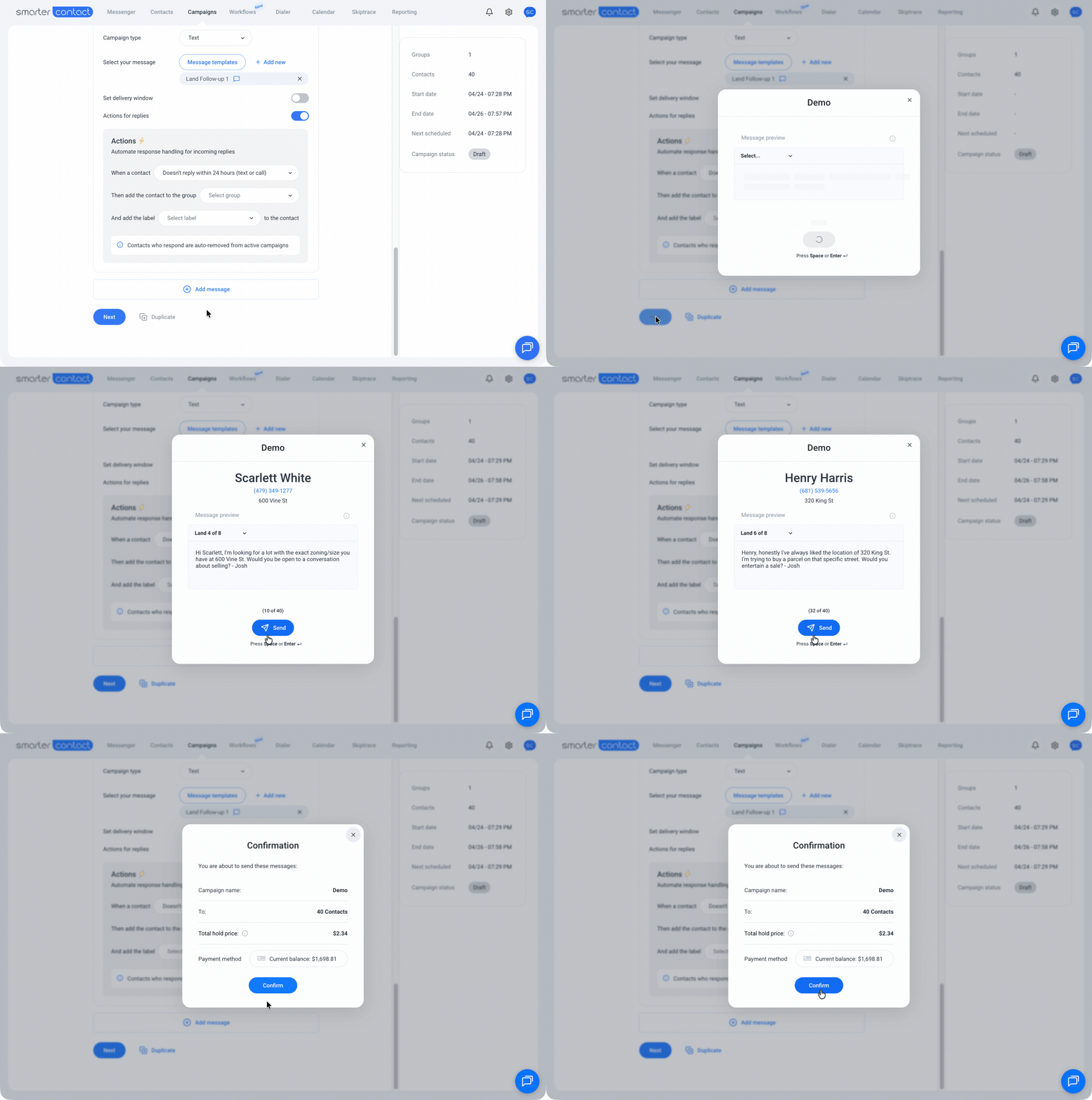
After clicking Next, a message preview will appear for each contact. You must review the preview and click Send (or press Space/Enter).
This is a vital TCPA compliance feature. By requiring a human interaction to initiate the messages, the system ensures your outreach remains compliant while still being incredibly fast. The campaign only becomes Active once you have confirmed the previews.
Once you have reviewed the previews, the system will display the total cost for the campaign. If you are on a Committed Usage plan, the messages will be deducted from your plan balance. Simply confirm the launch to activate your outreach.