

Keyword Templates are the building blocks of your Keyword Campaigns. Each template pairs a trigger word with a response message — so when a contact's incoming message contains the keyword, the system automatically sends the reply.
The Keyword Templates Page
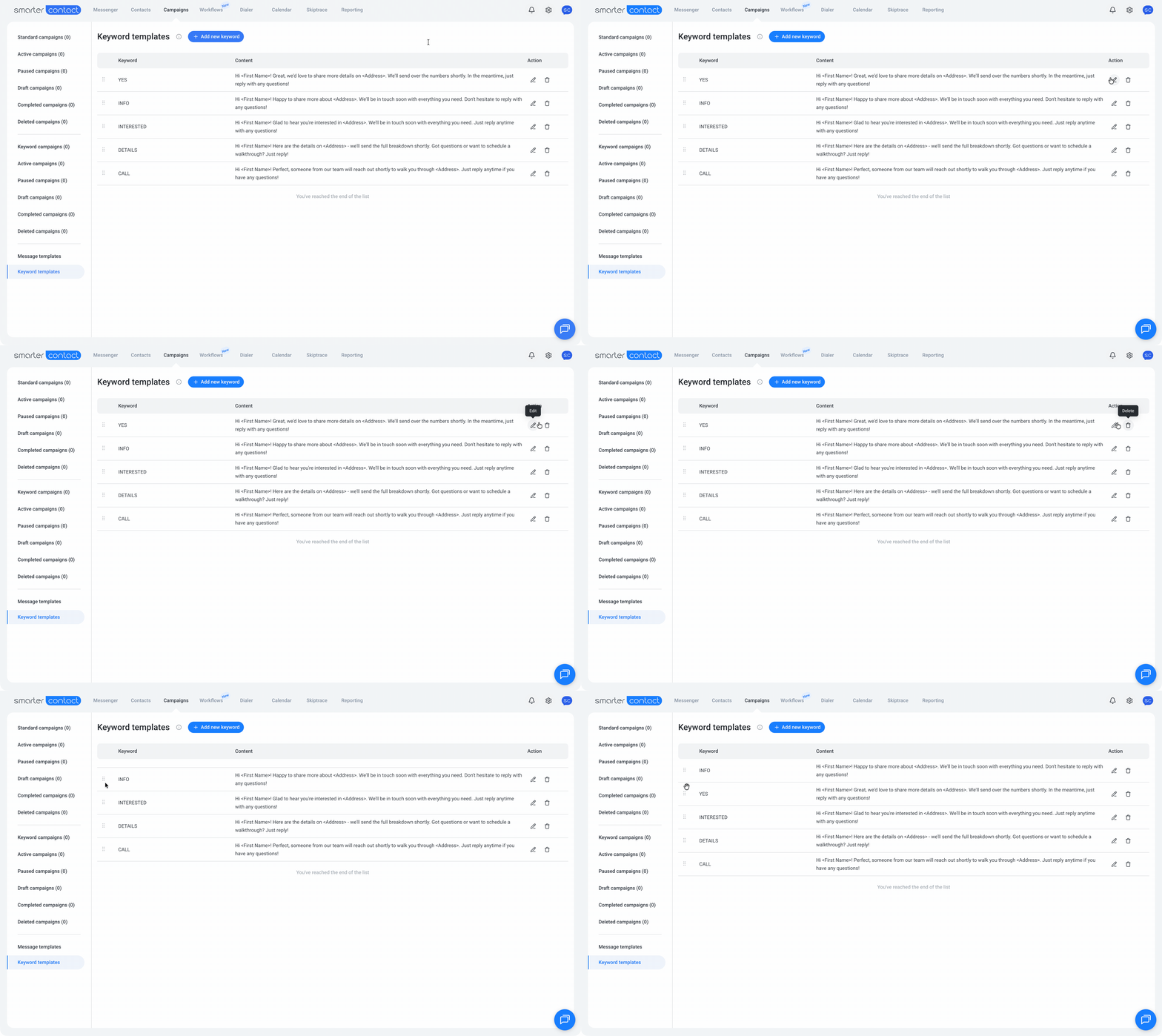
Every template you've created lives here. The list displays two columns:
|
Keyword |
The trigger word to match in incoming messages. |
|
Content |
The auto-reply is sent when the keyword is detected. |
From the list, you can:
- Edit — click the edit icon to update a template. Changes apply immediately to new messages, but not to message bodies for campaigns already in Active, Paused, or Ended status.
- Delete — click the remove icon. On confirm: "Template deleted successfully."
- Drag to reorder — keep your most-used templates at the top.
ⓘ Note: If you delete a template tied to an active campaign, any unsent SMS costs are automatically refunded to your balance.
Creating a Keyword Template
- Click Add New Template.
- Enter a Keyword.
- Write your Message.
- Click Save.
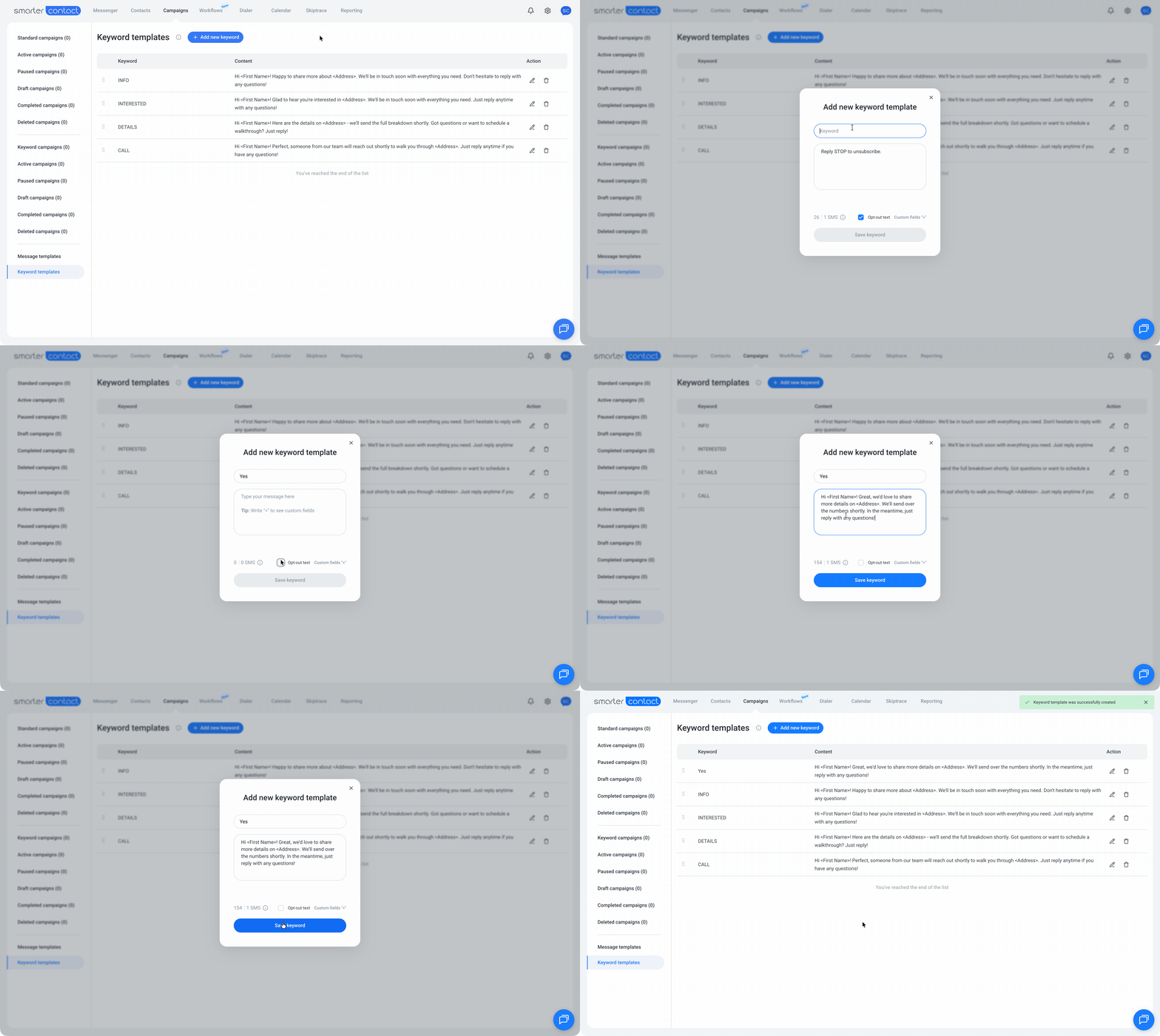
Field rules:
|
Keyword |
Max 35 characters. Alphanumeric only. |
|
Message |
Max 160 characters. Supports merge fields via <> to pull contact data dynamically. |
💡 Pro tip: Keep keywords short and clear — something your leads are likely to actually type. "Info," "yes," or "stop" land better than long phrases.
Validation Rules
The system blocks templates that don't pass these checks:
- Keyword over 35 characters → blocked.
- Non-alphanumeric keyword → error: "Alphanumeric characters only."
- Reply message over 160 characters → error: "Reply Message can have a maximum of 160 characters."
- Bad words detected → error: "Please remove [word] from your message template."
- Malicious words → account is locked, and a Slack notification is triggered.
Keyword Uniqueness
Each keyword can be used by only one active keyword campaign per account at a time.
This is enforced in two places:
- At template selection — an inline warning appears (non-blocking): "This keyword template is used by another campaign."
- At campaign launch — an error toast appears and blocks launch.
💡 Pro tip: Running multiple keyword campaigns? Give each one its own unique keyword.
What's Next?
With your templates ready, the next step is launching your first Keyword Campaign. Head to the Campaigns tab to put them to work.
If you run into any issues, our support team can be reached at support@smartercontact.com.