

Macros, also known as Quick Replies, are saved message snippets for one-on-one conversations inside the Messenger. Insert any Macro with a single click—no retyping required.
They work best for high-frequency responses, allowing you to lower your response time and keep leads engaged. Common use cases include:
-
Qualifying questions — e.g., "How long have you owned the property?"
-
Follow-up prompts — e.g., "Just circling back to see if you received my last message."
-
Scheduling meetings — e.g., "Here's my calendar link to book a quick 10-minute discovery call."
How to Set Up Macros
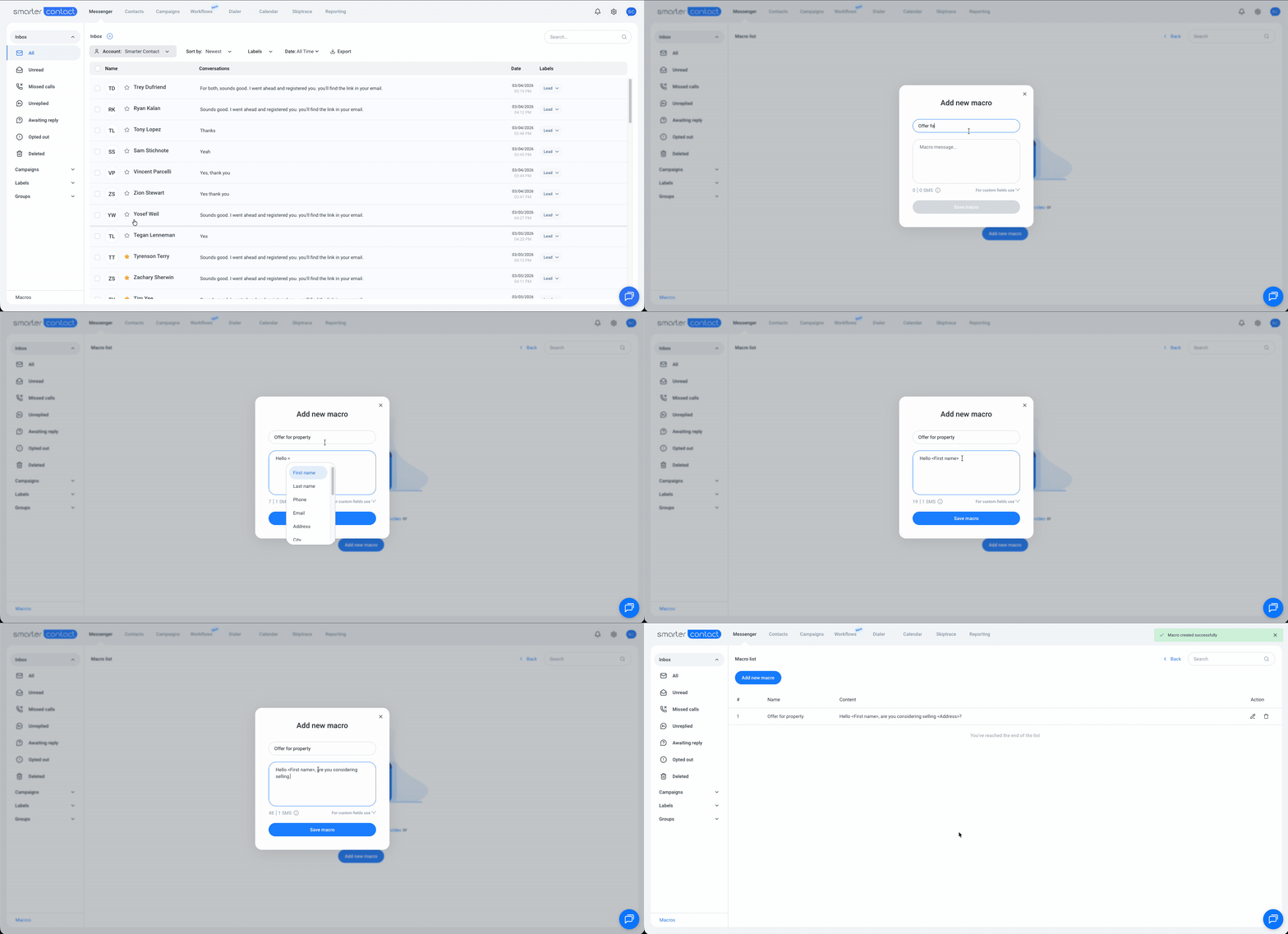
- Go to the Messenger tab.
- In the bottom-left corner, click Macros.
- From the Macros page, you can Add, Edit, or Delete snippets.
| Macro Name | 25-character limit |
| Message Body | 320-character maximum |
| Personalization | Type < to insert dynamic fields (e.g., <First Name>) |
| Sync | Changes apply after a page refresh |
How to Use Macros
On the Web App:
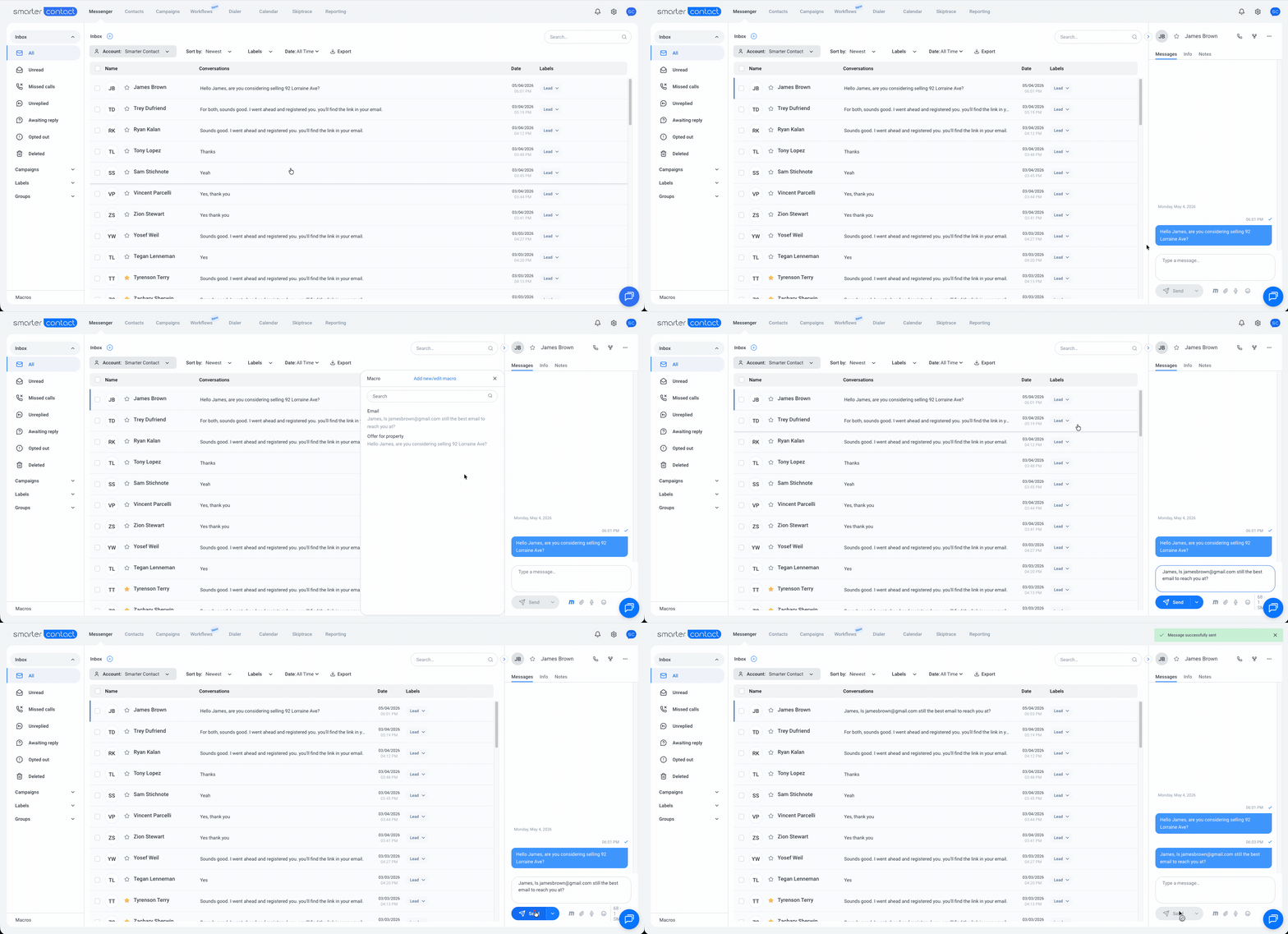
- Open any conversation in your Messenger.
- Click the "m" icon at the bottom of the message bar (next to the Attach File button).
- Select a Macro and send it.
On Mobile:
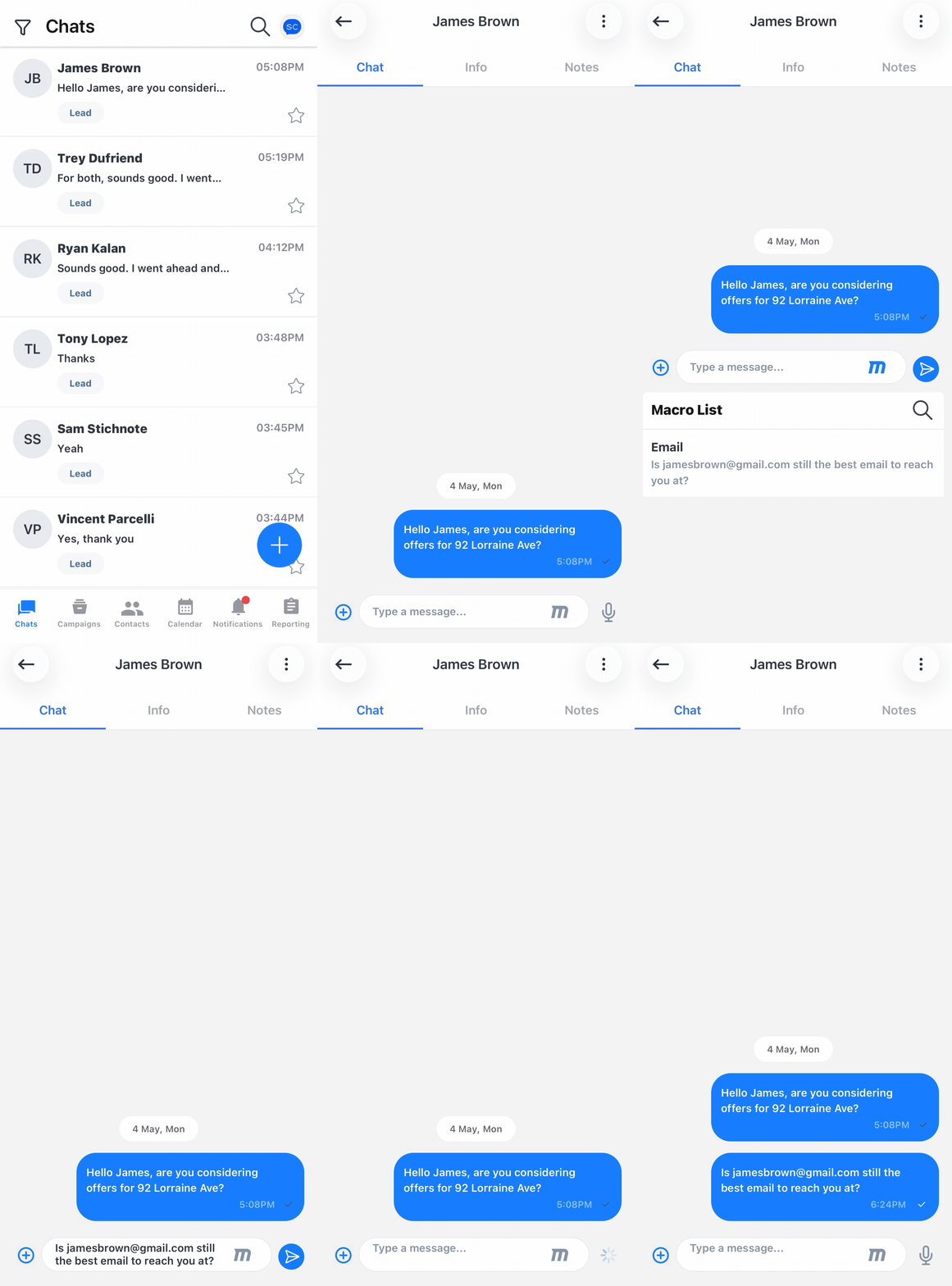
- Open a conversation in the Messenger tab.
- Tap the "m" icon on the right side of the message field.
- Select a Macro and send it.
Tips for Getting the Most Out of Macros
-
Keep it personal. Use the
<trigger to pull in dynamic fields like a contact's first name or address. Your messages stay efficient without feeling generic. -
Build mobile-friendly Macros. If you find yourself typing the same update while out in the field — like "Just pulling up to the property now!" — save it as a Macro to use on the go.
What's Next?
If you want to take your follow-ups further, Macros are just the starting point. Learn how to build Contact Workflows that automatically handle follow-ups for you — so no lead ever slips through the cracks.