

Once a campaign is up and running, you'll want to know how to adjust it, pause it, and pull your contacts back out when you need them. This guide covers everything you can do to manage an existing campaign — editing, pausing and resuming, and exporting your contacts (including blocked numbers).
First, know your campaign statuses
Almost everything you can do to a campaign depends on its status, so it's worth a quick look:
- Inactive — created but not sending yet. This is the only status you can fully edit.
- Active — currently sending messages.
- Paused — sending is stopped, but you can resume anytime.
- Ended — finished sending.
You can export contacts from any Paused or Ended campaign — keep that in mind for the sections below.
Pause or resume a campaign
Need to stop a campaign mid-send? You can pause any Active campaign and pick it back up later.
To pause a campaign:
- Go to Campaigns and click the active campaign to open it.
- Scroll down and click Pause Campaign.
- Click Confirm.
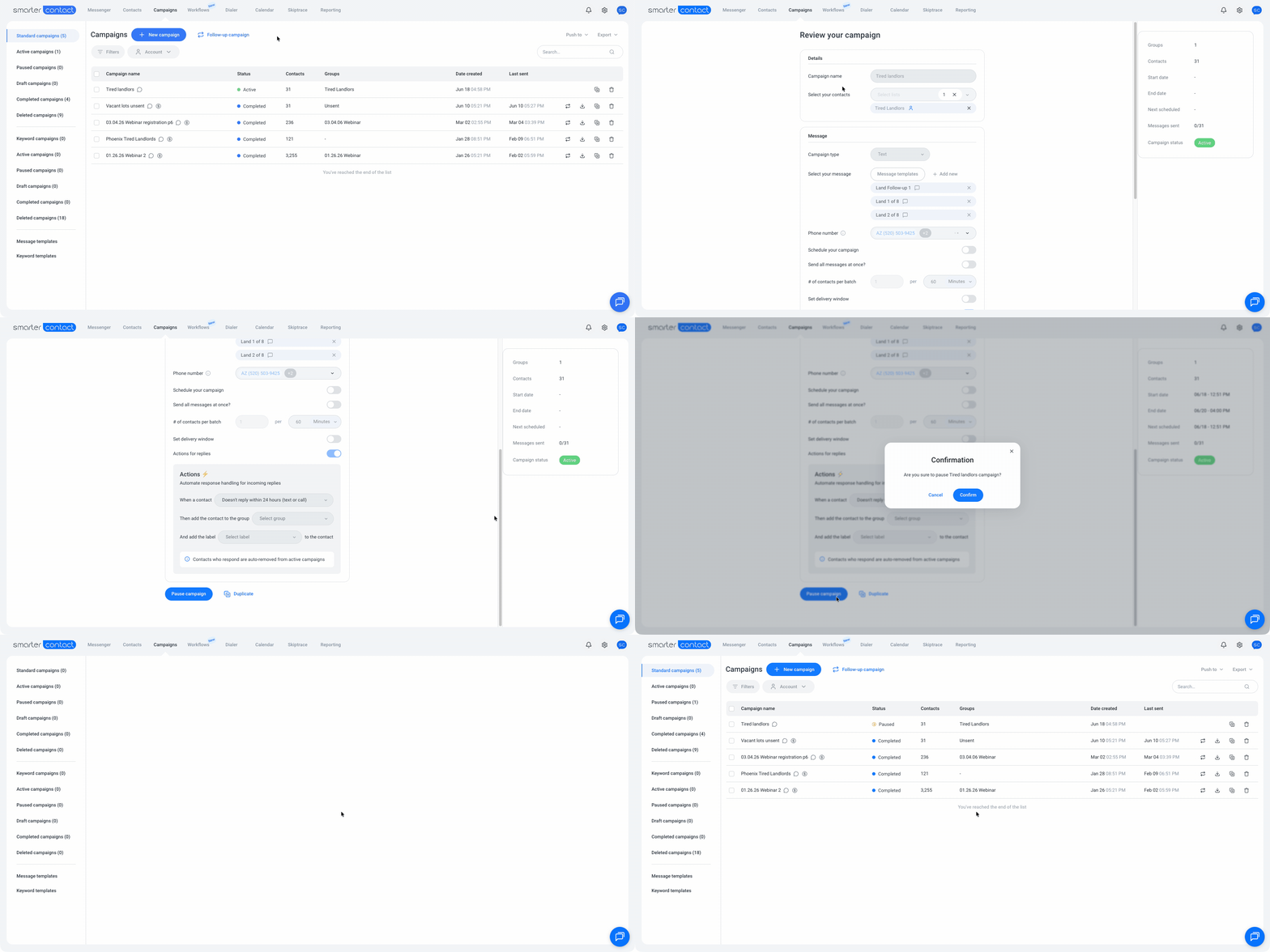
You'll get a confirmation, and the status switches to Paused.
To resume a campaign:
- Open the paused campaign.
- Click Resume Campaign, then Confirm.
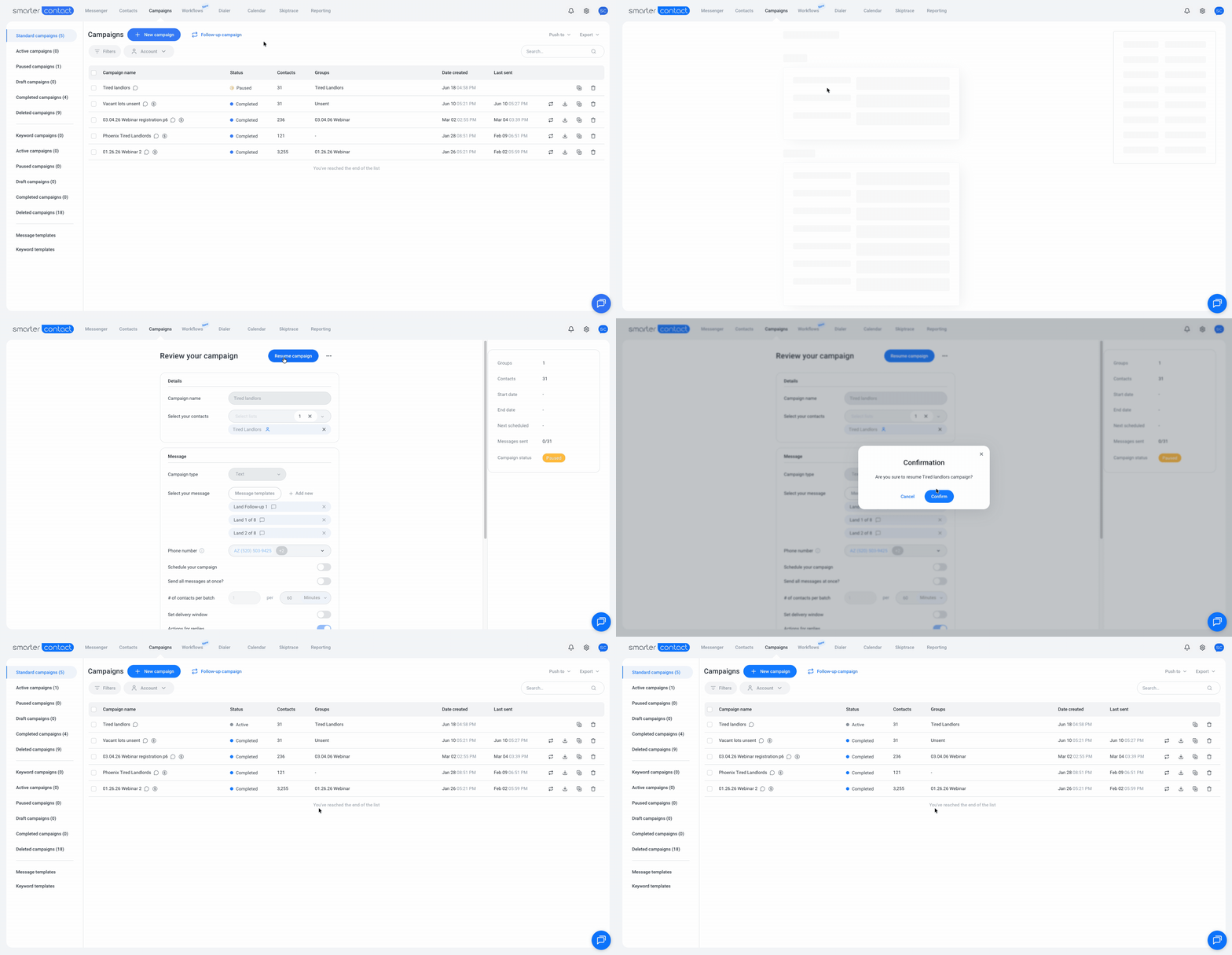
The status switches back to Active, and sending picks up where it left off.
Edit a campaign
You can only edit a campaign while it's Inactive. Once it's Active, Paused, or Ended, the settings are locked and can't be changed.
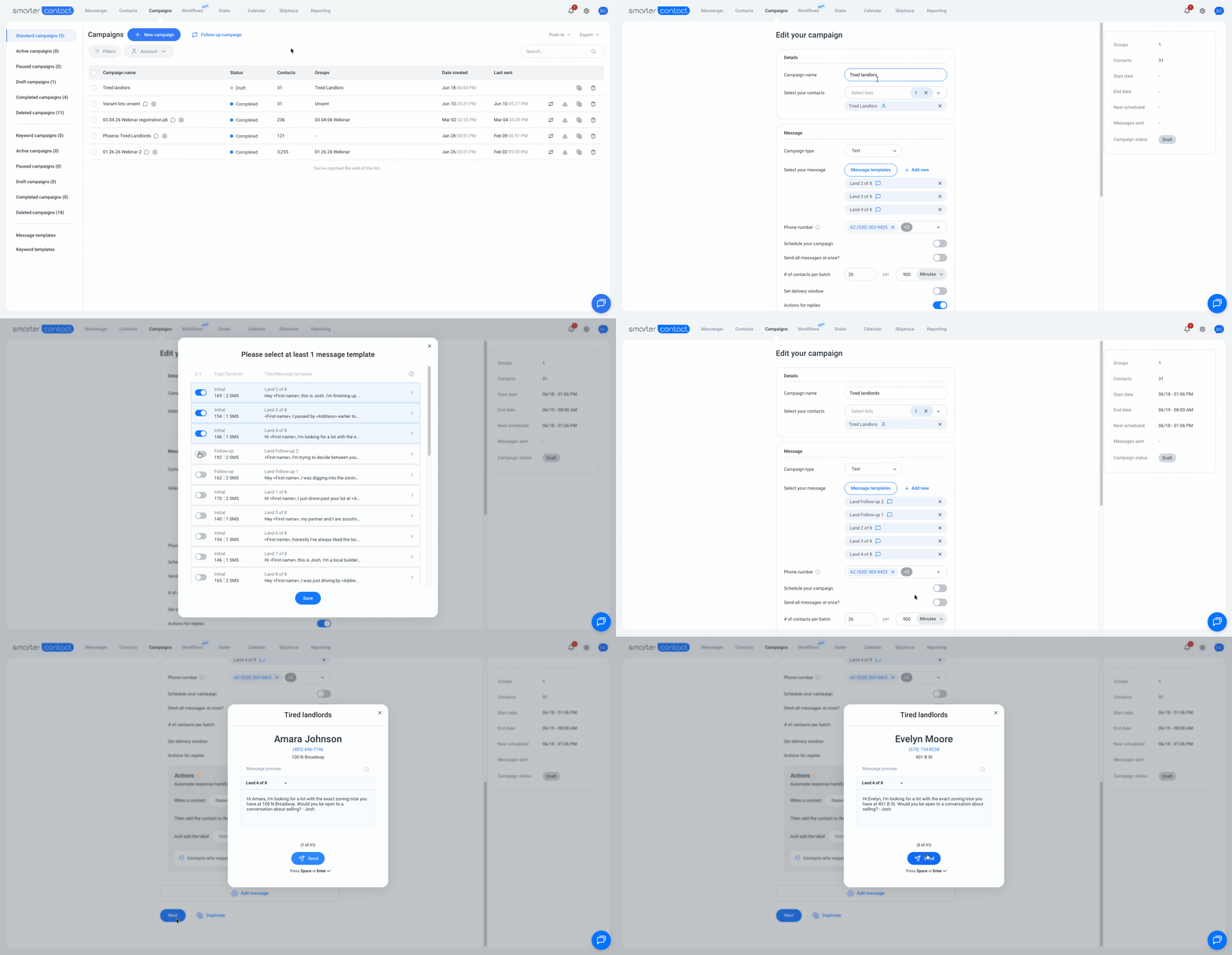
So how do you "edit" a campaign that's already running? You recreate it:
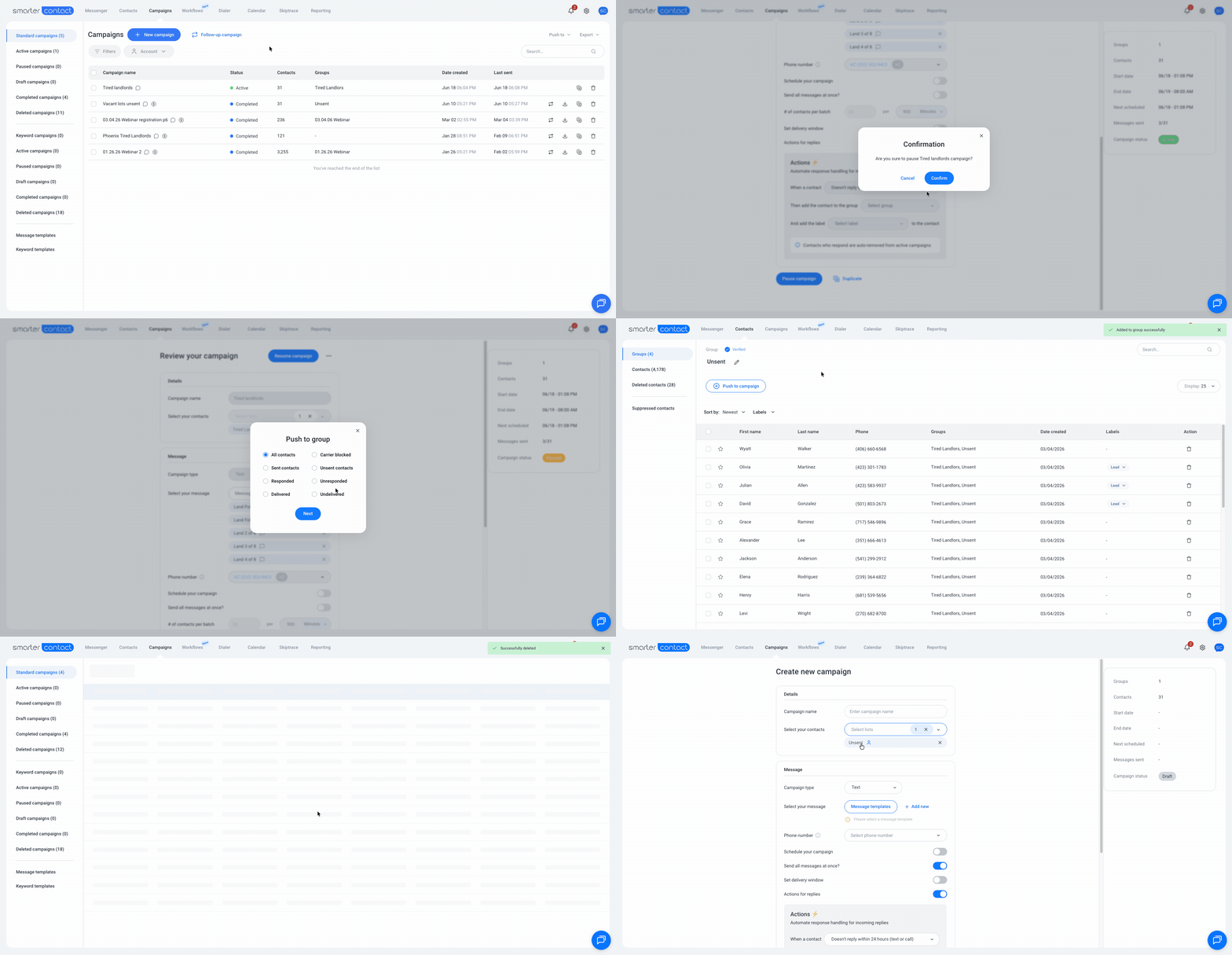
- Pause the campaign (steps above).
- Push To Group its Unsent contacts so you don't lose anyone who hasn't been messaged yet.
- Delete the campaign, then create a new one with the right settings using that exported list.
💡 Pro tip — Deleting an Active or Paused campaign automatically refunds the cost of every unsent message back to your account balance — so you're never charged for messages that didn't go out.
Export contacts from a campaign
You can export a list of contacts from any Paused or Ended campaign — perfect for following up, building a new list, or moving leads elsewhere. You can export any one of these groups at a time:
- All
- Carrier Blocked
- Sent / Unsent
- Responded / Unresponded
- Delivered / Undelivered
To export your contacts:
- Go to the Campaigns page.
- Click the paused or ended campaign to open it.
- Click on the three dots at the top right, then select Export.
- Choose the group you want, then click Confirm.
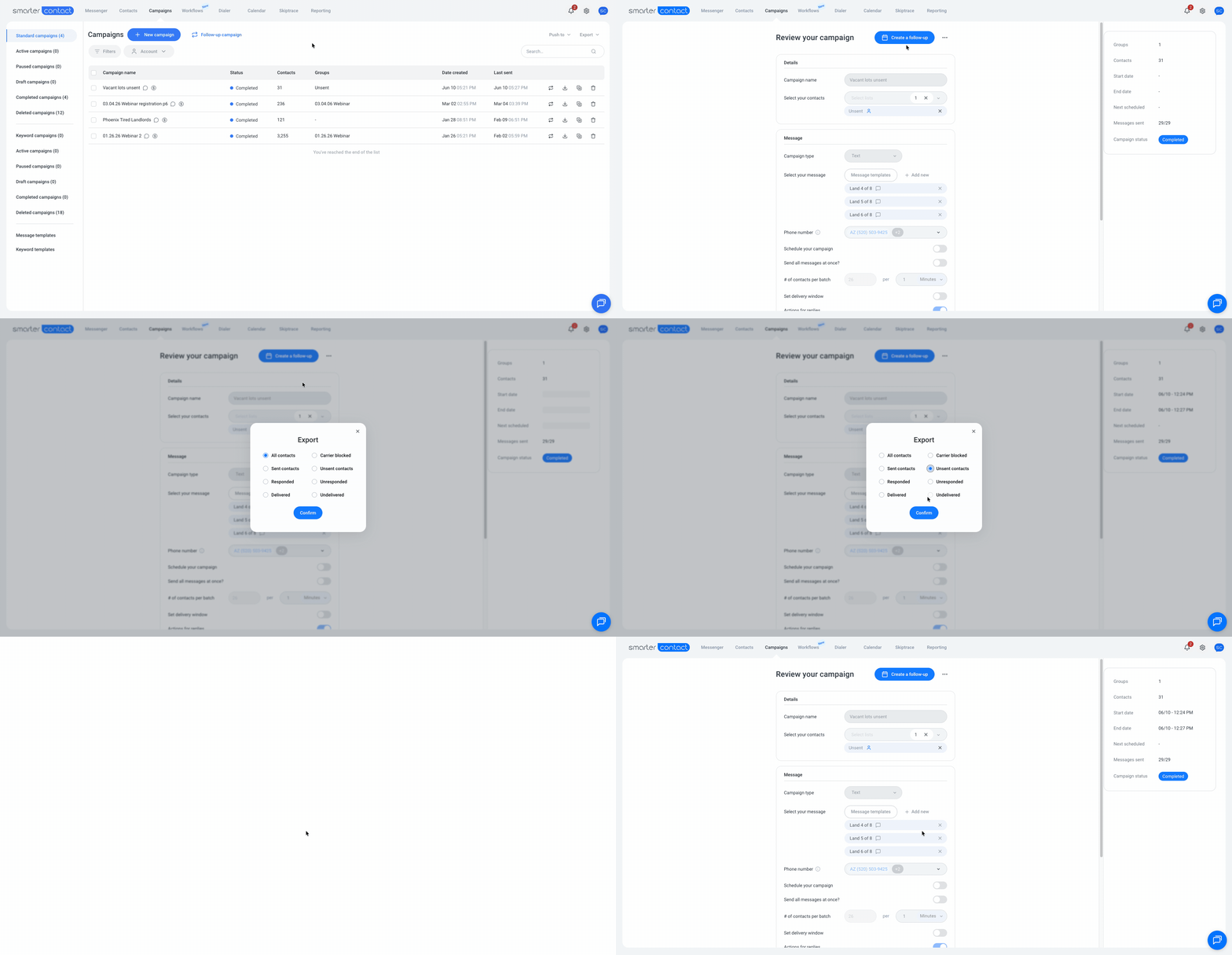
Your CSV downloads automatically. You can only export one group at a time, so just repeat the steps if you need more than one.
Export blocked numbers (and reuse them)
Seeing a high carrier block rate on a campaign? Those leads never got your message — but you can pull them out and try again from a fresh campaign.
To export your blocked numbers:
- Go to the Campaigns page.
- Click the paused or ended campaign to open it.
- Click Export > Carrier Blocked > Confirm.
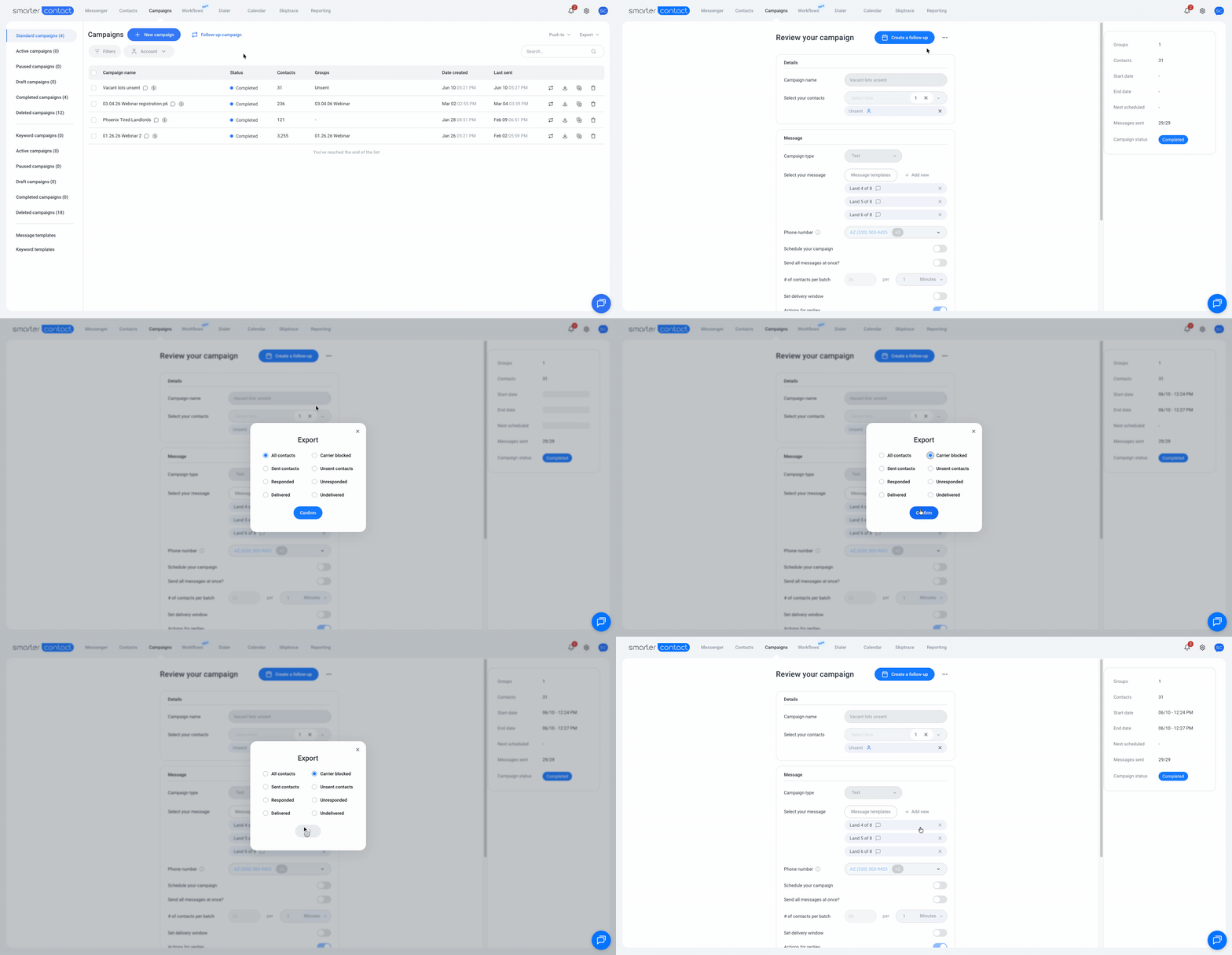
From there, upload the CSV to a new campaign to reach those leads again.
There's also a faster way to move them — send the blocked contacts straight to a group without downloading anything:
- Open the paused or ended campaign.
- Click Push to Group > Carrier Blocked > Next.
- Pick a group from the dropdown, or click Create New Group.
- Click Add to Group.
💡 Pro tip — Push to Group skips the export-and-re-upload step entirely — use it when you just want your blocked leads sitting in a group, ready for the next campaign.