

The Contact Workflows dashboard is your control center. This is where you track active leads, tweak your messaging, and organize your sequences for speed.
To access it, go to Workflows → Contact Workflows.
1. Organize for Speed (Drag & Drop)
The order of workflows on this page isn't random—it controls your workflow.
Why Order Matters: The order you set here is the exact same order that appears in the dropdown menu when you are adding contacts inside Messenger.
-
How to do it: Hover over the drag handle (☰) on the left of any workflow and drag it up or down.
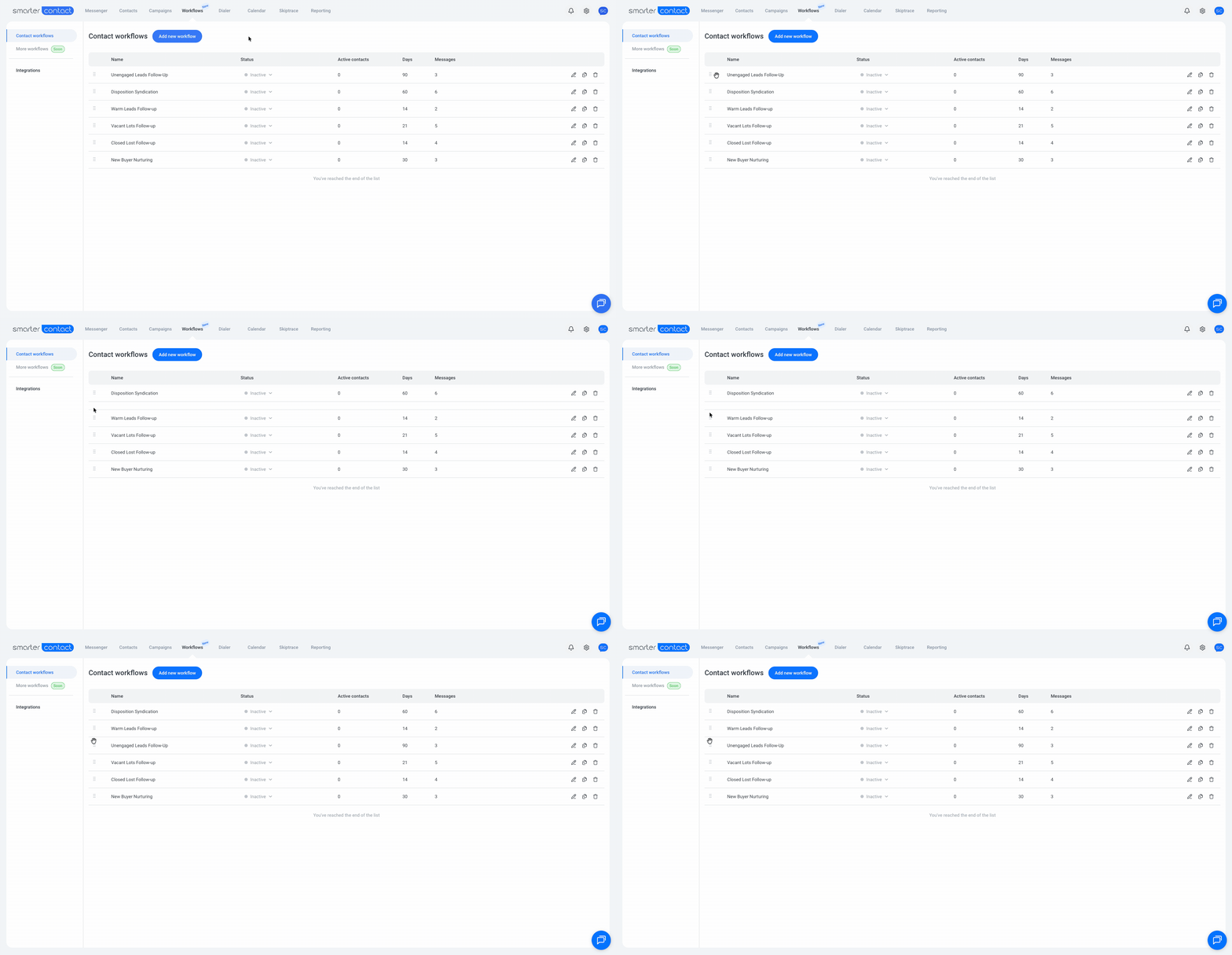
💡 Pro Tip: Move your most-used sequences (e.g., "New Lead Nurture") to the very top. This saves you from scrolling every time you want to enroll a contact.
2. Active vs. Inactive: The Golden Rule
Workflows have two states, and they switch automatically based on activity.
-
Active: There is at least one contact currently moving through the sequence.
-
Restriction: You cannot edit an Active workflow.
-
-
Inactive: The workflow is empty (no contacts).
-
Freedom: You can edit, rename, or change the timing.
-
ⓘ Note: You don't manually turn a workflow "On." It becomes Active automatically the second you add a contact to it.
3. How to Edit a Workflow
Need to change a typo in Message #2? Because you cannot edit a live workflow, you must follow this process:
-
Pause It: Click the Status toggle to switch it to Inactive.
-
Edit It: Click the Edit (Pencil) icon.
-
Save It: Make your changes and save.
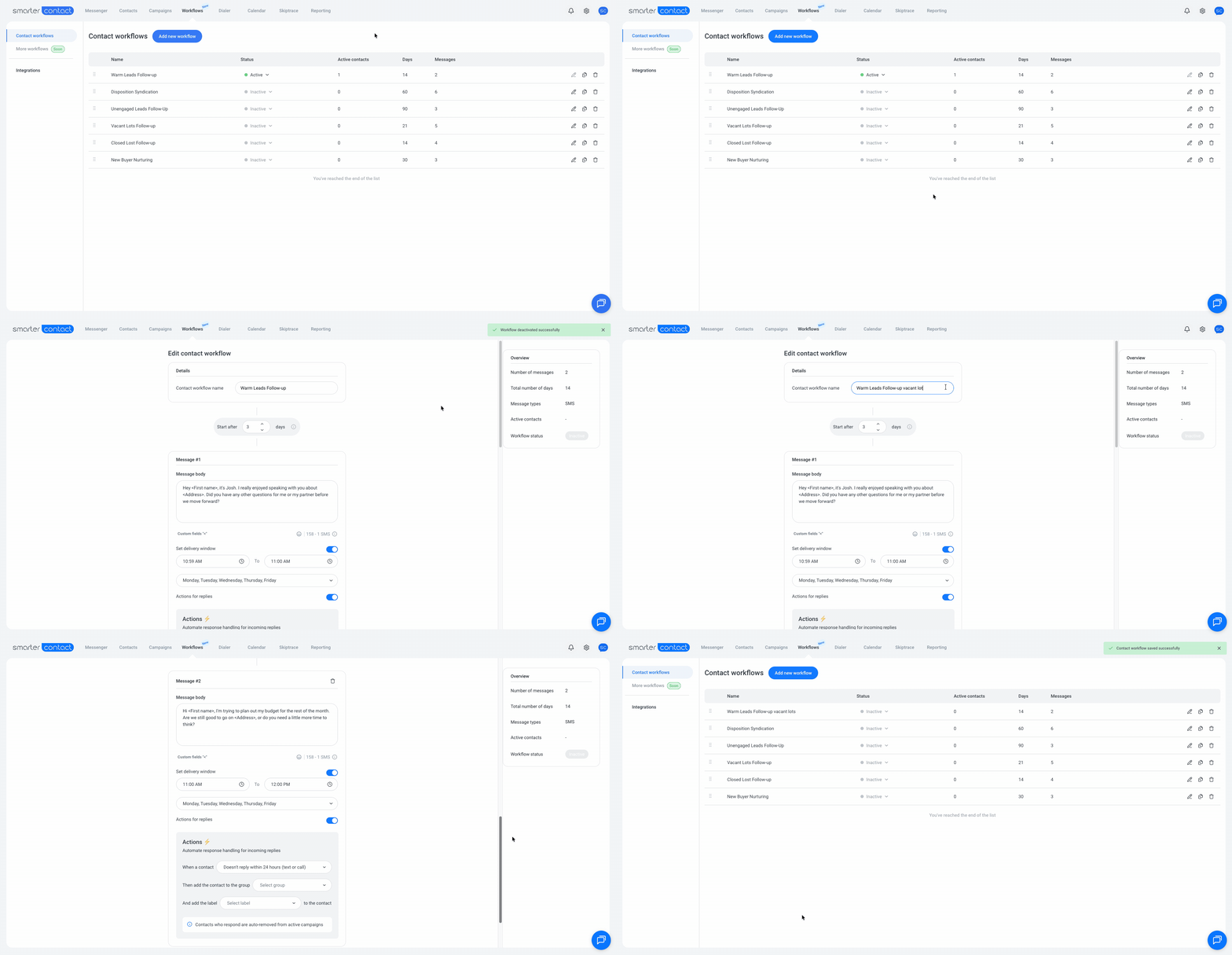
🚨 CRITICAL WARNING: Pausing a workflow removes ALL active contacts immediately.
If you switch an Active workflow to Inactive to edit it, every contact currently in that sequence is removed, their future messages are cancelled, and you are refunded. You will have to manually re-add them one by one (starting from Message #1).
4. Deleting Workflows
If a sequence is obsolete, you can delete it permanently.
-
If Inactive: It simply disappears.
-
If Active: All contacts are removed, messages cancelled, and refunds issued immediately.
-
No Undo: Once deleted, the content is gone forever.
5. Removing Individual Contacts
You don't need to stop the whole workflow just to remove one person.
-
Go to the contact's conversation in Messenger.
-
Look for the "In active workflow" icon.
-
Click "Remove from contact workflow."
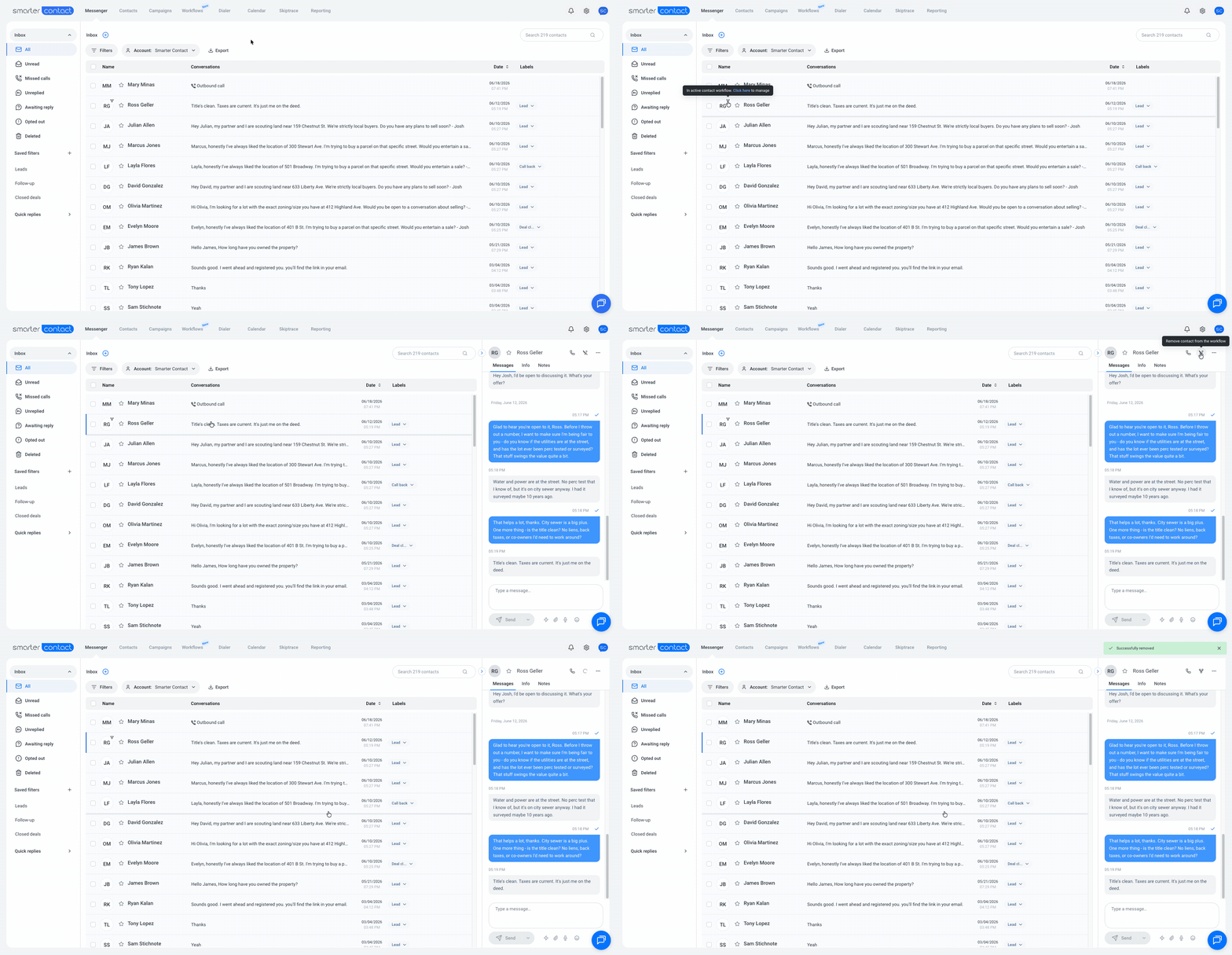
The system will instantly cancel their remaining messages and refund your account for the unsent segments.
Troubleshooting
-
Why is the Edit button grayed out? The workflow is currently Active. You must pause it (remove all contacts) before you can edit.
-
Why can't I find my workflow in the Messenger list? Check your Workflows page. Is it at the bottom of the list? Drag it to the top to make it easier to find.
-
Where did my contacts go? If you paused or edited a workflow, all contacts were automatically removed. You can re-add them, but they will start over from the beginning of the sequence.