---
title: Message Templates
description: Learn how to create and manage Message Templates in Smarter Contact — from initial texts and follow-ups to voicemail drops — and build campaigns that get responses.
---
[](https://smartercontact.com/)
☰
Solutions
- [Real Estate Investing](https://smartercontact.com/real-estate-investing/)
- [Real Estate Agent](https://smartercontact.com/real-estate-agent/)
- [General Sales/Marketing](https://smartercontact.com/general-sales-marketing/)
- [Automotive](https://smartercontact.com/automotive/)
- [Event Promotion](https://smartercontact.com/event-promotion/)
- [Gym/Fitness](https://smartercontact.com/gym-fitness/)
- [Staffing](https://smartercontact.com/staffing/)
Features
- [Texting Automation](https://smartercontact.com/sms-automation/)
- [Calling](https://smartercontact.com/calling/)
- [Reporting](https://smartercontact.com/reporting/)
- [Built-in CRM](https://smartercontact.com/built-in-crm/)
- [Custom Campaigns](https://smartercontact.com/custom-campaigns/)
- [Calendar](https://smartercontact.com/calendar/)
- [Integrations](https://smartercontact.com/integrations/)
[Pricing](https://smartercontact.com/pricing/)
Resources
- [Launch Control vs Smarter Contact](https://smartercontact.com/launch-control-vs-smarter-contact/)
- [Smarter Contact Managed](https://smartercontact.com/managed-plans/)
- [Our Team](https://smartercontact.com/our-team/)
- [Tutorials](https://smartercontact.com/tutorials/)
- [Our Story](https://smartercontact.com/our-story/)
- [Help Center](https://support.smartercontact.com/?hsLang=en)
- [Blog](https://smartercontact.com/blog/)
[Affiliate Program](https://lp.smartercontact.com/affiliates) [Dialer](https://smartercontact.com/dialer/)
[Log in](https://app.smartercontact.com/login) [Get started now](https://app.smartercontact.com/signup)
[Skip to content](https://support.smartercontact.com/message-templates#main-content)

Open main navigation
Close main navigation
- [Go to App](https://app.smartercontact.com/?utm_source=knowledge_base)
[Go to App](https://app.smartercontact.com/?utm_source=knowledge_base)
How can we help you?
- There are no suggestions because the search field is empty.
1. [Help Center](https://support.smartercontact.com/?hsLang=en)
2. [Campaigns](https://support.smartercontact.com/campaigns?hsLang=en)
June 29, 2026
# Message Templates
## Your Campaigns Are Only as Good as Your Messages
Every outbound campaign in Smarter Contact starts with a Message Template — the pre-written texts and voicemails your leads actually receive. The quality of these templates determines whether you get a response or get ignored, so building them right from the start is worth the five minutes it takes.
### The Three Types of Message Templates
#### Initial Texts
Initial texts are the first messages a lead receives when they enter a campaign. They always sit in the first sequence. To protect deliverability and reduce the risk of carrier blocks, load at least **8 variations** — the more diversity in your opening messages, the less pattern-matching carrier filters can do against you.
#### Follow-up Texts
Follow-up texts go into the second sequence and beyond. You can add up to 8 variations here too, or use a single template if your strategy calls for it. The label "follow-up" is purely organizational — there are no system-level restrictions on how you use either type.
#### Voicemail Drops (VMDs)
VMDs deliver a pre-recorded voicemail directly to your lead's inbox — no ringing, no interruption. They're one of the highest-ROI touches in any outbound sequence, surfacing callbacks from leads who won't respond to text but will pick up the phone when something sounds personal and worth returning
### How to Add a New Text Template
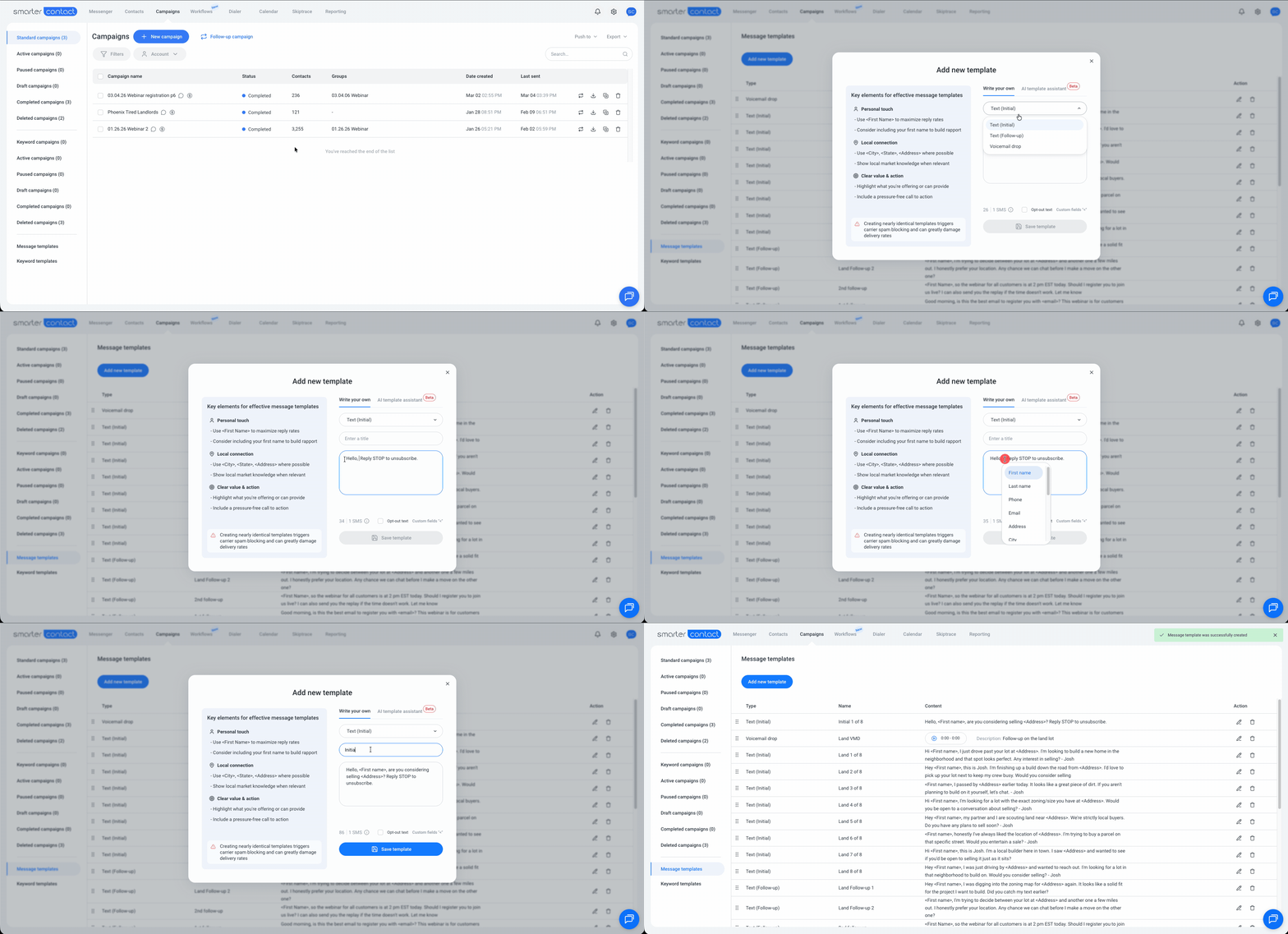
1. Click **Campaigns** in the top navigation bar
2. In the bottom-left, click **Message Templates**
3. Click **Add new template**
4. Choose **Initial** or **Follow-up**
5. Enter a title — 35-character limit, limited special characters
6. Write your message — up to 3 SMS segments
💡 **Pro tip:** Keep titles short and sortable — *Initial 1 of 8*, *Follow-up 2 of 4*. You'll thank yourself when you're managing dozens of templates across multiple campaigns.
### Generate Templates with the AI Template Assistant
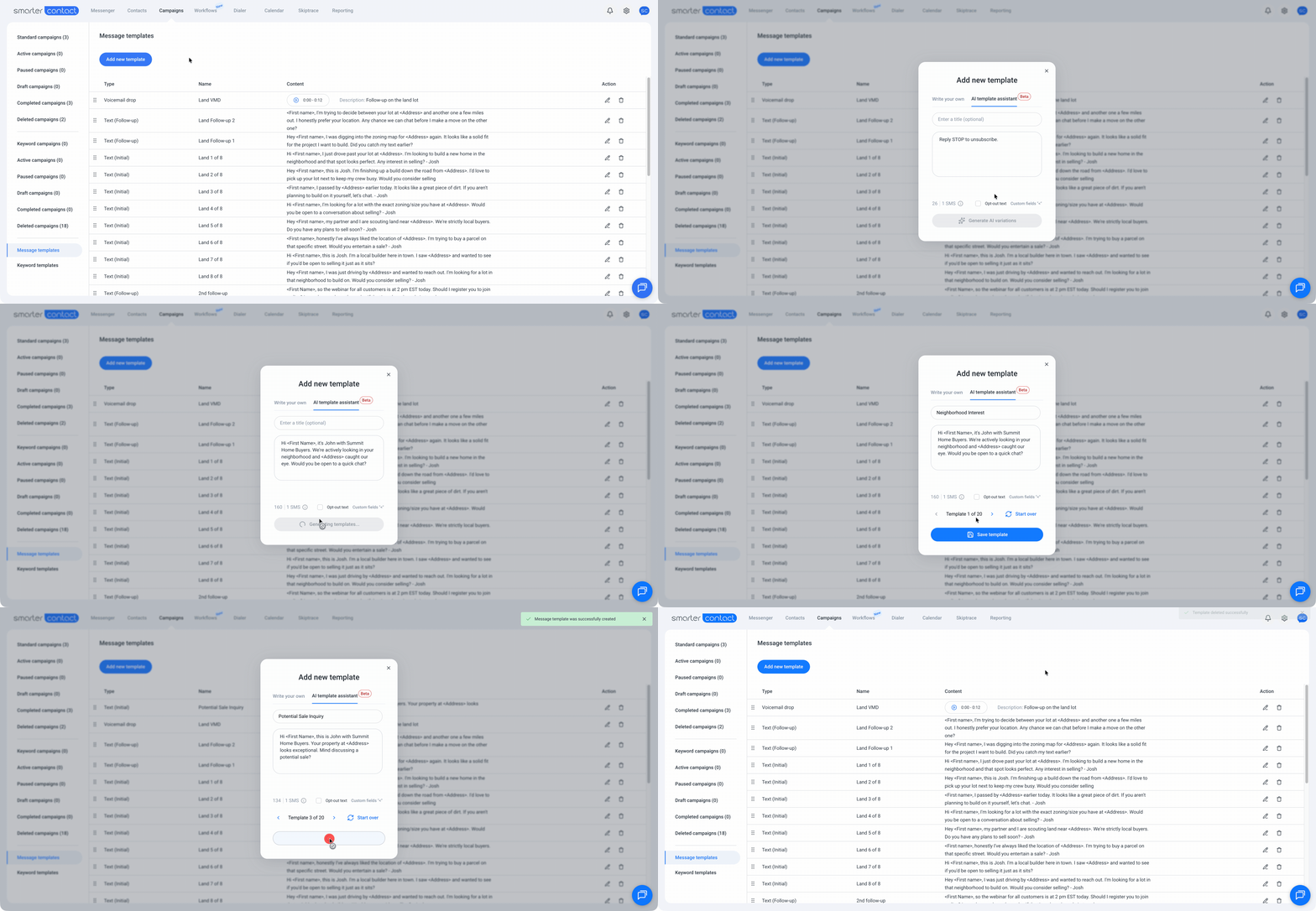
Skip the blank page entirely. The **AI Template Assistant** generates 20 high-performing variations in a single click — trained on thousands of top-performing campaigns to match your industry, vary tone, and stay within deliverability guardrails. You get up to 3 generations per day, meaning up to 60 ready-to-use templates without writing a single word from scratch.
That said, always review the output before you launch. The AI handles the heavy lifting — your judgment makes the difference between good and great.
### Keep It Personal at Scale
The fastest way to kill a response rate is to sound like a bot. Even when you're sending hundreds of messages a day, your leads should feel like you wrote to them specifically.
Type `<` anywhere in your message body to pull up a list of dynamic fields — lead first name, property address, any saved contact field. A message that opens with *"Hi Sarah"* instead of *"Hi there"* takes two seconds to set up and consistently outperforms generic openers. Personalization at scale isn't a nice-to-have; it's the difference between a 3% response rate and a 9% one
### How to Record a Voicemail Drop
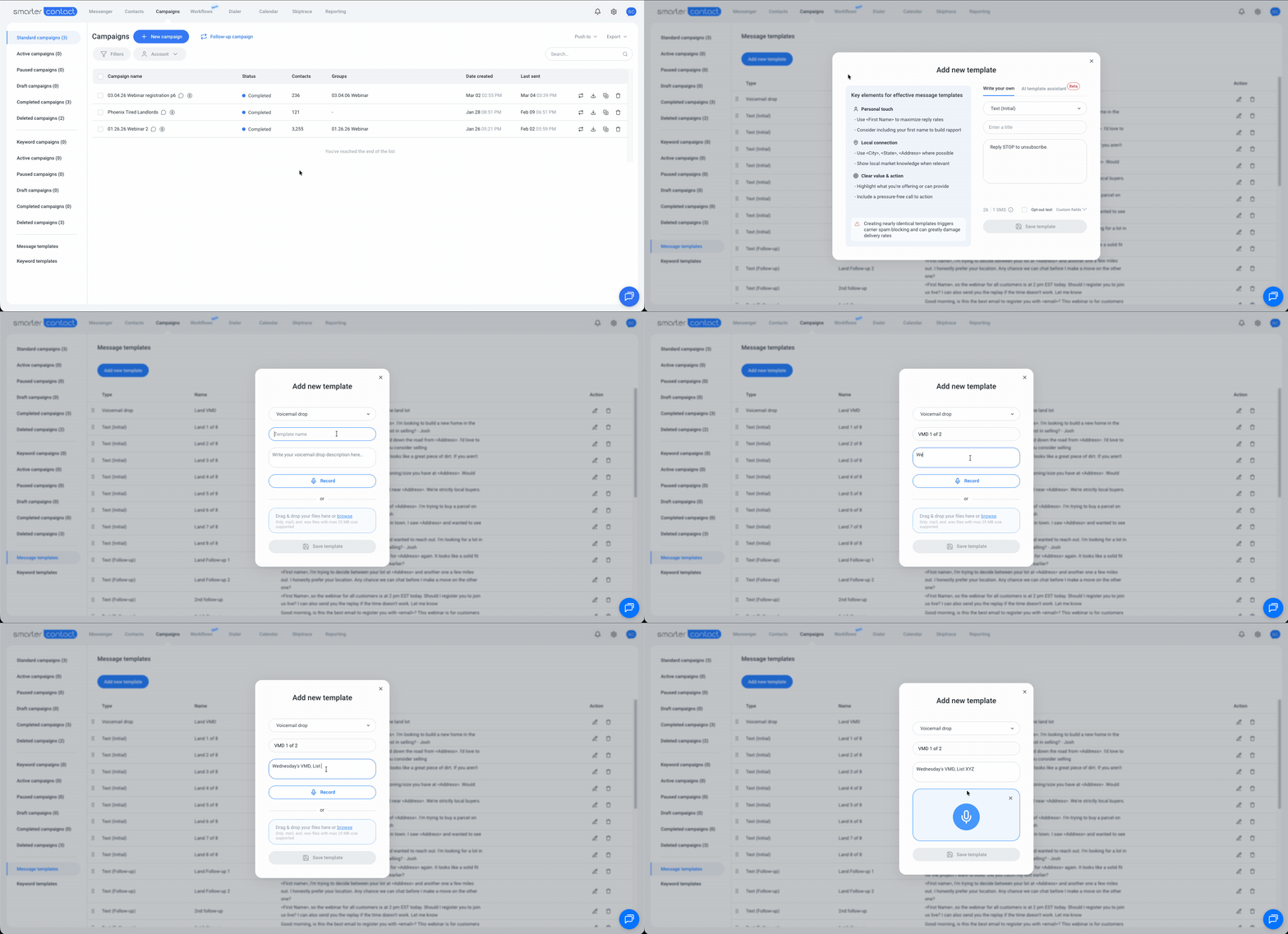
1. Click **Campaigns** in the top navigation bar
2. In the bottom-left, click **Message Templates**
3. Click **Add new template** and select **Voicemail Drop**
4. Enter a title — 35-character limit
5. Add a description — tone, use case, or any notes to identify it later (160-character limit; only visible to you on your dashboard)
6. Hit **Record** to record directly, or upload an existing audio file
**Supported formats:** .mp3 and .wav — up to 25 MB.
### Editing, Deleting, and Organizing Templates
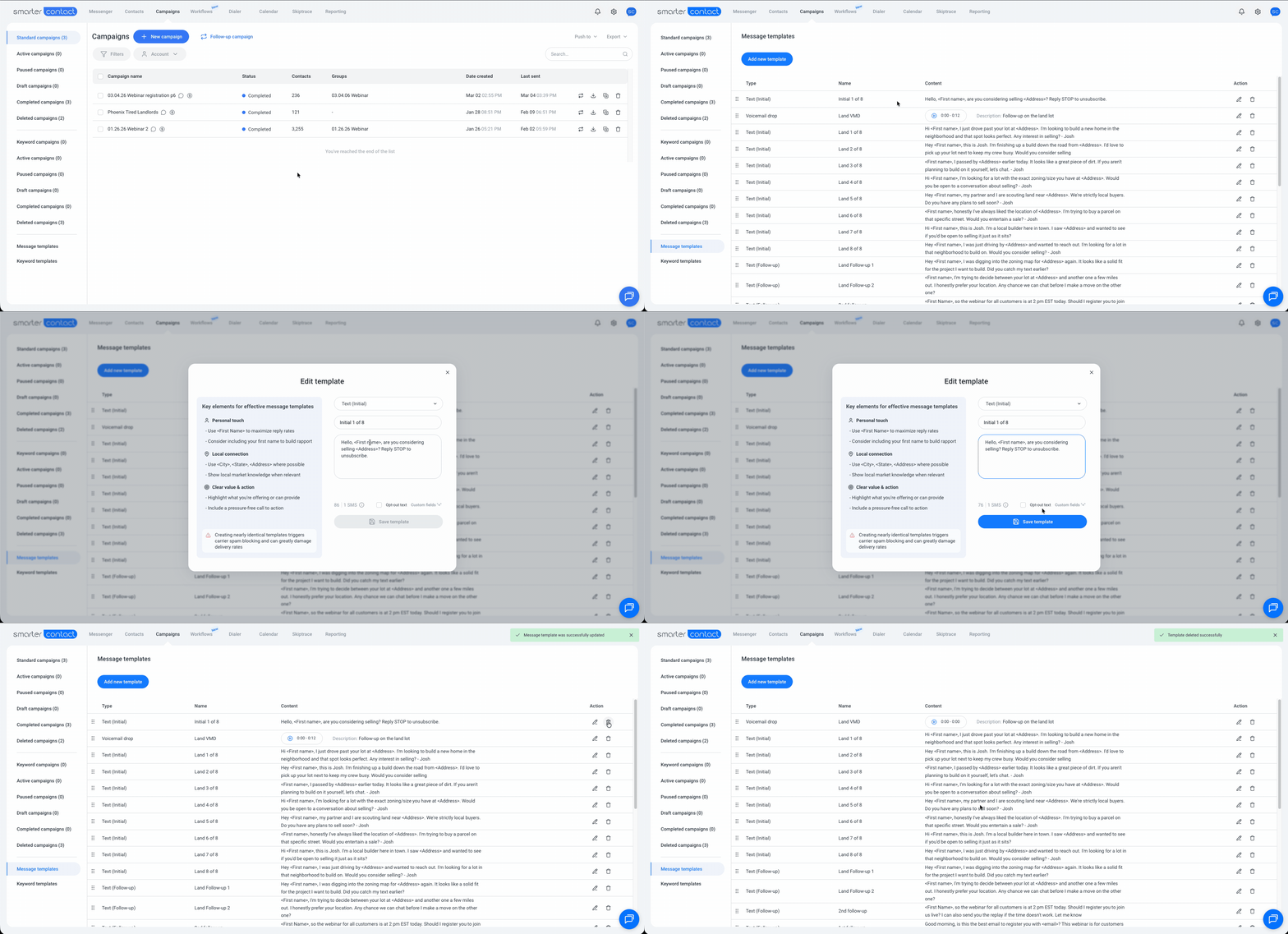
Find the template you want to update and use the icons on the right side of the row — **Edit** to make changes, **Delete** to permanently remove it.
💡 **Pro tip:** Drag and drop templates to reorder them. Keep your best-performing variations at the top so they're always first to grab when building a new campaign.
### Frequently Asked Questions
- **How many message template variations do I need?**
For initial texts, at least 8 variations is the recommended minimum to protect deliverability and reduce carrier filtering. For follow-ups, 8 is also ideal but a single template works if your strategy is more targeted.
- **What's the difference between Initial and Follow-up templates?**
Only the label — there are no system-level restrictions. The distinction exists to help you stay organized, not to limit how or when you use each type.
- **Can I personalize SMS templates with lead data?**
Yes. Type `<` anywhere in the message body to access dynamic fields like first name, property address, and any other contact information saved in your database.
- **What file formats does Smarter Contact support for voicemail drops?**
.mp3 and .wav files, up to 25 MB.
### What's Next?
Great templates don't work alone — they need the right campaign structure behind them. Learn how to build effective **Drip Campaigns** that put your templates to work automatically, at the right time, with every lead.
[Explore Drip Campaigns →](https://support.smartercontact.com/drip-campaigns-overview?hsLang=en)
##### With💙,
##### Smarter Contact Team.
- [Contact Us](https://smartercontact.com/contact-us/)
[](http://smartercontact.com)
###### ###### [Product](https://smartercontact.com/pricing/)
[Messaging Plans](https://smartercontact.com/messaging-plan/)
[Calling Plans](https://smartercontact.com/calling-plan/)
[Mobile App](https://smartercontact.com/mobile/)
[What’s New](https://smartercontact.com/whats-new/)
[Pricing](https://smartercontact.com/pricing/)
###### Company
[Privacy Policy](https://smartercontact.com/privacy-policy/)
[Terms & Conditions](https://smartercontact.com/terms-and-conditions/)
[mailto:support@smartercontact.com](mailto:support@smartercontact.com)
Copyright © 2026, Smarter Contact
#### Product
- [Messaging Plans](https://smartercontact.com/messaging-plan/)
- [Calling Plans](https://smartercontact.com/calling-plan/)
- [Mobile App](https://smartercontact.com/mobile/)
- [What’s New](https://smartercontact.com/whats-new/)
- [Pricing](https://smartercontact.com/pricing/)
#### Company
- [Privacy Policy](https://smartercontact.com/privacy-policy/)
- [Terms & Conditions](https://smartercontact.com/terms-and-conditions/)
#### Solutions
- [Investors](https://smartercontact.com/real-estate-investors/)
- [Agents](https://smartercontact.com/real-estate-agents/)
- [Brokers](https://smartercontact.com/real-estate-brokers/)
- [Wholesalers](https://smartercontact.com/real-estate-wholesalers/)
- [Land Flippers](https://smartercontact.com/real-estate-land-flippers/)
- [Fix and Flippers](https://smartercontact.com/real-estate-fix-and-flippers/)
- [Land Developers](https://smartercontact.com/real-estate-land-developers/)
- [Property Developers](https://smartercontact.com/real-estate-property-developers/)
#### Comparison
- [Launch Control vs Smarter Contact](https://smartercontact.com/launch-control-vs-smarter-contact/)
- [Batch Leads vs Smarter Contact](https://smartercontact.com/batch-leads-vs-smarter-contact/)
- [Lead Sherpa vs Smarter Contact](https://smartercontact.com/lead-sherpa-vs-smarter-contact/)
- [ReplySmart vs Smarter Contact](https://smartercontact.com/replysmart-vs-smarter-contact/)
- [ZeitBlast vs Smarter Contact](https://smartercontact.com/zeitblast-vs-smarter-contact/)
- [Sendivo vs Smarter Contact](https://smartercontact.com/sendivo-vs-smarter-contact/)
- [HighLevel vs Smarter Contact](https://smartercontact.com/highlevel-vs-smarter-contact/)
- [XLeads vs Smarter Contact](https://smartercontact.com/xleads-vs-smarter-contact/)
- [ReadyMode vs Smarter Contact](https://smartercontact.com/readymode-vs-smarter-contact/)
- [BatchDialer vs Smarter Contact](https://smartercontact.com/batchdialer-vs-smarter-contact/)
- [PhoneBurner vs Smarter Contact](https://smartercontact.com/phoneburner-vs-smarter-contact/)
- [Roor vs Smarter Contact](https://smartercontact.com/roor-vs-smarter-contact/)
#### Resources
- [Tutorials](https://smartercontact.com/tutorials/)
- [Help Center](https://support.smartercontact.com/?hsLang=en)
- [Careers](https://smartercontact.hurma.work/public-vacancies)
[](https://smartercontact.com)
[](https://apps.apple.com/us/app/smarter-contact/id1637673379) [](https://play.google.com/store/apps/details?id=com.smartercontactapp&pli=1)
© 2026 Copyright Smarter Contact.
All Rights Reserved.
```json
{
"@context" : "https://schema.org",
"@type" : "VideoObject",
"caption" : {
"@type" : "MediaObject",
"contentUrl" : "https://support.smartercontact.com/media-transcripts/213283844941/en.vtt",
"inLanguage" : "en",
"name" : "en Captions"
},
"contentUrl" : "https://21860142.fs1.hubspotusercontent-na1.net/hubfs/21860142/video_assets/213283844941/inherited/web_optimized.mp4",
"dateModified" : "2026-05-20T19:44:28.786Z",
"duration" : "PT3M42S",
"height" : 1080,
"name" : "Message Templates",
"thumbnailUrl" : "https://support.smartercontact.com/hubfs/Message%20Templates.mov/medium.jpg",
"uploadDate" : "2026-05-20T19:42:21.437Z",
"width" : 1920
}
```