---
title: Mobile App Overview
description: Manage leads and campaigns on the go with the Smarter Contact Mobile App. Learn to use chats, pipeline filters, contact management, and live reporting.
---
[](https://smartercontact.com/)
☰
Solutions
- [Real Estate Investing](https://smartercontact.com/real-estate-investing/)
- [Real Estate Agent](https://smartercontact.com/real-estate-agent/)
- [General Sales/Marketing](https://smartercontact.com/general-sales-marketing/)
- [Automotive](https://smartercontact.com/automotive/)
- [Event Promotion](https://smartercontact.com/event-promotion/)
- [Gym/Fitness](https://smartercontact.com/gym-fitness/)
- [Staffing](https://smartercontact.com/staffing/)
Features
- [Texting Automation](https://smartercontact.com/sms-automation/)
- [Calling](https://smartercontact.com/calling/)
- [Reporting](https://smartercontact.com/reporting/)
- [Built-in CRM](https://smartercontact.com/built-in-crm/)
- [Custom Campaigns](https://smartercontact.com/custom-campaigns/)
- [Calendar](https://smartercontact.com/calendar/)
- [Integrations](https://smartercontact.com/integrations/)
[Pricing](https://smartercontact.com/pricing/)
Resources
- [Launch Control vs Smarter Contact](https://smartercontact.com/launch-control-vs-smarter-contact/)
- [Smarter Contact Managed](https://smartercontact.com/managed-plans/)
- [Our Team](https://smartercontact.com/our-team/)
- [Tutorials](https://smartercontact.com/tutorials/)
- [Our Story](https://smartercontact.com/our-story/)
- [Help Center](https://support.smartercontact.com/?hsLang=en)
- [Blog](https://smartercontact.com/blog/)
[Affiliate Program](https://lp.smartercontact.com/affiliates) [Dialer](https://smartercontact.com/dialer/)
[Log in](https://app.smartercontact.com/login) [Get started now](https://app.smartercontact.com/signup)
[Skip to content](https://support.smartercontact.com/mobile-app-overview#main-content)

Open main navigation
Close main navigation
- [Go to App](https://app.smartercontact.com/?utm_source=knowledge_base)
[Go to App](https://app.smartercontact.com/?utm_source=knowledge_base)
How can we help you?
- There are no suggestions because the search field is empty.
1. [Help Center](https://support.smartercontact.com/?hsLang=en)
2. [Mobile](https://support.smartercontact.com/mobile?hsLang=en)
August 19, 2026
# Mobile App Overview
## Your Business in Your Pocket
The Smarter Contact Mobile App exists for one simple reason: deals don't only happen at your desk. Whether you're driving between appointments, grabbing coffee, or winding down at home, leads are still replying and campaigns are still running. The app gives you the same level of control you'd have on the web — just optimized for the moments you can't get to a screen.
This guide walks through each section of the app and how it fits into a real workflow.
### Chats: Where Your Active Conversations Live
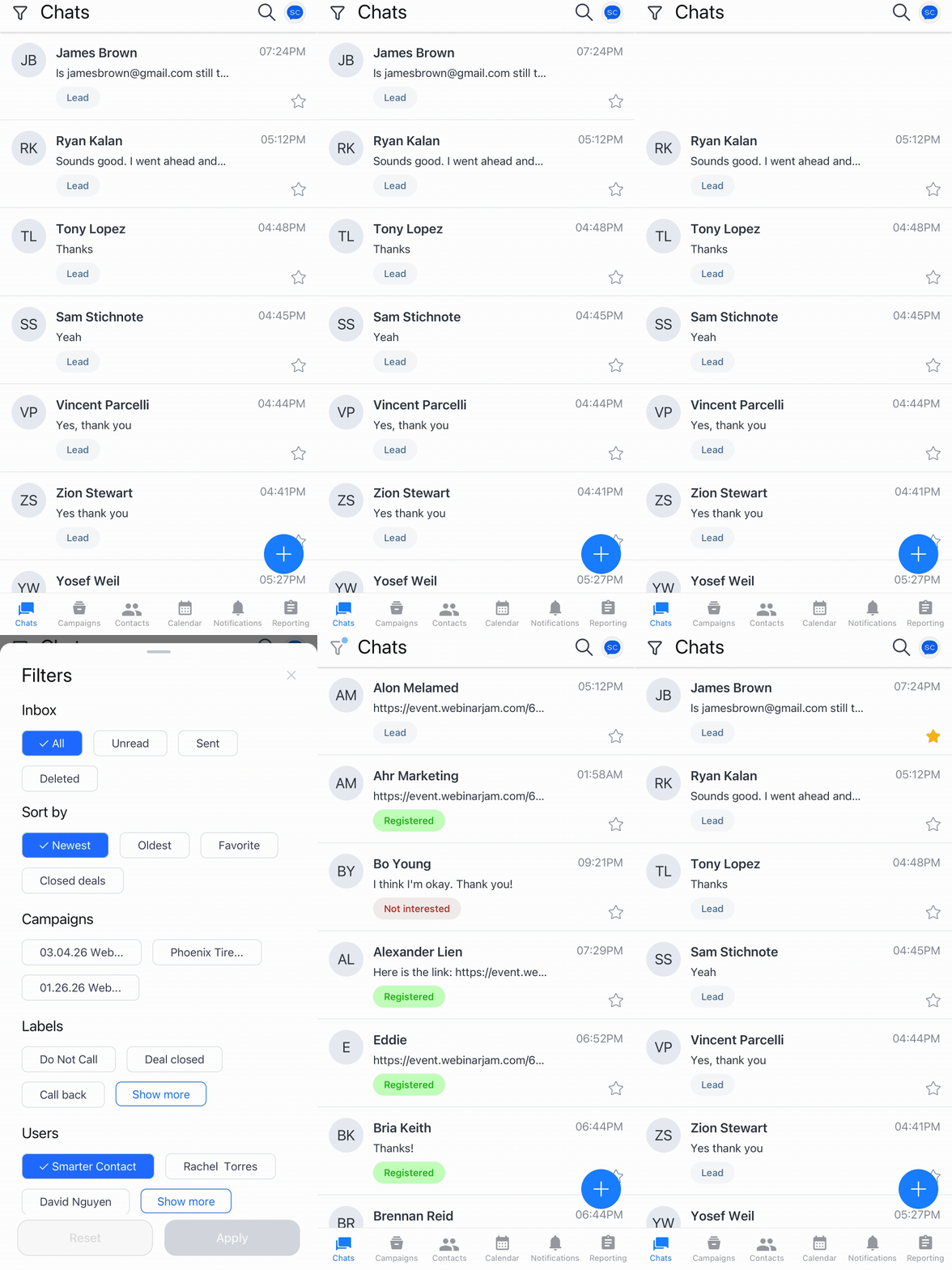
The Chats screen is the first thing you see when you open the app, and it's where most of your time will be spent. Every new reply, every callback, every fresh lead lands here automatically, with the newest activity sitting at the top of the list.
**Open and Reply:** Tap any conversation to jump into the thread and continue messaging.
**Long-Press Shortcuts:** Hold down on a conversation to mark it as read or unread, add it to Favorites, send it to your DNC list, or remove the contact altogether. A fast way to clear out your inbox without opening every chat.
**Switch Between Accounts:** If you run sub-accounts, you can move between them straight from the top bar — useful for agencies or teams managing multiple accounts on one device.
### Finding What You Need: Filters and Search
When you're managing thousands of conversations, scrolling isn't a strategy. The top bar gives you two ways to focus quickly.
- **Pipeline Filters:** The Pipeline Button lets you filter conversations by status — Unread, Sent, Deleted — or sort them by Newest, Oldest, Favorite, or Closed Deals. You can also narrow your view down to a specific campaign or label.
- **Search:** The magnifier icon opens a search field that finds any contact or conversation by name or number, instantly. The fastest way to pick up a thread from weeks or months ago.
### Working Inside a Conversation
Once you're inside a chat, the app gives you everything you need to keep things moving — sending messages, attaching media, capturing context, and managing the contact, all from one screen.
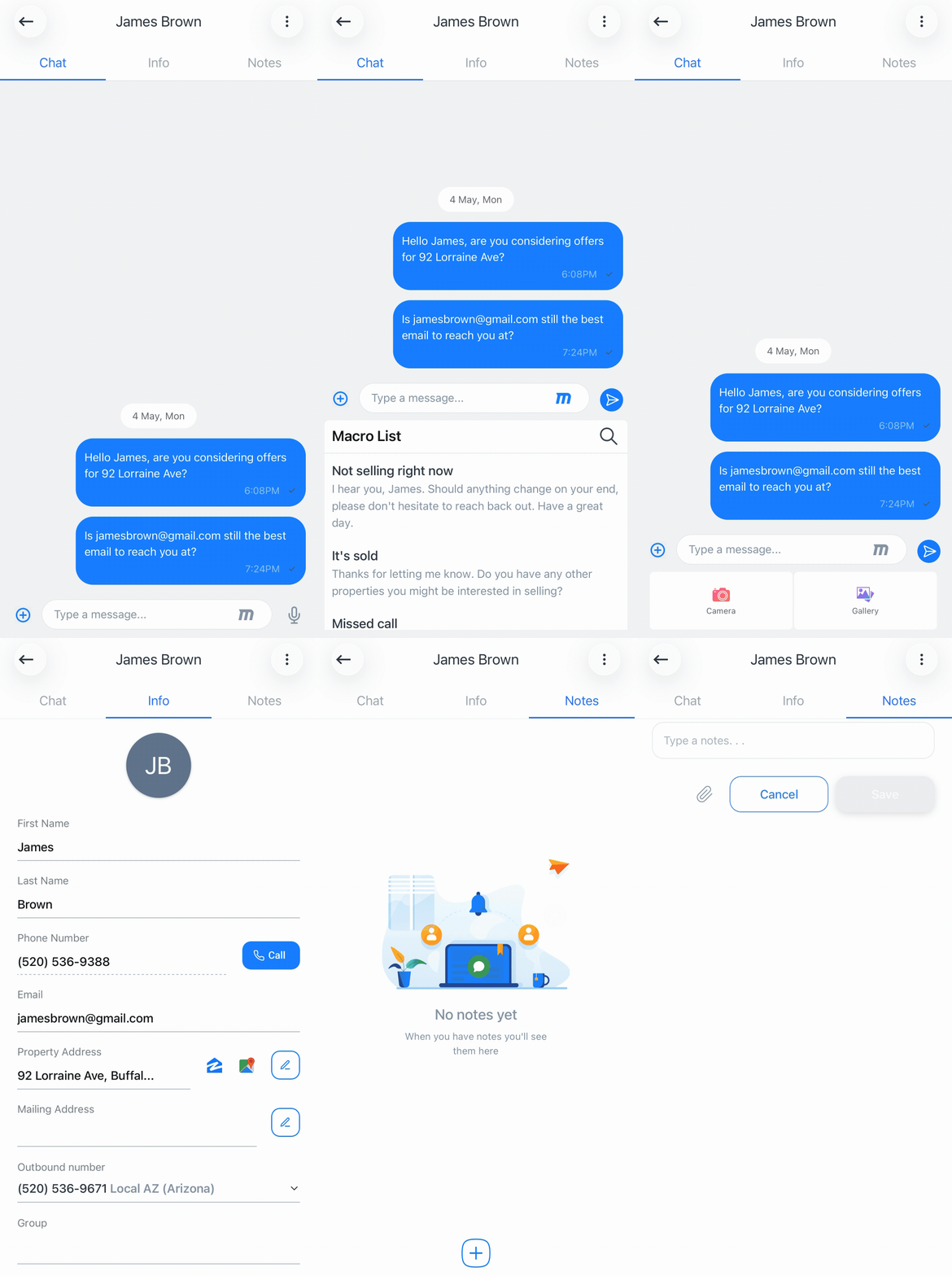**Text and Send:** The message box works exactly the way you'd expect. Type, hit send, repeat.
**Quick Replies:** Tap the **"⚡️"** icon to pull up your saved responses. Great for the questions you answer dozens of times a week — pricing, location, next steps — without sounding scripted.
**File Attachement:** The **+** button opens your gallery or camera, so you can fire off property images, screenshots, or documents directly from wherever you are.
**Contact Info:** Swipe left once to view the contact's full profile. Any edit you make syncs to the database automatically.
**Calling:** If you want to call them using the same phone number that was used for texting, simply press the **Call** button.
**Notes:** Swipe left a second time to reach the Notes section. This is where you log what the lead said, what they're looking for, and when to follow up. The next time they message back, the context is right there waiting for you.
### Campaigns: Manage What's Already Running
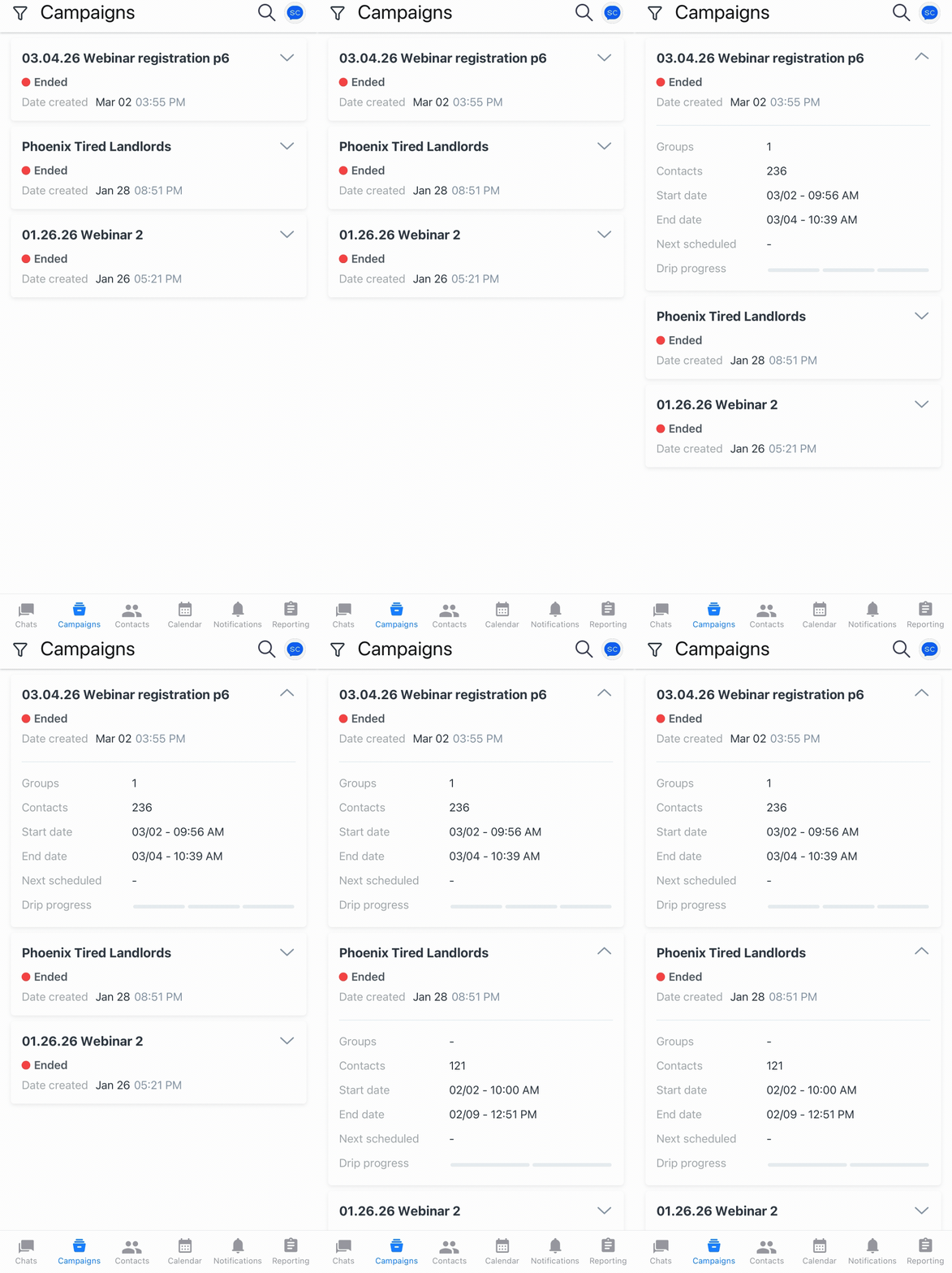
Launching new campaigns is a job for the web app, but the **Campaigns** tab on mobile gives you visibility into everything currently sending — and the ability to pause or resume anything that needs attention.
**Quick Status Checks:** Tap the arrow next to a campaign to expand its details and see what's been sent, what's pending, and where it stands overall.
**Pause and Resume:** If something looks off — a wave of opt-outs, a typo you caught too late, a deliverability dip — you can stop the campaign from your phone, sort the issue out later, and resume when you're ready. This is one of the more overlooked features in the app, especially for high-volume senders who can't always be at a desk.
### Contacts: Your Database, On Hand
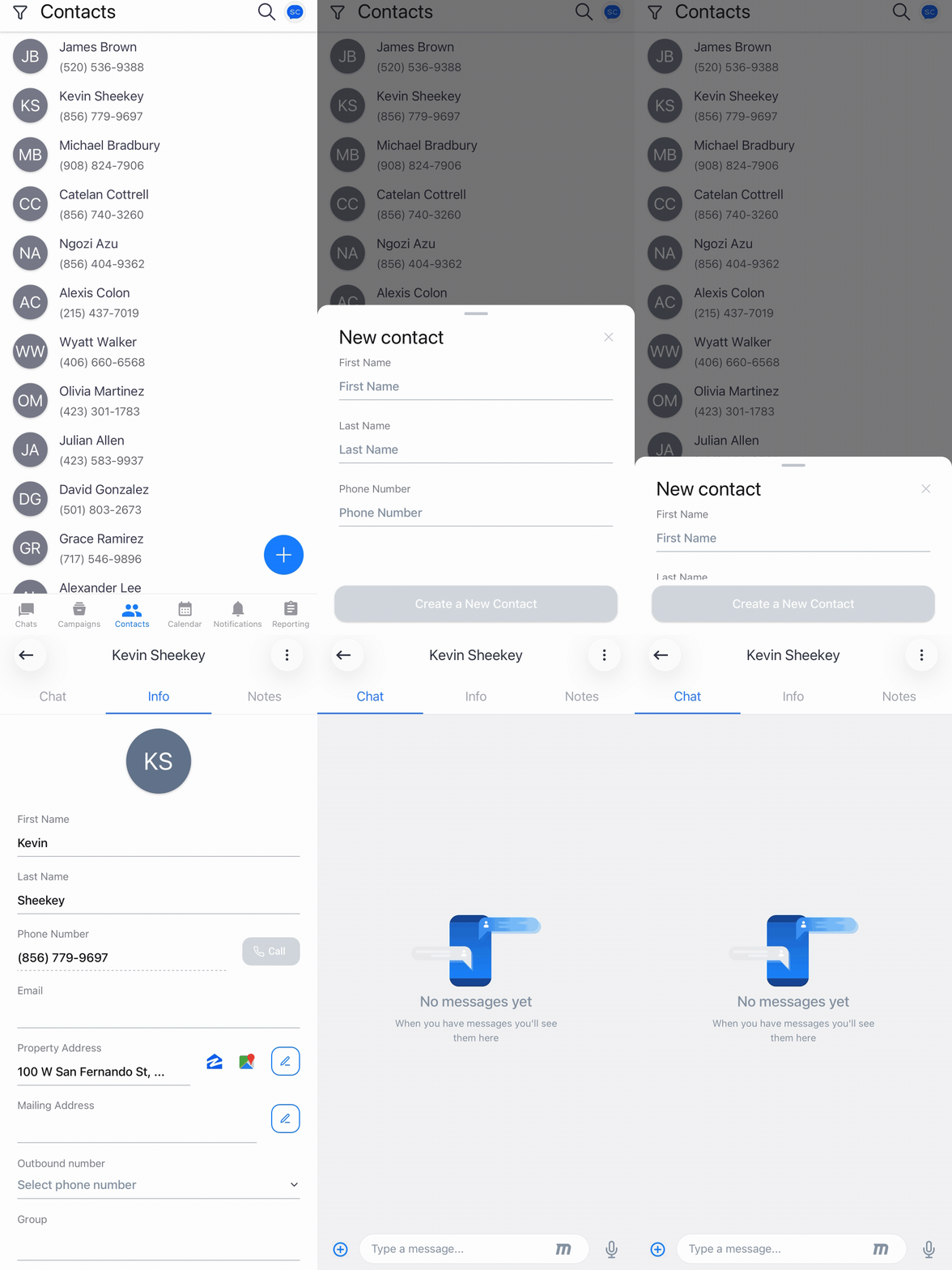
The **Contacts** tab gives you a full view of every lead in your account, with simple controls for adding new ones and managing compliance on the move.
**Add a New Contact:** Tap the blue **+** in the bottom-right corner to create a contact manually. Handy when you pick up a number outside the app — at a networking event, on a call, through a referral.
**DNC in One Move:** Long-press any contact to add or remove them from your DNC list. Compliance shouldn't have to wait until you're back at your laptop.
### Calendar: Your Follow-Ups in One View
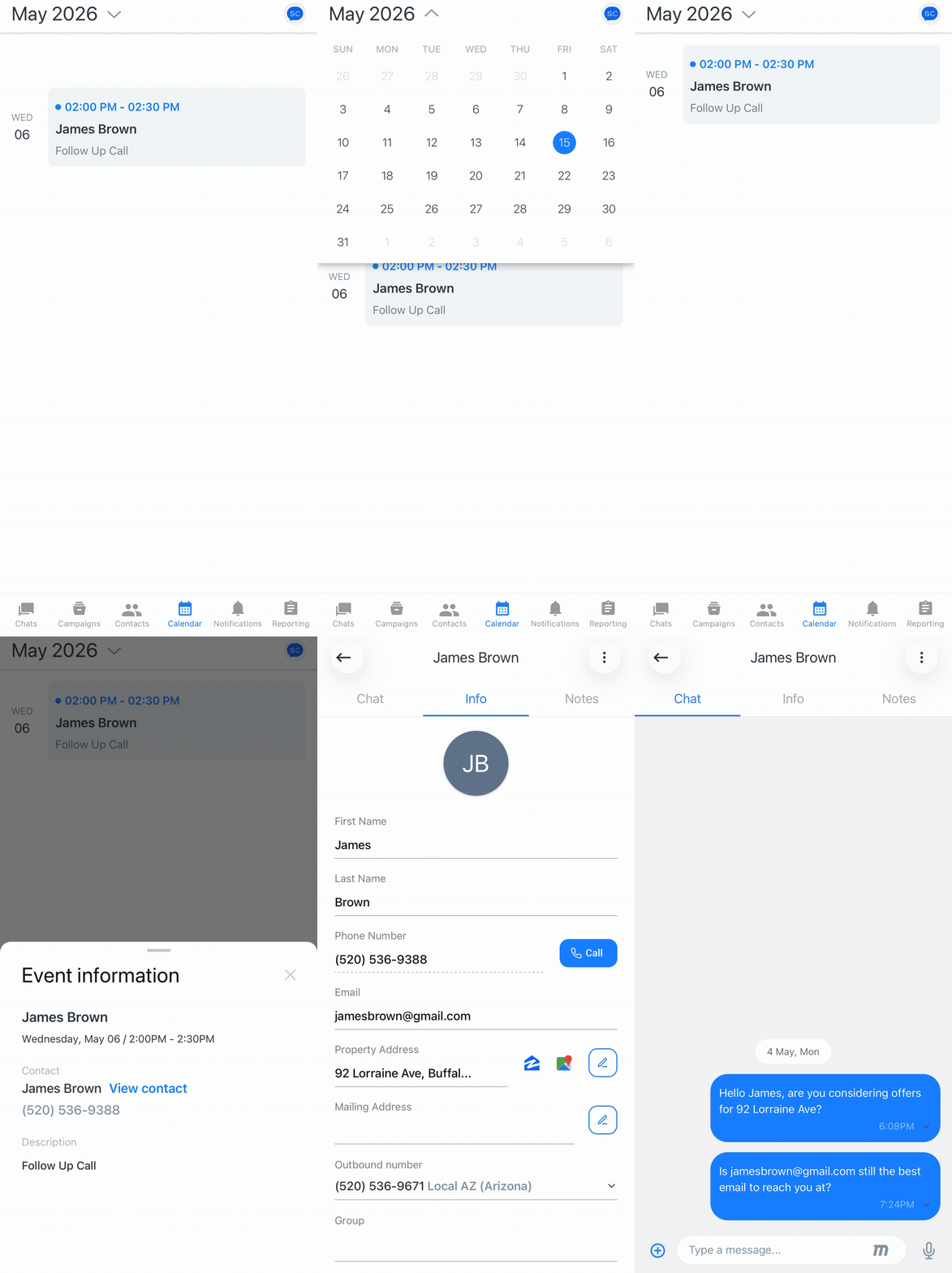
The **Calendar** tab pulls every reminder you've set across the platform into a single screen, so you always know who's expecting to hear from you and when.
Follow-ups are the highest-leverage activity in outbound, but only if you remember to actually do them. Checking the Calendar in the morning is one of the simplest habits to build into a sales or real estate workflow, and the mobile app makes it possible from anywhere.
### Notifications: Stay Aware, Stay Focused
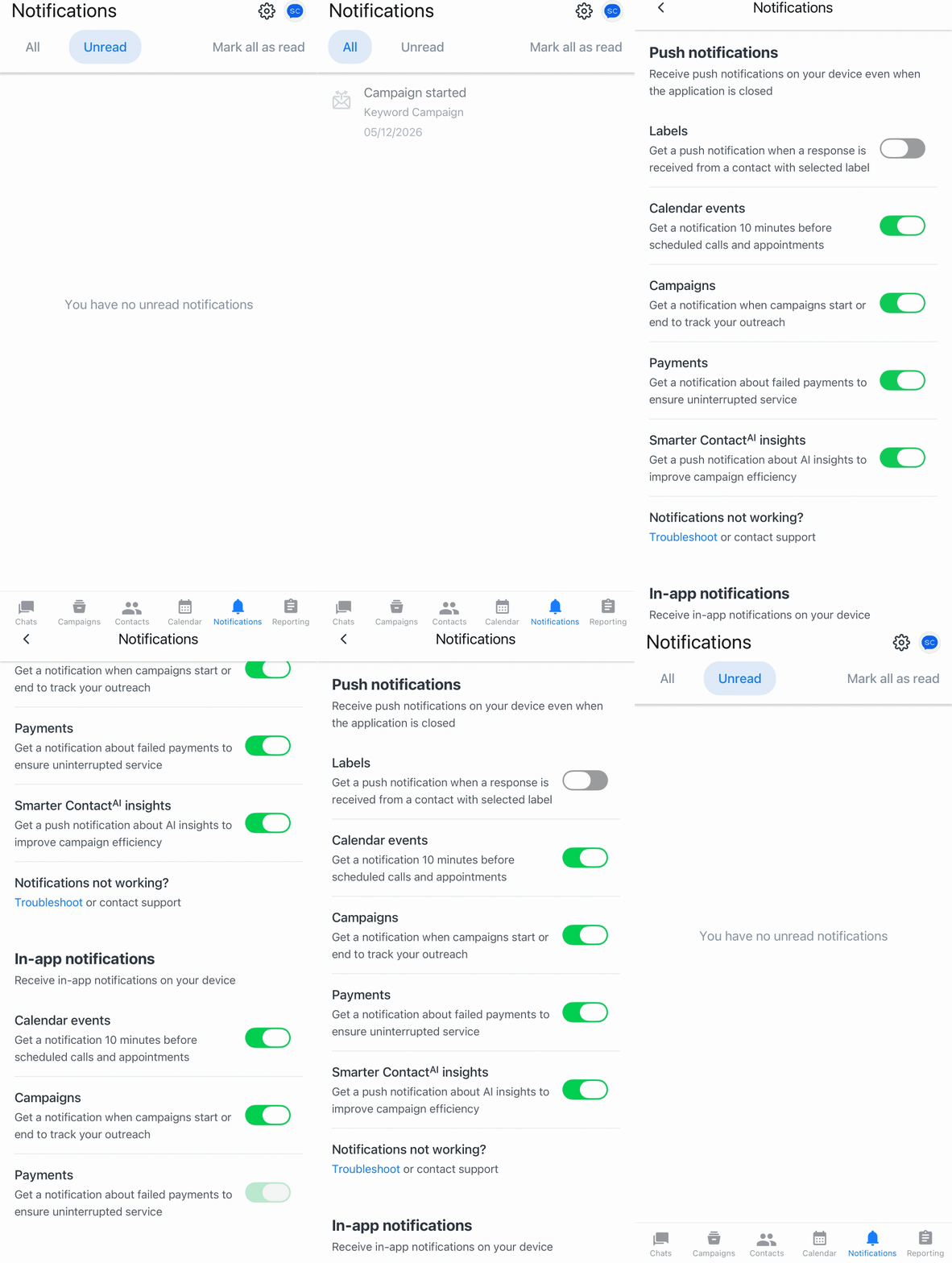
The **Notifications** tab is your activity feed. Anything worth knowing about across your account — new replies, missed calls, completed campaigns, system updates — shows up here.
**Filter by Status:** Toggle between **All** and **Unread** to control how much you're looking at.
**Clear the Queue:** Tap **Mark all as read** once you're caught up to keep the view clean for what's next.
### Reporting: Your Numbers, On the Go
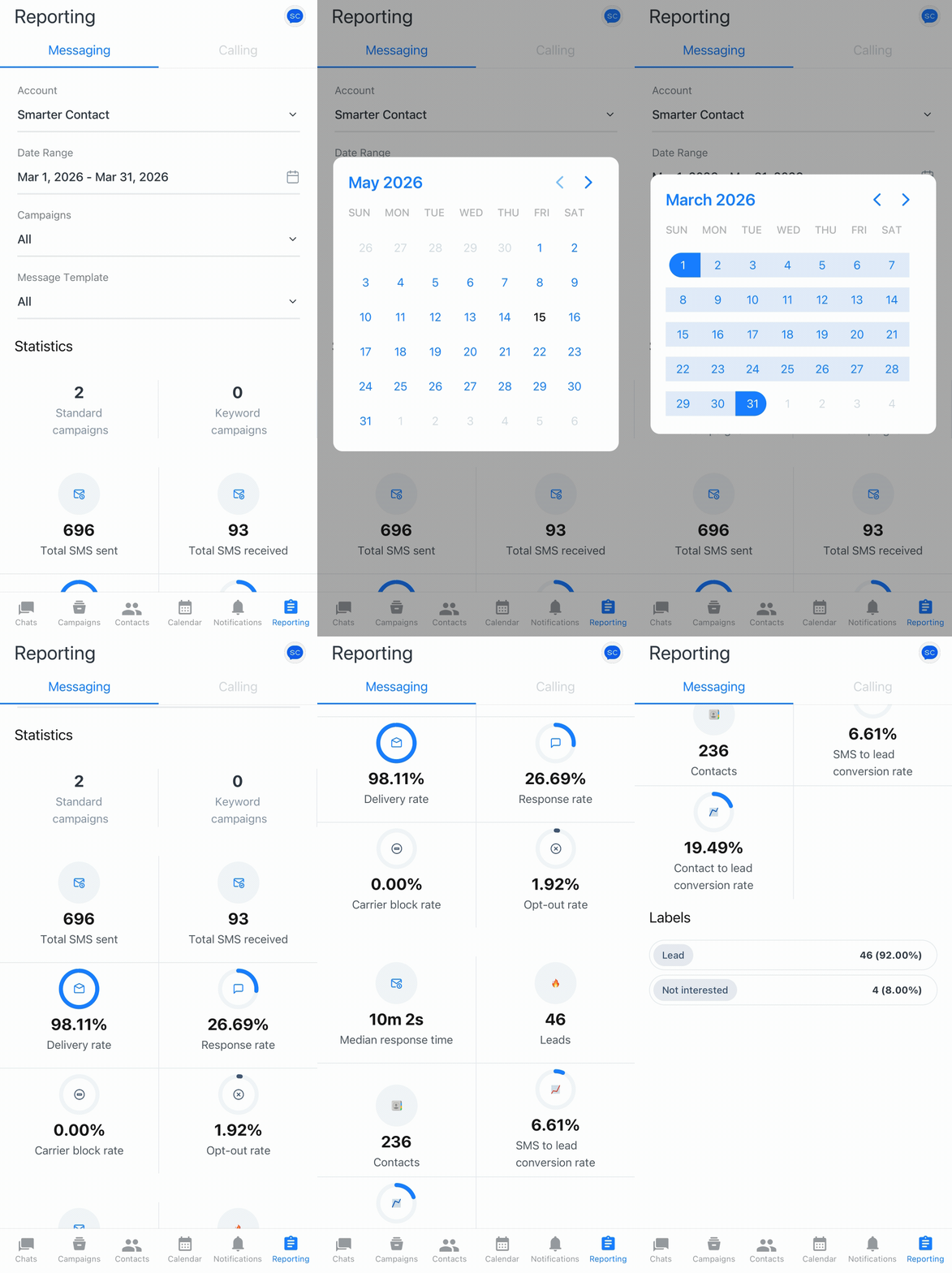
The **Reporting** tab brings the same data you'd see on the web app to your phone, so you can check performance from anywhere.
**Messaging or Calling:** Pick the channel you want to look at and the data updates instantly.
**Slice It Your Way:** Filter by date range, campaign, or message template to dig into the details. Useful when you want to compare templates side by side or see how a recent campaign performed before scaling it.
**Account-Level Views:** Pull reports per sub-account if you're managing multiple brands or team members from a single login.
### Profile and Settings
Tap your profile picture in the top bar to open the app's settings menu.
- **Account Settings:** Review the Privacy Policy and Terms & Conditions whenever you need them.
- **Notification Preferences:** Choose exactly which events trigger an alert, so your phone isn't buzzing over things that don't matter.
- **Call Settings:** Switch on **Receive Calls on this device** to take incoming calls directly on your phone — useful when you're away from your desk and don't want to miss a live conversation.
- **Support:** Reach our team without leaving the app any time you need help.
The mobile app isn't a watered-down version of Smarter Contact. It's the same platform, reshaped for the way the work actually happens — in cars, in meetings, in the in-between moments where most opportunities are either won or lost.
#### The Smarter Contact Team
- [Contact Us](https://smartercontact.com/contact-us/)
[](http://smartercontact.com)
###### ###### [Product](https://smartercontact.com/pricing/)
[Messaging Plans](https://smartercontact.com/messaging-plan/)
[Calling Plans](https://smartercontact.com/calling-plan/)
[Mobile App](https://smartercontact.com/mobile/)
[What’s New](https://smartercontact.com/whats-new/)
[Pricing](https://smartercontact.com/pricing/)
###### Company
[Privacy Policy](https://smartercontact.com/privacy-policy/)
[Terms & Conditions](https://smartercontact.com/terms-and-conditions/)
[mailto:support@smartercontact.com](mailto:support@smartercontact.com)
Copyright © 2026, Smarter Contact
#### Product
- [Messaging Plans](https://smartercontact.com/messaging-plan/)
- [Calling Plans](https://smartercontact.com/calling-plan/)
- [Mobile App](https://smartercontact.com/mobile/)
- [What’s New](https://smartercontact.com/whats-new/)
- [Pricing](https://smartercontact.com/pricing/)
#### Company
- [Privacy Policy](https://smartercontact.com/privacy-policy/)
- [Terms & Conditions](https://smartercontact.com/terms-and-conditions/)
#### Solutions
- [Investors](https://smartercontact.com/real-estate-investors/)
- [Agents](https://smartercontact.com/real-estate-agents/)
- [Brokers](https://smartercontact.com/real-estate-brokers/)
- [Wholesalers](https://smartercontact.com/real-estate-wholesalers/)
- [Land Flippers](https://smartercontact.com/real-estate-land-flippers/)
- [Fix and Flippers](https://smartercontact.com/real-estate-fix-and-flippers/)
- [Land Developers](https://smartercontact.com/real-estate-land-developers/)
- [Property Developers](https://smartercontact.com/real-estate-property-developers/)
#### Comparison
- [Launch Control vs Smarter Contact](https://smartercontact.com/launch-control-vs-smarter-contact/)
- [Batch Leads vs Smarter Contact](https://smartercontact.com/batch-leads-vs-smarter-contact/)
- [Lead Sherpa vs Smarter Contact](https://smartercontact.com/lead-sherpa-vs-smarter-contact/)
- [ReplySmart vs Smarter Contact](https://smartercontact.com/replysmart-vs-smarter-contact/)
- [ZeitBlast vs Smarter Contact](https://smartercontact.com/zeitblast-vs-smarter-contact/)
- [Sendivo vs Smarter Contact](https://smartercontact.com/sendivo-vs-smarter-contact/)
- [HighLevel vs Smarter Contact](https://smartercontact.com/highlevel-vs-smarter-contact/)
- [XLeads vs Smarter Contact](https://smartercontact.com/xleads-vs-smarter-contact/)
- [ReadyMode vs Smarter Contact](https://smartercontact.com/readymode-vs-smarter-contact/)
- [BatchDialer vs Smarter Contact](https://smartercontact.com/batchdialer-vs-smarter-contact/)
- [PhoneBurner vs Smarter Contact](https://smartercontact.com/phoneburner-vs-smarter-contact/)
- [Roor vs Smarter Contact](https://smartercontact.com/roor-vs-smarter-contact/)
#### Resources
- [Tutorials](https://smartercontact.com/tutorials/)
- [Help Center](https://support.smartercontact.com/?hsLang=en)
- [Careers](https://smartercontact.hurma.work/public-vacancies)
[](https://smartercontact.com)
[](https://apps.apple.com/us/app/smarter-contact/id1637673379) [](https://play.google.com/store/apps/details?id=com.smartercontactapp&pli=1)
© 2026 Copyright Smarter Contact.
All Rights Reserved.
```json
{
"@context" : "https://schema.org",
"@type" : "VideoObject",
"caption" : {
"@type" : "MediaObject",
"contentUrl" : "https://support.smartercontact.com/media-transcripts/219874948463/en.vtt",
"inLanguage" : "en",
"name" : "en Captions"
},
"contentUrl" : "https://21860142.fs1.hubspotusercontent-na1.net/hubfs/21860142/video_assets/219874948463/inherited/web_optimized.mp4",
"dateModified" : "2026-08-19T19:03:39.153Z",
"duration" : "PT3M34S",
"height" : 1080,
"name" : "Mobile App FV",
"thumbnailUrl" : "https://support.smartercontact.com/hubfs/Mobile%20App%20FV.mp4/medium.jpg",
"uploadDate" : "2026-08-19T19:03:26.204Z",
"width" : 1920
}
```