---
title: Purchasing phone numbers
description: How to buy phone numbers in Smarter Contact for the Power Dialer and messaging campaigns — including the steps, requirements, and pricing for each.
---
[](https://smartercontact.com/)
☰
Solutions
- [Real Estate Investing](https://smartercontact.com/real-estate-investing/)
- [Real Estate Agent](https://smartercontact.com/real-estate-agent/)
- [General Sales/Marketing](https://smartercontact.com/general-sales-marketing/)
- [Automotive](https://smartercontact.com/automotive/)
- [Event Promotion](https://smartercontact.com/event-promotion/)
- [Gym/Fitness](https://smartercontact.com/gym-fitness/)
- [Staffing](https://smartercontact.com/staffing/)
Features
- [Texting Automation](https://smartercontact.com/sms-automation/)
- [Calling](https://smartercontact.com/calling/)
- [Reporting](https://smartercontact.com/reporting/)
- [Built-in CRM](https://smartercontact.com/built-in-crm/)
- [Custom Campaigns](https://smartercontact.com/custom-campaigns/)
- [Calendar](https://smartercontact.com/calendar/)
- [Integrations](https://smartercontact.com/integrations/)
[Pricing](https://smartercontact.com/pricing/)
Resources
- [Launch Control vs Smarter Contact](https://smartercontact.com/launch-control-vs-smarter-contact/)
- [Smarter Contact Managed](https://smartercontact.com/managed-plans/)
- [Our Team](https://smartercontact.com/our-team/)
- [Tutorials](https://smartercontact.com/tutorials/)
- [Our Story](https://smartercontact.com/our-story/)
- [Help Center](https://support.smartercontact.com/?hsLang=en)
- [Blog](https://smartercontact.com/blog/)
[Affiliate Program](https://lp.smartercontact.com/affiliates) [Dialer](https://smartercontact.com/dialer/)
[Log in](https://app.smartercontact.com/login) [Get started now](https://app.smartercontact.com/signup)
[Skip to content](https://support.smartercontact.com/purchasing-phone-numbers#main-content)

Open main navigation
Close main navigation
- [Go to App](https://app.smartercontact.com/?utm_source=knowledge_base)
[Go to App](https://app.smartercontact.com/?utm_source=knowledge_base)
How can we help you?
- There are no suggestions because the search field is empty.
1. [Help Center](https://support.smartercontact.com/?hsLang=en)
2. [Power Dialer](https://support.smartercontact.com/power-dialer?hsLang=en)
July 31, 2026
# Purchasing phone numbers
### $2.75Purchasing phone numbers for Power Dialer
To use the Power Dialer, you need at least 5 phone numbers specifically for dialing. Please note that these are separate from messaging numbers and are essential for getting started.
#### **Steps to purchase numbers:**
1. **Navigate to Settings**: Go to **Settings \> Calling Campaign**.
2. **Click Buy Number**: Select the option to buy a new number.
3. **Choose an Area Code**: Enter or select the desired area code in the search field.
4. **Search & Purchase**: Browse the available numbers and purchase from the list.
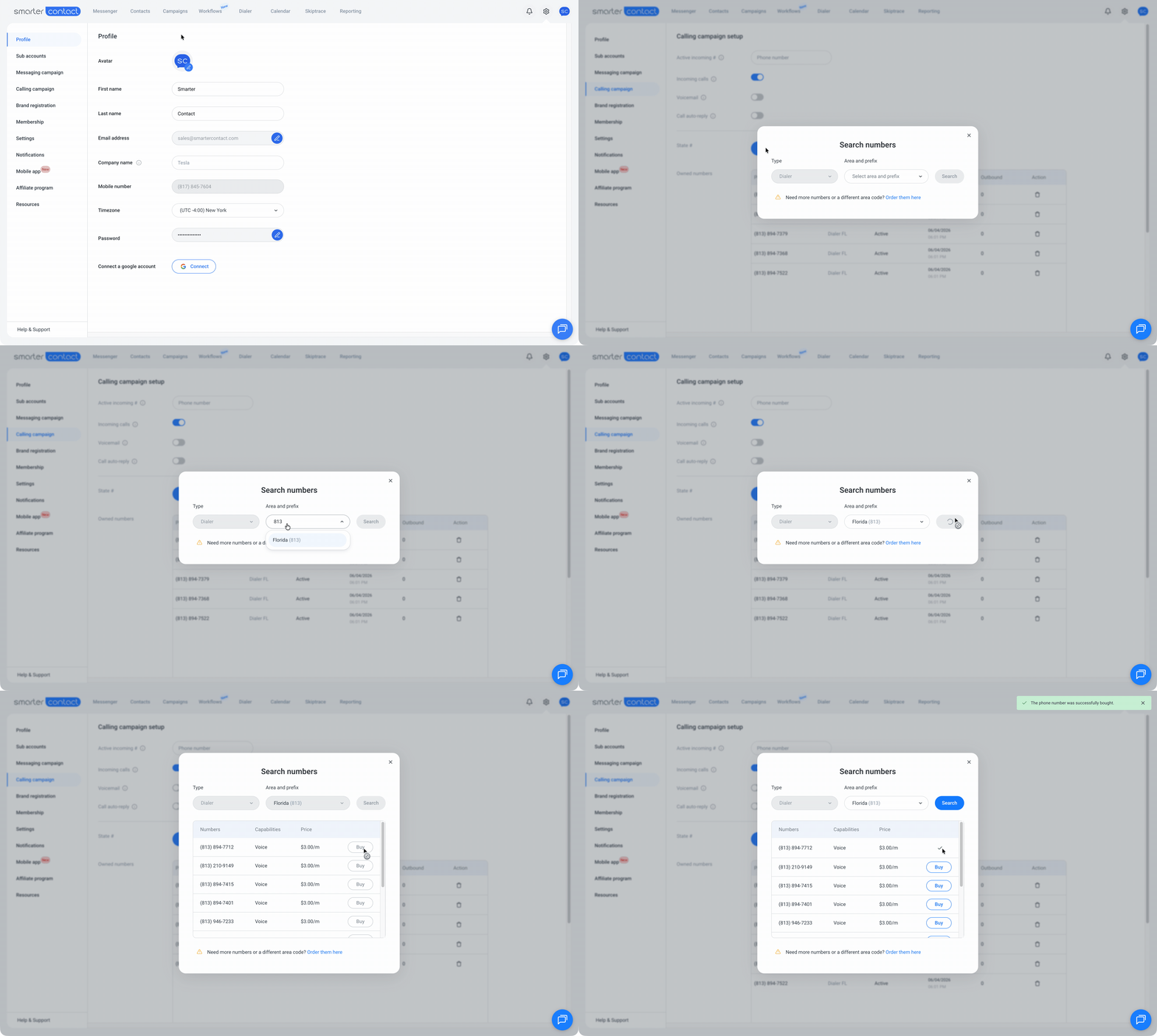
ⓘ **Note:**If no numbers are available, contact support at support@smartercontact.com, and we’ll assist you in getting them.
**💡 Pro tip:** Choose area codes matching your target regions to increase answer rates. For example, if calling Texas leads, consider getting numbers with Texas area codes.
**Important:**
- **Dialing Only**: Power Dialer numbers cannot be used for texting. A messaging subscription is required for texting.
- **Minimum Requirement**: You need exactly 5 numbers to start dialing.
- **Instant Availability**: Purchased numbers are ready for immediate use.
**Troubleshooting:**
- **No Available Numbers**: Contact support or try nearby area codes.
- **Purchase Issues**: If the transaction fails, check your subscription status or contact support.
- **Inactive Numbers**: If numbers aren’t active after purchase, reach out to support, and we will help you out.
### Purchasing phone numbers for Messaging
Purchasing messaging phone numbers
Messaging phone numbers are used to send SMS from your campaigns and Messenger. They are **separate from your Power Dialer numbers** and require an active messaging subscription. You buy and manage them on the **Messaging campaign** page under **Settings**, where the **Owned Numbers** table lists every messaging number on your account.
#### **Before you buy:**
You can purchase messaging numbers only when all three of these are true:
- **Active messaging subscription**: Your plan must be active — not Trial, None, Incomplete, Past due, Pending cancellation, or Canceled.
- **Approved A2P 10DLC brand registration**: If you haven't registered yet or were denied, you'll see a "Please register your brand" prompt. If it's still under review, you'll see "Your registration is in progress…"
- **Sufficient wallet balance**: You need enough balance to cover the number's first charge.
#### **Steps to purchase numbers:**
1. **Navigate to Settings**: Go to **Settings \> Messaging campaign**.
2. **Click Buy Number**: The **Search numbers** window opens. The **Type** is set to **Local number** and cannot be changed.
3. **Choose an Area Code**: Enter the desired area code or prefix in the search field.
4. **Search & Purchase**: Click **Search**, then choose a number from the list and click **Buy**.
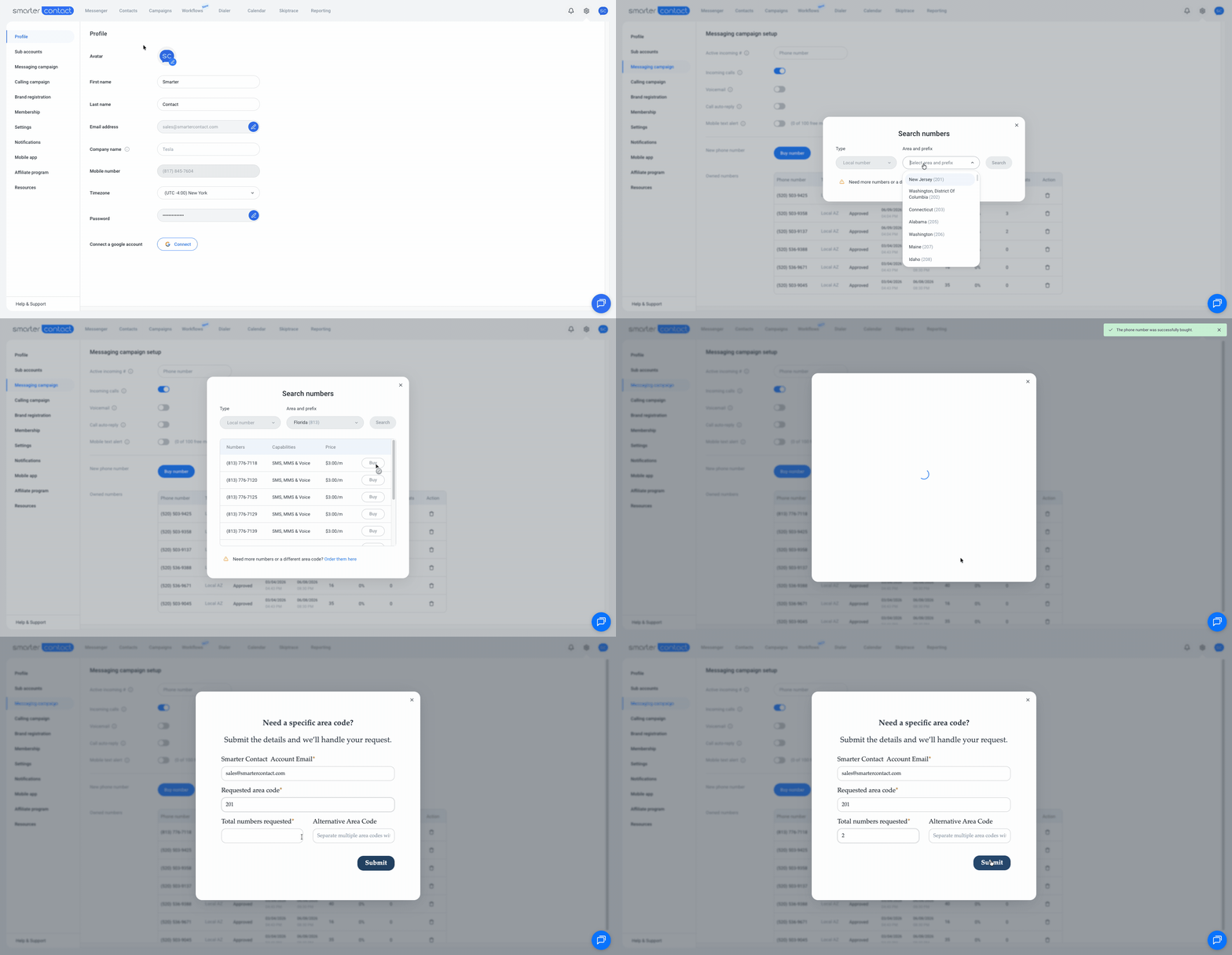
Once purchased, the cost is deducted from your wallet balance, a recurring monthly charge is added, the number appears in your **Owned Numbers** table, and you'll see the confirmation "The phone number was successfully added."
ⓘ Note: If no numbers are available for your area code, you can request them directly from the page — click **Order them here** and submit your request.
**Pricing (monthly, per number):**
| Plan | Price |
| --- | --- |
| Starter (quarterly/yearly) | $5 |
| Pro (quarterly/yearly) | $4 |
| Elite (quarterly/yearly) | $3 |
| Elite Plus 20k | $2.75 |
| Elite Plus 50k | $2.50 |
| Elite Plus 75k | $2.25 |
| Elite Plus 100k | $2 |
**💡 Pro tip:** There's no benefit to stacking several numbers in the same area code — spreading them across the regions you actually text helps keep your block rate low. You can monitor the **Block rate** column in the Owned Numbers table.
**Important:**
- **Texting Only**: Messaging numbers are for SMS and are separate from Power Dialer numbers.
- **Maximum Limit**: You can own up to 49 messaging numbers per account. At the limit, the **Buy Number** button is disabled, with the tooltip "You've reached the maximum number of phone numbers you can buy.
##### With 💙,
##### Smarter Contact Team.
- [Contact Us](https://smartercontact.com/contact-us/)
[](http://smartercontact.com)
###### ###### [Product](https://smartercontact.com/pricing/)
[Messaging Plans](https://smartercontact.com/messaging-plan/)
[Calling Plans](https://smartercontact.com/calling-plan/)
[Mobile App](https://smartercontact.com/mobile/)
[What’s New](https://smartercontact.com/whats-new/)
[Pricing](https://smartercontact.com/pricing/)
###### Company
[Privacy Policy](https://smartercontact.com/privacy-policy/)
[Terms & Conditions](https://smartercontact.com/terms-and-conditions/)
[mailto:support@smartercontact.com](mailto:support@smartercontact.com)
Copyright © 2026, Smarter Contact
#### Product
- [Messaging Plans](https://smartercontact.com/messaging-plan/)
- [Calling Plans](https://smartercontact.com/calling-plan/)
- [Mobile App](https://smartercontact.com/mobile/)
- [What’s New](https://smartercontact.com/whats-new/)
- [Pricing](https://smartercontact.com/pricing/)
#### Company
- [Privacy Policy](https://smartercontact.com/privacy-policy/)
- [Terms & Conditions](https://smartercontact.com/terms-and-conditions/)
#### Solutions
- [Investors](https://smartercontact.com/real-estate-investors/)
- [Agents](https://smartercontact.com/real-estate-agents/)
- [Brokers](https://smartercontact.com/real-estate-brokers/)
- [Wholesalers](https://smartercontact.com/real-estate-wholesalers/)
- [Land Flippers](https://smartercontact.com/real-estate-land-flippers/)
- [Fix and Flippers](https://smartercontact.com/real-estate-fix-and-flippers/)
- [Land Developers](https://smartercontact.com/real-estate-land-developers/)
- [Property Developers](https://smartercontact.com/real-estate-property-developers/)
#### Comparison
- [Launch Control vs Smarter Contact](https://smartercontact.com/launch-control-vs-smarter-contact/)
- [Batch Leads vs Smarter Contact](https://smartercontact.com/batch-leads-vs-smarter-contact/)
- [Lead Sherpa vs Smarter Contact](https://smartercontact.com/lead-sherpa-vs-smarter-contact/)
- [ReplySmart vs Smarter Contact](https://smartercontact.com/replysmart-vs-smarter-contact/)
- [ZeitBlast vs Smarter Contact](https://smartercontact.com/zeitblast-vs-smarter-contact/)
- [Sendivo vs Smarter Contact](https://smartercontact.com/sendivo-vs-smarter-contact/)
- [HighLevel vs Smarter Contact](https://smartercontact.com/highlevel-vs-smarter-contact/)
- [XLeads vs Smarter Contact](https://smartercontact.com/xleads-vs-smarter-contact/)
- [ReadyMode vs Smarter Contact](https://smartercontact.com/readymode-vs-smarter-contact/)
- [BatchDialer vs Smarter Contact](https://smartercontact.com/batchdialer-vs-smarter-contact/)
- [PhoneBurner vs Smarter Contact](https://smartercontact.com/phoneburner-vs-smarter-contact/)
- [Roor vs Smarter Contact](https://smartercontact.com/roor-vs-smarter-contact/)
#### Resources
- [Tutorials](https://smartercontact.com/tutorials/)
- [Help Center](https://support.smartercontact.com/?hsLang=en)
- [Careers](https://smartercontact.hurma.work/public-vacancies)
[](https://smartercontact.com)
[](https://apps.apple.com/us/app/smarter-contact/id1637673379) [](https://play.google.com/store/apps/details?id=com.smartercontactapp&pli=1)
© 2026 Copyright Smarter Contact.
All Rights Reserved.