---
title: What Are Quick Replies?
description: Learn how to use Quick Replies in the Messenger to send pre-written replies instantly, personalize messages at scale, and save time on repetitive conversations.
---
[](https://smartercontact.com/)
☰
Solutions
- [Real Estate Investing](https://smartercontact.com/real-estate-investing/)
- [Real Estate Agent](https://smartercontact.com/real-estate-agent/)
- [General Sales/Marketing](https://smartercontact.com/general-sales-marketing/)
- [Automotive](https://smartercontact.com/automotive/)
- [Event Promotion](https://smartercontact.com/event-promotion/)
- [Gym/Fitness](https://smartercontact.com/gym-fitness/)
- [Staffing](https://smartercontact.com/staffing/)
Features
- [Texting Automation](https://smartercontact.com/sms-automation/)
- [Calling](https://smartercontact.com/calling/)
- [Reporting](https://smartercontact.com/reporting/)
- [Built-in CRM](https://smartercontact.com/built-in-crm/)
- [Custom Campaigns](https://smartercontact.com/custom-campaigns/)
- [Calendar](https://smartercontact.com/calendar/)
- [Integrations](https://smartercontact.com/integrations/)
[Pricing](https://smartercontact.com/pricing/)
Resources
- [Launch Control vs Smarter Contact](https://smartercontact.com/launch-control-vs-smarter-contact/)
- [Smarter Contact Managed](https://smartercontact.com/managed-plans/)
- [Our Team](https://smartercontact.com/our-team/)
- [Tutorials](https://smartercontact.com/tutorials/)
- [Our Story](https://smartercontact.com/our-story/)
- [Help Center](https://support.smartercontact.com/?hsLang=en)
- [Blog](https://smartercontact.com/blog/)
[Affiliate Program](https://lp.smartercontact.com/affiliates) [Dialer](https://smartercontact.com/dialer/)
[Log in](https://app.smartercontact.com/login) [Get started now](https://app.smartercontact.com/signup)
[Skip to content](https://support.smartercontact.com/quick-replies#main-content)

Open main navigation
Close main navigation
- [Go to App](https://app.smartercontact.com/?utm_source=knowledge_base)
[Go to App](https://app.smartercontact.com/?utm_source=knowledge_base)
How can we help you?
- There are no suggestions because the search field is empty.
1. [Help Center](https://support.smartercontact.com/?hsLang=en)
2. [Messenger](https://support.smartercontact.com/messenger?hsLang=en)
June 29, 2026
# What Are Quick Replies?
## Save Time on Repetitive Messages
Quick Replies are saved message snippets for one-on-one conversations inside Messenger. Insert any quick reply with a single click—no retyping required.
They work best for high-frequency responses, allowing you to lower your response time and keep leads engaged. Common use cases include:
- **Qualifying questions** — e.g., *"How long have you owned the property?"*
- **Follow-up prompts** — e.g., *"Just circling back to see if you received my last message."*
- **Scheduling meetings** — e.g., *"Here's my calendar link to book a quick 10-minute discovery call."*
### How to Set Up Quick Replies
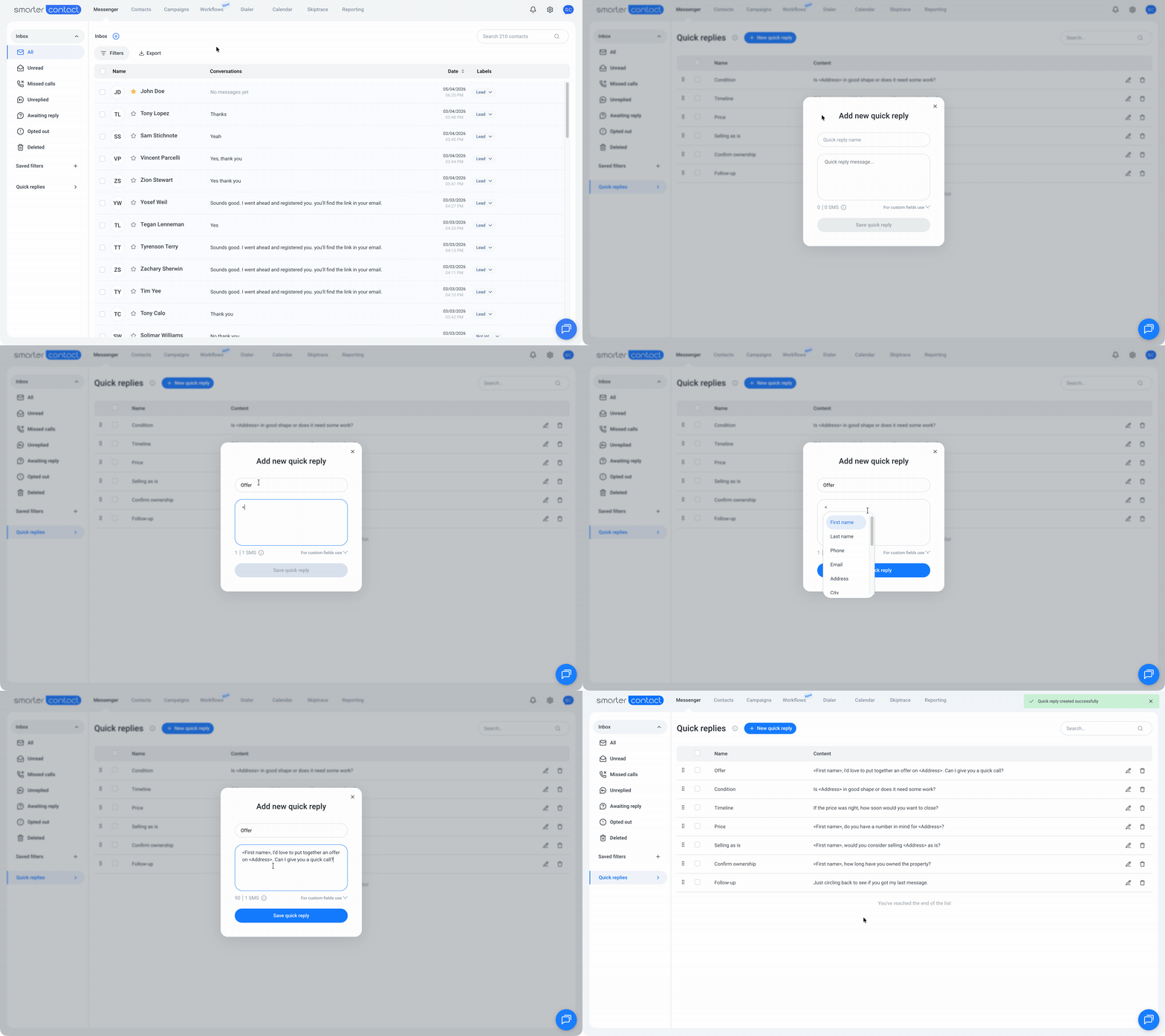
1. Go to the **Messenger** tab.
2. In the bottom-left corner, click **Quick Replies**.
3. From the quick replies page, you can add, edit, or d**elete** snippets.
| **Quick Reply Name** | 25-character limit |
| --- | --- |
| **Message Body** | 459-character maximum |
| **Personalization** | Type `<` to insert dynamic fields (e.g., ``) |
| **Sync** | Changes apply after a page refresh |
### How to Use Quick Replies
#### On the Web App:
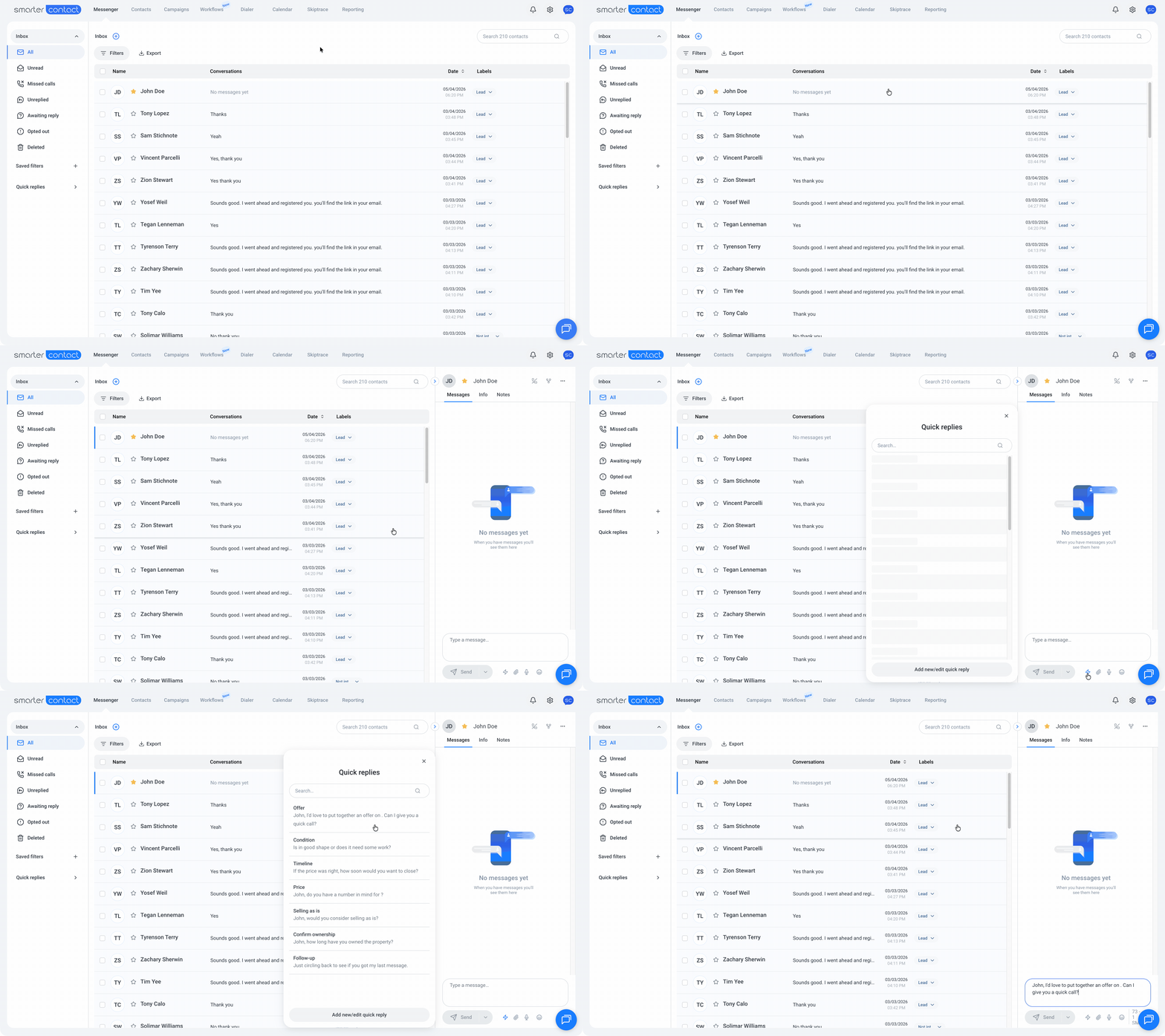
1. Open any conversation in your Messenger.
2. Click the **"⚡" icon** at the bottom of the message bar (next to the Attach File button).
3. Select a quick reply and send it.
#### On Mobile:
1. Open a conversation in the Messenger tab.
2. Tap the **"⚡" icon** on the right side of the message field.
3. Select a quick reply and send it.
### Tips for Getting the Most Out of Quick Replies
- **Keep it personal.** Use the `<` trigger to pull in dynamic fields, such as a contact's first name or address. Your messages stay efficient without feeling generic.
- **Build mobile-friendly Quick Replies.** If you find yourself typing the same update while out in the field — like *"Just pulling up to the property now!"* — save it as a quick reply to use on the go.
### What's Next?
If you want to take your follow-ups further, Quick Replies are just the starting point. Learn how to build **Contact Workflows** that automatically handle follow-ups for you — so no lead ever slips through the cracks.
##### [Explore Contact Workflows →](https://support.smartercontact.com/introduction-to-contact-workflows?hsLang=en)
##### With 💙,
##### Smarter Contact Team.
- [Contact Us](https://smartercontact.com/contact-us/)
[](http://smartercontact.com)
###### ###### [Product](https://smartercontact.com/pricing/)
[Messaging Plans](https://smartercontact.com/messaging-plan/)
[Calling Plans](https://smartercontact.com/calling-plan/)
[Mobile App](https://smartercontact.com/mobile/)
[What’s New](https://smartercontact.com/whats-new/)
[Pricing](https://smartercontact.com/pricing/)
###### Company
[Privacy Policy](https://smartercontact.com/privacy-policy/)
[Terms & Conditions](https://smartercontact.com/terms-and-conditions/)
[mailto:support@smartercontact.com](mailto:support@smartercontact.com)
Copyright © 2026, Smarter Contact
#### Product
- [Messaging Plans](https://smartercontact.com/messaging-plan/)
- [Calling Plans](https://smartercontact.com/calling-plan/)
- [Mobile App](https://smartercontact.com/mobile/)
- [What’s New](https://smartercontact.com/whats-new/)
- [Pricing](https://smartercontact.com/pricing/)
#### Company
- [Privacy Policy](https://smartercontact.com/privacy-policy/)
- [Terms & Conditions](https://smartercontact.com/terms-and-conditions/)
#### Solutions
- [Investors](https://smartercontact.com/real-estate-investors/)
- [Agents](https://smartercontact.com/real-estate-agents/)
- [Brokers](https://smartercontact.com/real-estate-brokers/)
- [Wholesalers](https://smartercontact.com/real-estate-wholesalers/)
- [Land Flippers](https://smartercontact.com/real-estate-land-flippers/)
- [Fix and Flippers](https://smartercontact.com/real-estate-fix-and-flippers/)
- [Land Developers](https://smartercontact.com/real-estate-land-developers/)
- [Property Developers](https://smartercontact.com/real-estate-property-developers/)
#### Comparison
- [Launch Control vs Smarter Contact](https://smartercontact.com/launch-control-vs-smarter-contact/)
- [Batch Leads vs Smarter Contact](https://smartercontact.com/batch-leads-vs-smarter-contact/)
- [Lead Sherpa vs Smarter Contact](https://smartercontact.com/lead-sherpa-vs-smarter-contact/)
- [ReplySmart vs Smarter Contact](https://smartercontact.com/replysmart-vs-smarter-contact/)
- [ZeitBlast vs Smarter Contact](https://smartercontact.com/zeitblast-vs-smarter-contact/)
- [Sendivo vs Smarter Contact](https://smartercontact.com/sendivo-vs-smarter-contact/)
- [HighLevel vs Smarter Contact](https://smartercontact.com/highlevel-vs-smarter-contact/)
- [XLeads vs Smarter Contact](https://smartercontact.com/xleads-vs-smarter-contact/)
- [ReadyMode vs Smarter Contact](https://smartercontact.com/readymode-vs-smarter-contact/)
- [BatchDialer vs Smarter Contact](https://smartercontact.com/batchdialer-vs-smarter-contact/)
- [PhoneBurner vs Smarter Contact](https://smartercontact.com/phoneburner-vs-smarter-contact/)
- [Roor vs Smarter Contact](https://smartercontact.com/roor-vs-smarter-contact/)
#### Resources
- [Tutorials](https://smartercontact.com/tutorials/)
- [Help Center](https://support.smartercontact.com/?hsLang=en)
- [Careers](https://smartercontact.hurma.work/public-vacancies)
[](https://smartercontact.com)
[](https://apps.apple.com/us/app/smarter-contact/id1637673379) [](https://play.google.com/store/apps/details?id=com.smartercontactapp&pli=1)
© 2026 Copyright Smarter Contact.
All Rights Reserved.
```json
{
"@context" : "https://schema.org",
"@type" : "VideoObject",
"caption" : {
"@type" : "MediaObject",
"contentUrl" : "https://support.smartercontact.com/media-transcripts/214155406107/en.vtt",
"inLanguage" : "en",
"name" : "en Captions"
},
"contentUrl" : "https://21860142.fs1.hubspotusercontent-na1.net/hubfs/21860142/video_assets/214155406107/inherited/web_optimized.mp4",
"dateModified" : "2026-06-02T15:37:48.467Z",
"duration" : "PT1M33.727S",
"height" : 1080,
"name" : "Quick Replies V2",
"thumbnailUrl" : "https://support.smartercontact.com/hubfs/Quick%20Replies%20V2.mp4/medium.jpg",
"uploadDate" : "2026-06-02T15:37:16.752Z",
"width" : 1920
}
```