---
title: How to Set Up the Opt-In API
description: Learn how to configure the Smarter Contact Opt-In API. Connect your external lead forms, map contact fields, and automate compliant SMS lead capture in minutes.
---
[](https://smartercontact.com/)
☰
Solutions
- [Real Estate Investing](https://smartercontact.com/real-estate-investing/)
- [Real Estate Agent](https://smartercontact.com/real-estate-agent/)
- [General Sales/Marketing](https://smartercontact.com/general-sales-marketing/)
- [Automotive](https://smartercontact.com/automotive/)
- [Event Promotion](https://smartercontact.com/event-promotion/)
- [Gym/Fitness](https://smartercontact.com/gym-fitness/)
- [Staffing](https://smartercontact.com/staffing/)
Features
- [Texting Automation](https://smartercontact.com/sms-automation/)
- [Calling](https://smartercontact.com/calling/)
- [Reporting](https://smartercontact.com/reporting/)
- [Built-in CRM](https://smartercontact.com/built-in-crm/)
- [Custom Campaigns](https://smartercontact.com/custom-campaigns/)
- [Calendar](https://smartercontact.com/calendar/)
- [Integrations](https://smartercontact.com/integrations/)
[Pricing](https://smartercontact.com/pricing/)
Resources
- [Launch Control vs Smarter Contact](https://smartercontact.com/launch-control-vs-smarter-contact/)
- [Smarter Contact Managed](https://smartercontact.com/managed-plans/)
- [Our Team](https://smartercontact.com/our-team/)
- [Tutorials](https://smartercontact.com/tutorials/)
- [Our Story](https://smartercontact.com/our-story/)
- [Help Center](https://support.smartercontact.com/?hsLang=en)
- [Blog](https://smartercontact.com/blog/)
[Affiliate Program](https://lp.smartercontact.com/affiliates) [Dialer](https://smartercontact.com/dialer/)
[Log in](https://app.smartercontact.com/login) [Get started now](https://app.smartercontact.com/signup)
[Skip to content](https://support.smartercontact.com/setting-up-your-opt-in-api-integration#main-content)

Open main navigation
Close main navigation
- [Go to App](https://app.smartercontact.com/?utm_source=knowledge_base)
[Go to App](https://app.smartercontact.com/?utm_source=knowledge_base)
How can we help you?
- There are no suggestions because the search field is empty.
1. [Help Center](https://support.smartercontact.com/?hsLang=en)
2. [Integrations](https://support.smartercontact.com/integrations?hsLang=en)
July 31, 2026
# How to Set Up the Opt-In API
Connect your external lead sources to Smarter Contact in a few simple steps. Once active, any lead who submits your form will automatically receive a compliant opt-in SMS and be routed directly to your Opt-in queue.
### Before You Begin
To ensure a smooth setup process, please confirm you have the following in place:
- **An eligible plan:** This feature is available on Pro, Elite and and Committed Use Plans. It is not available on the Starter plan or during trial periods.
- **An approved number:** You must have at least one fully approved messaging phone number active in your account.
- **A lead source:** Have your integration tool (like Zapier or Make) or direct lead source (like Facebook Lead Ads, Google Forms, or a website HTML form) ready to configure.
- **Required form fields:** Your form must collect three required data points: First Name, Last Name, and Phone Number.
### Step-by-Step Configuration
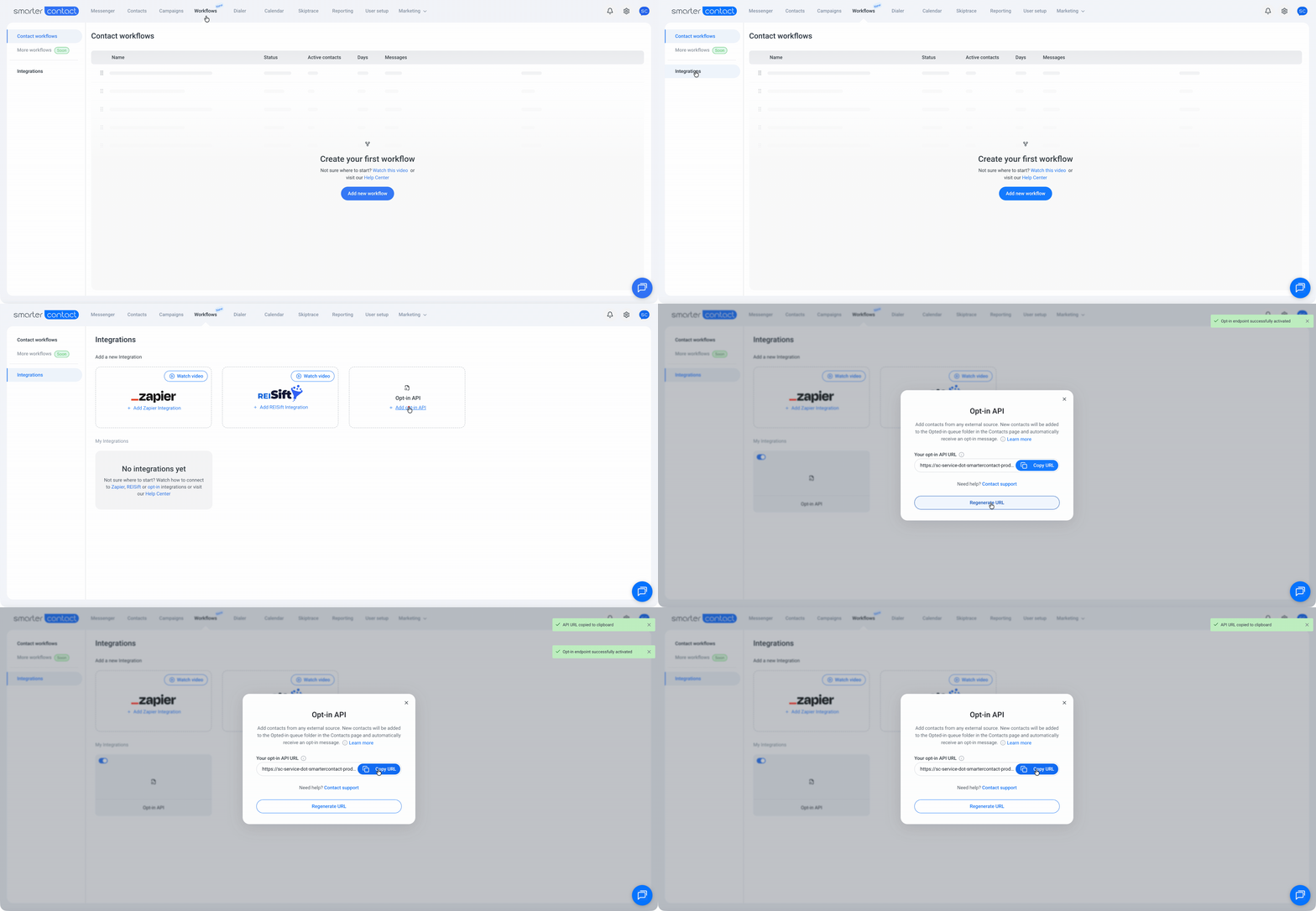
1. **Locate the Integrations menu:** In your Smarter Contact dashboard, navigate to Workflows \> Integrations.
2. **Generate the connection:** Click + Add opt-in API, then click Activate.
3. **Copy your endpoint:** Click the Copy URL button to save your unique Opt-In API link to your clipboard.
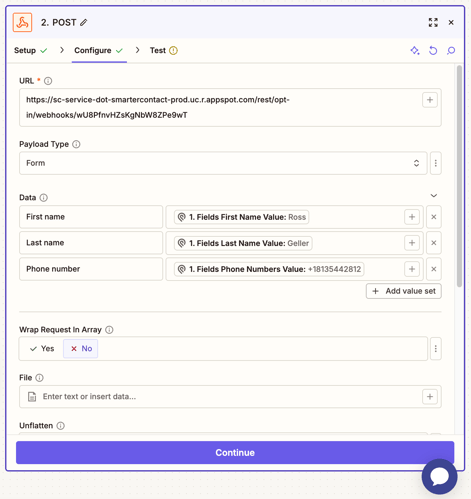
4. **Connect your tool:** Paste this URL into your integration platform (Zapier, Make, Facebook Lead Ads, etc.). If you are building a custom website form, use this link as your form's action URL.
5. **Map your data fields:** Tell your integration tool how to read your form data. You must correctly map your form's fields to the Smarter Contact required fields: First Name, Last Name, and Phone Number.
6. **Save and publish:** Save your integration settings to set the connection live.
#### Example of a Zapier Webhook setup:
### What to Expect After Activation
Once your integration is published and running:
- Your unique Opt-In API URL remains active and ready to receive data.
- Every new contact submitted through your connected form is automatically organized into the Opt-in queue folder on your Contacts page.
- The system immediately sends the standardized opt-in text message to each new contact.
### Important Notes
- **Phone Number Requirement:** The "Activate" button will be disabled if you do not have an approved messaging phone number. Secure an approved number first, then return to this setup.
- **Single Connection:** You can only generate one Opt-In API integration per Smarter Contact account.
- **Security:** Treat your Opt-In API URL like a password. Keep it secure and never share it publicly, as anyone with the link can push data into your account.
### Troubleshooting Common Issues
- **Contacts aren't appearing in the Opt-in queue:** Double-check your field mapping. Ensure your form or integration tool is successfully capturing and sending all three required fields (First Name, Last Name, and Phone Number).
- **The integration is active, but leads have stopped coming through:** Verify that your lead form is still pointing to the correct API URL within your integration tool.
- **Activation fails:** Refresh the page and try the activation step again. If the issue persists, please reach out to our support team for assistance.
### Next Steps
- [**\[Managing Contacts in the Opt-in Queue\]**](https://support.smartercontact.com/managing-contacts-in-the-opt-in-queue?hsLang=en): Now that your API is active, learn how to assign your incoming leads to campaign groups.
- [**\[Managing Your Opt-In API Integration\]**:](https://support.smartercontact.com/managing-your-opt-in-api?hsLang=en) Learn how to temporarily deactivate your integration or regenerate your API URL for security.
#### The Smarter Contact Team
- [Contact Us](https://smartercontact.com/contact-us/)
[](http://smartercontact.com)
###### ###### [Product](https://smartercontact.com/pricing/)
[Messaging Plans](https://smartercontact.com/messaging-plan/)
[Calling Plans](https://smartercontact.com/calling-plan/)
[Mobile App](https://smartercontact.com/mobile/)
[What’s New](https://smartercontact.com/whats-new/)
[Pricing](https://smartercontact.com/pricing/)
###### Company
[Privacy Policy](https://smartercontact.com/privacy-policy/)
[Terms & Conditions](https://smartercontact.com/terms-and-conditions/)
[mailto:support@smartercontact.com](mailto:support@smartercontact.com)
Copyright © 2026, Smarter Contact
#### Product
- [Messaging Plans](https://smartercontact.com/messaging-plan/)
- [Calling Plans](https://smartercontact.com/calling-plan/)
- [Mobile App](https://smartercontact.com/mobile/)
- [What’s New](https://smartercontact.com/whats-new/)
- [Pricing](https://smartercontact.com/pricing/)
#### Company
- [Privacy Policy](https://smartercontact.com/privacy-policy/)
- [Terms & Conditions](https://smartercontact.com/terms-and-conditions/)
#### Solutions
- [Investors](https://smartercontact.com/real-estate-investors/)
- [Agents](https://smartercontact.com/real-estate-agents/)
- [Brokers](https://smartercontact.com/real-estate-brokers/)
- [Wholesalers](https://smartercontact.com/real-estate-wholesalers/)
- [Land Flippers](https://smartercontact.com/real-estate-land-flippers/)
- [Fix and Flippers](https://smartercontact.com/real-estate-fix-and-flippers/)
- [Land Developers](https://smartercontact.com/real-estate-land-developers/)
- [Property Developers](https://smartercontact.com/real-estate-property-developers/)
#### Comparison
- [Launch Control vs Smarter Contact](https://smartercontact.com/launch-control-vs-smarter-contact/)
- [Batch Leads vs Smarter Contact](https://smartercontact.com/batch-leads-vs-smarter-contact/)
- [Lead Sherpa vs Smarter Contact](https://smartercontact.com/lead-sherpa-vs-smarter-contact/)
- [ReplySmart vs Smarter Contact](https://smartercontact.com/replysmart-vs-smarter-contact/)
- [ZeitBlast vs Smarter Contact](https://smartercontact.com/zeitblast-vs-smarter-contact/)
- [Sendivo vs Smarter Contact](https://smartercontact.com/sendivo-vs-smarter-contact/)
- [HighLevel vs Smarter Contact](https://smartercontact.com/highlevel-vs-smarter-contact/)
- [XLeads vs Smarter Contact](https://smartercontact.com/xleads-vs-smarter-contact/)
- [ReadyMode vs Smarter Contact](https://smartercontact.com/readymode-vs-smarter-contact/)
- [BatchDialer vs Smarter Contact](https://smartercontact.com/batchdialer-vs-smarter-contact/)
- [PhoneBurner vs Smarter Contact](https://smartercontact.com/phoneburner-vs-smarter-contact/)
- [Roor vs Smarter Contact](https://smartercontact.com/roor-vs-smarter-contact/)
#### Resources
- [Tutorials](https://smartercontact.com/tutorials/)
- [Help Center](https://support.smartercontact.com/?hsLang=en)
- [Careers](https://smartercontact.hurma.work/public-vacancies)
[](https://smartercontact.com)
[](https://apps.apple.com/us/app/smarter-contact/id1637673379) [](https://play.google.com/store/apps/details?id=com.smartercontactapp&pli=1)
© 2026 Copyright Smarter Contact.
All Rights Reserved.