

When you open the SI Agent settings, you shape how every draft is written for you. You set the goals SI Agent works toward, then pick the tone your leads hear. This article answers the questions people ask most, from which option to pick to what SI Agent will never do.
🎯 What do the SI Agent settings do?
The settings shape every draft SI Agent writes for you, so each one starts closer to how you already talk to your leads. You set them once, then every new draft follows them.
- The Playbook sets the strategies, objections, and goals SI Agent follows for your business.
- The tone sets how your drafts sound to your leads.
- The voice behind your drafts is Our proven writing, a battle-tested style that every account uses today.
- The settings apply wherever SI Agent writes for you. Drafts requested by tools you connect through ConnectSI use the same Playbook and tone as Messenger.
- Changes save instantly, so there is no save step to remember.
📍 Where do I find them?
Open the settings from the main menu, or jump straight to them from Messenger.
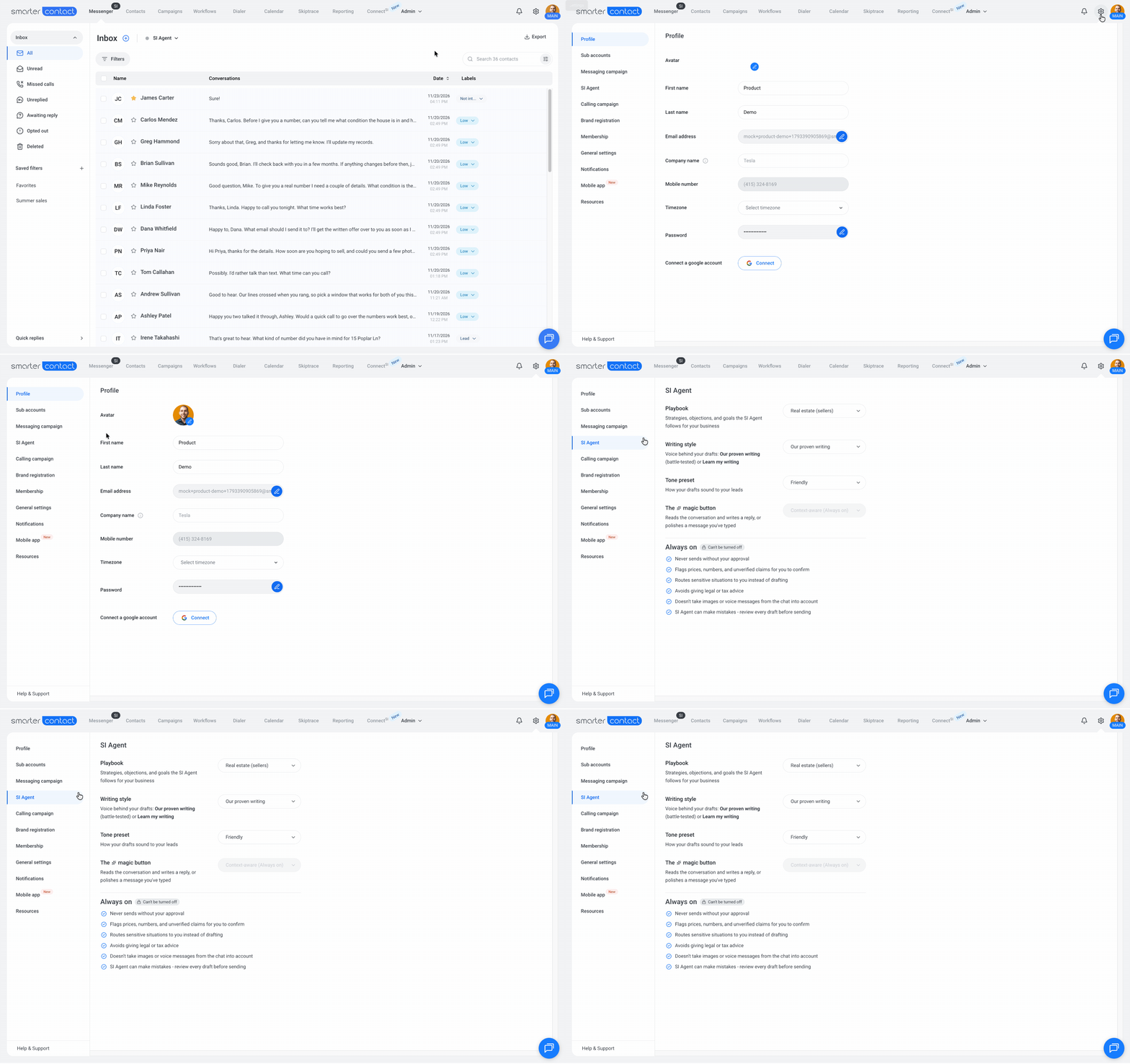
- Go to Settings, then select SI Agent. It sits right below Messaging campaign.
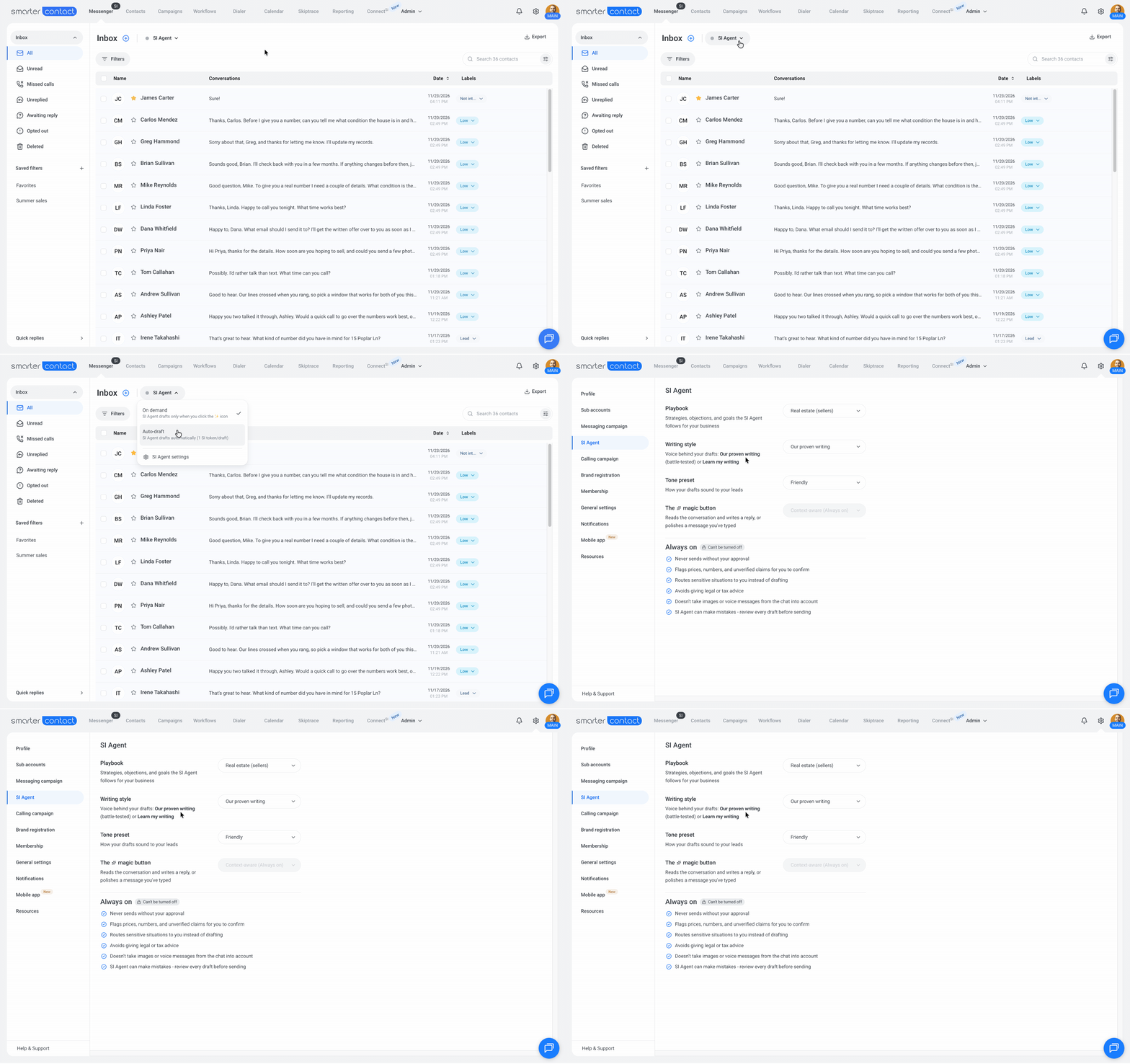
- In Messenger, choose SI Agent settings in the SI Agent menu.
- Anyone can open the page, on Main and Sub accounts alike, even on a plan that doesn't include SI drafts.
📖 Which Playbook should I pick?
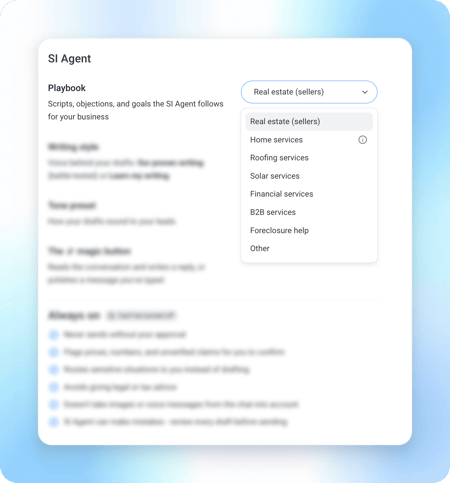
Pick the Playbook closest to who you're texting. If none fits, pick Other.
- Real estate (sellers) is selected by default.
- The options are Real estate (sellers), Home services, Roofing services, Solar services, Financial services, B2B services, Foreclosure help, and Other.
- Home services covers landscaping, tree, pest control, HVAC, pool, and plumbing.
- Every SI Agent draft shows the name of the Playbook it used, so you can always check which one is active.
- Switching is quick, because the change saves instantly.
- Each account has its own Playbook, so a sub-account that serves a different kind of business can use a different one.
🎙️ How do I choose how my drafts sound?
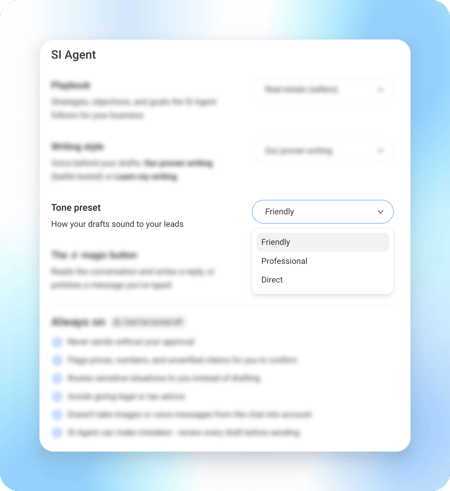
The tone decides how your drafts sound to your leads. Choose Friendly, Professional, or Direct. Friendly is the default.
- Each account has its own tone, so every sub-account can use a different one.
- Drafts requested by tools you connect through ConnectSI use the same tone as Messenger.
- The voice stays the same for everyone today. Every draft is written in Our proven writing.
✋ Will SI Agent send messages on its own?
No. SI Agent only writes drafts. Every draft waits for your approval, and nothing goes out until you act.
- Hit Send, or use Schedule to send a draft at a future time.
- You can edit a draft before you send it.
- SI Agent can make mistakes, so review every draft before sending.
- Tools you connect can ask SI Agent for drafts too, but sending is always a separate step.
🔒 Which protections are always on?
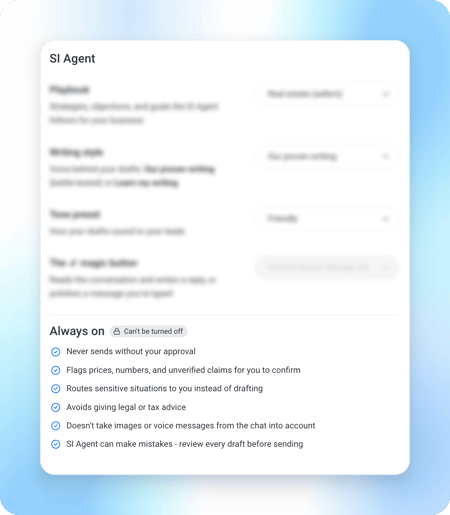
Some protections apply to every draft, whichever Playbook you choose. You can't turn them off.
- Approval first: SI Agent never sends without your approval.
- Prices and claims: SI Agent flags prices, numbers, and unverified claims so you can confirm them before you send. In the compose box, you'll see a tag such as [PRICE – confirm] or [$X – confirm].
- Sensitive situations: SI Agent routes them to you instead of drafting.
- No legal or tax advice: SI Agent avoids giving it.
- Images and voice messages: SI Agent doesn't take them from the chat into account, so read them yourself before you reply.
- Mistakes: SI Agent can make them, so review every draft.
🤔 Why didn't SI Agent write a draft?
In a few cases, SI Agent holds back on purpose.
- Sensitive or unusual conversation: you see "Needs your attention" instead of a draft, so you can answer in your own words.
- Blocked word in your text: SI Reply waits until you remove it.
- Opted-out, DNC, litigator, or landline: contacts who can't be texted don't receive drafts.
- No conversation yet: SI Agent drafts when there are already messages with the contact. It doesn't write the first message to someone new.
- Low wallet balance: if you've used your free SI tokens and your wallet can't cover the cost of a token, drafting pauses until you recharge your wallet.
- No outbound number: you're asked to set an outbound number before SI Agent starts drafting.
- Plan requirement: SI drafts are available on Elite and above. Basic, Starter, and Pro accounts can upgrade to unlock drafting. Trial accounts need to start a subscription first.
✨ What does SI Reply do?
- It reads the conversation and writes a reply, or polishes a message you've typed.
- It's always on, so there is nothing to set up for it.
- When Auto-draft is active, SI Agent also writes a draft each time you open a conversation.
- A draft is never final. Read it, change anything you want, then send.
- Not happy with a draft? Use Regenerate to get a new version.
- Changed your mind about your edits? Use Undo to bring back the original SI draft. It's free.
🏢 Can each sub-account have its own settings?
- Yes. Each account, Main or Sub, has its own Playbook and tone.
- You can edit each one independently.
- The settings are separate, but sub-accounts share the main account's SI tokens and wallet.
💳 Which plans can use SI drafts, and what does a draft cost?
- Eligible plans: Elite and above. Basic, Starter, and Pro plans don't include SI drafts.
- Settings page: open to everyone, on every plan.
- Cost: each draft uses 1 SI token, including Regenerate and a "Needs your attention" review.
- Elite Plus: includes a monthly allowance of free SI tokens. Once it's used up, drafts are billed from your wallet.
- Elite: has no free allowance. Drafts are billed from your wallet as you go.
- Free actions: Undo and failed drafts cost nothing.
💡 Pro tips
- Pro tip: Set your Playbook and tone once. Every draft then starts closer to how you already speak to your leads.
- Pro tip: Unsure about a draft? Use Regenerate for a fresh version, or Undo to go back to the original SI draft for free.
🔗 Related articles
- How to Use SI Reply in Messenger
- Understanding SI Tokens and Billing
- ConnectSI API & Webhook Overview