

A campaign is only as good as the data feeding it. Smarter Contact's built-in skiptracing tool turns a raw property list into a set of real, reachable contacts — verified phone numbers, emails, addresses, and more — without ever leaving the platform or paying a separate provider.
What Is Skiptracing in Real Estate?
Skiptracing is the process of finding current contact information for a person using identifying data like their name and property address. For real estate investors, it's how you turn a list of property owners or landlords into a callable, textable lead list. Smarter Contact runs skiptracing directly inside the CRM, so the results land in your database and are ready to contact immediately.
What Data Does Skiptracing Return?
When a record is successfully matched, Smarter Contact returns up to five data categories per lead:
- Phone numbers — multiple numbers associated with the individual, sorted by Mobile and Landline
- Email addresses
Where available, results also include APNs (Assessor Parcel Numbers) and parcel details for the properties you submit. Your results dashboard shows a full breakdown — total contacts returned, hit rate, and every number categorized by type.
A successful match is counted as a "Hit" when at least one of these data points is returned.
How to Skiptrace a File
Step 1: Upload Your File
Navigate to the Skiptrace tab and upload your lead list. You can drag the file directly into the upload box or browse your device to find it.
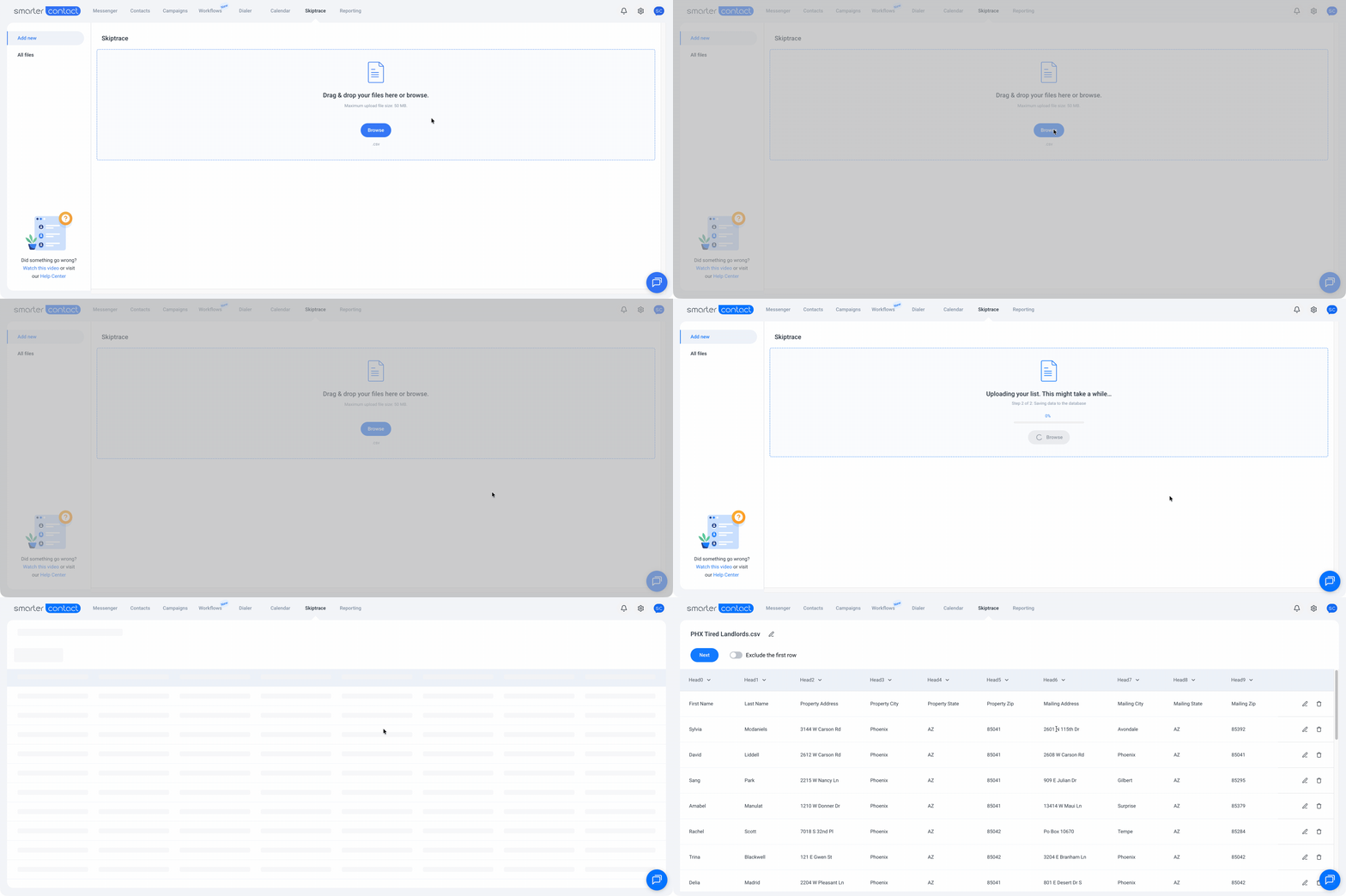
File requirements:
- Format: .csv only
- Maximum file size: 50 MB
- Required fields: First Name, Last Name, and at least one address (Property or Mailing) — including City, State, and Zip
💡 Pro tip: If your file has both a Property Address and a Mailing Address, map both. Using both consistently improves your hit rate.
Step 2: Map Your Fields
Once your file is uploaded, map the columns in your spreadsheet to the corresponding fields in Smarter Contact. The three required fields — First Name, Last Name, and Address — must be mapped before you can proceed.
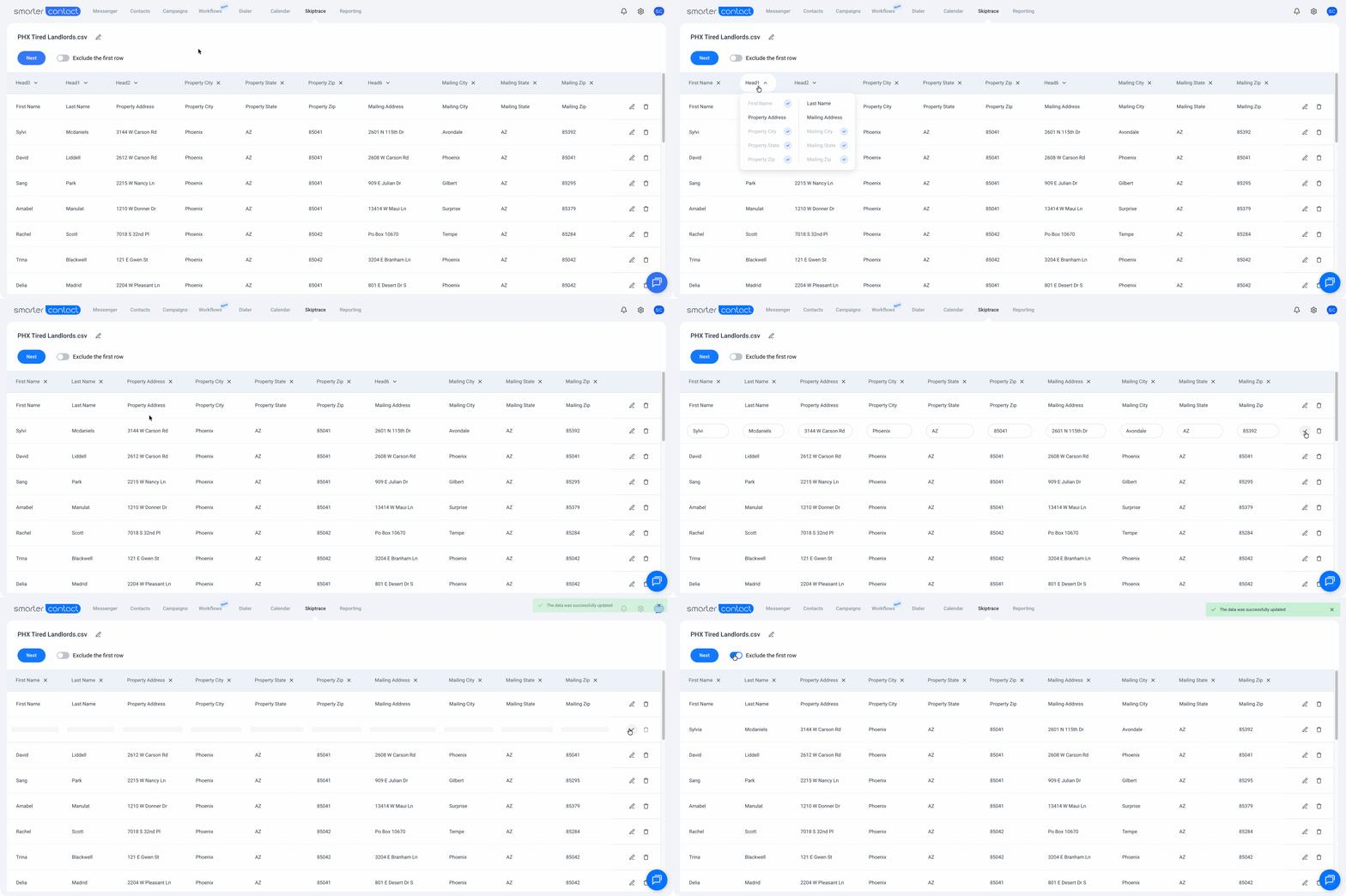
A few things worth knowing at this step:
- Map both Property and Mailing addresses when available — using both consistently returns more matches than either address alone
- Keep your data clean — each column should contain exactly what it says. A First Name field with a full name, an LLC, or anything other than a first name will produce an invalid match
- Remove blank rows and bad data before uploading — LLCs, trust names, or corrupted entries won't match against real people and will count against your results
- Toggle Exclude the first row if your spreadsheet's first row is a header rather than a lead record
- Edit or delete individual rows directly in the mapping view if you spot issues before submitting
- Minimum list size is 5 records
Step 3: Review Pricing and Confirm
Before the skiptrace runs, a payment summary shows you the number of records, the price per record, and your estimated total. Enable Dedupe previously skiptraced records to automatically remove anyone you've already traced — the system cross-references your entire history and skips the duplicates. The more you skiptrace over time, the more this saves you.
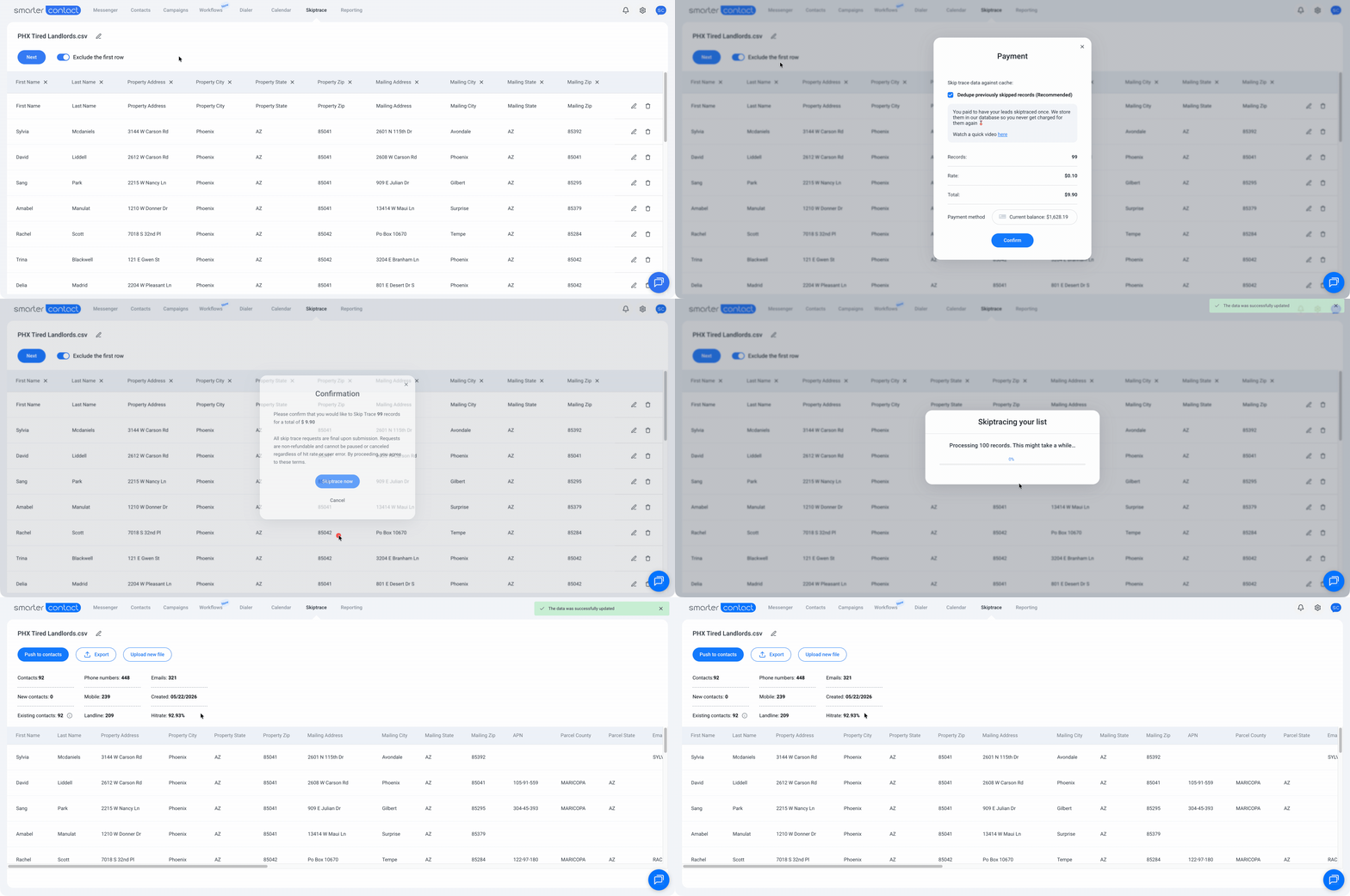
One important detail on billing: the upfront charge is based on your total list size, but you're only billed for successful hits. Any record the system can't match is returned to your balance automatically — so you never pay for data you don't receive.
Once you confirm, the skiptrace runs and a progress bar tracks the process in real time. When it's done, a confirmation email with your results file and payment receipt lands in your inbox, and your final cost is deducted from your Smarter Contact balance.
Skiptracing Pricing
Pricing scales with your plan — the higher your tier, the lower your per-record cost.
| Plan | Price per Record |
|---|---|
| No plan / Inactive | $0.20 |
| Starter | $0.15 |
| Pro | $0.12 |
| Elite / Elite Plus | $0.10 |
Skiptracing is available during the 7-day free trial at the rates above. Note that trial users are charged real costs for skiptracing — it is not included as part of the free trial experience.
Managing Your Skiptraced Files
Once your skip trace is complete, you have three options:
- Push to Contacts — send the entire enriched list to your Smarter Contact database in one click and move straight into a campaign
- Export the file — download your results if you need them elsewhere
- Run a new upload — start another skip trace whenever you're ready
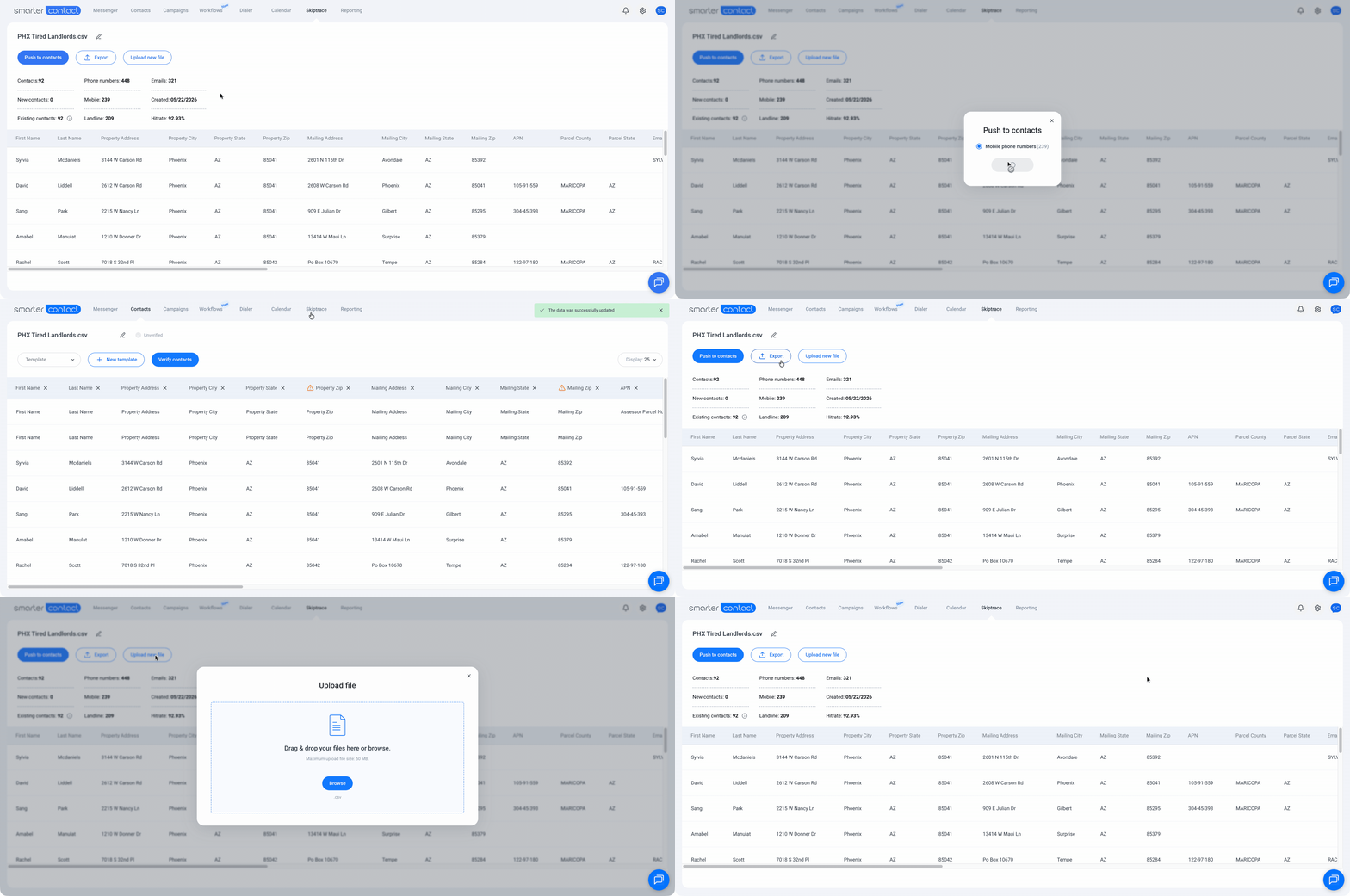
The All Files tab shows every list you've previously skiptraced, including a breakdown of total phone numbers returned, how many are mobile, and how many are landline. You can delete any file from this view when you no longer need it.
Frequently Asked Questions
-
Can I avoid being charged twice for the same lead?
Yes — enable Dedupe previously skiptraced records at checkout. Keep your column mapping consistent across uploads, because the system identifies duplicates based on the data points you map. A different column mapped for the same lead means a new charge. -
What happens after the skiptrace is complete?
A confirmation email with your results file and payment receipt lands in your inbox automatically. Your final cost — hits only — is deducted from your balance. -
Is skiptracing available during the free trial?
Yes, but real charges apply. A warning appears before you confirm any run during your trial period.
What's Next?
Once your list is skiptraced and your leads have verified phone numbers, the next step is putting them into a campaign. Learn how to build drip sequences that reach out automatically — at the right time, with the right message.