

In SMS messaging, the most engaged leads often skip the reply and call you directly. The Active Incoming Number controls where those inbound calls get routed — making sure no warm conversation slips through just because a seller picked up the phone instead of typing back.
Whether you want calls forwarded to your personal cell, a business line, or a VoIP system, the setup takes less than a minute.
Setting Up Your Active Incoming Number
Messaging Campaigns
You'll configure your incoming number from the Messaging Campaigns page in your account settings. The full process is three steps.
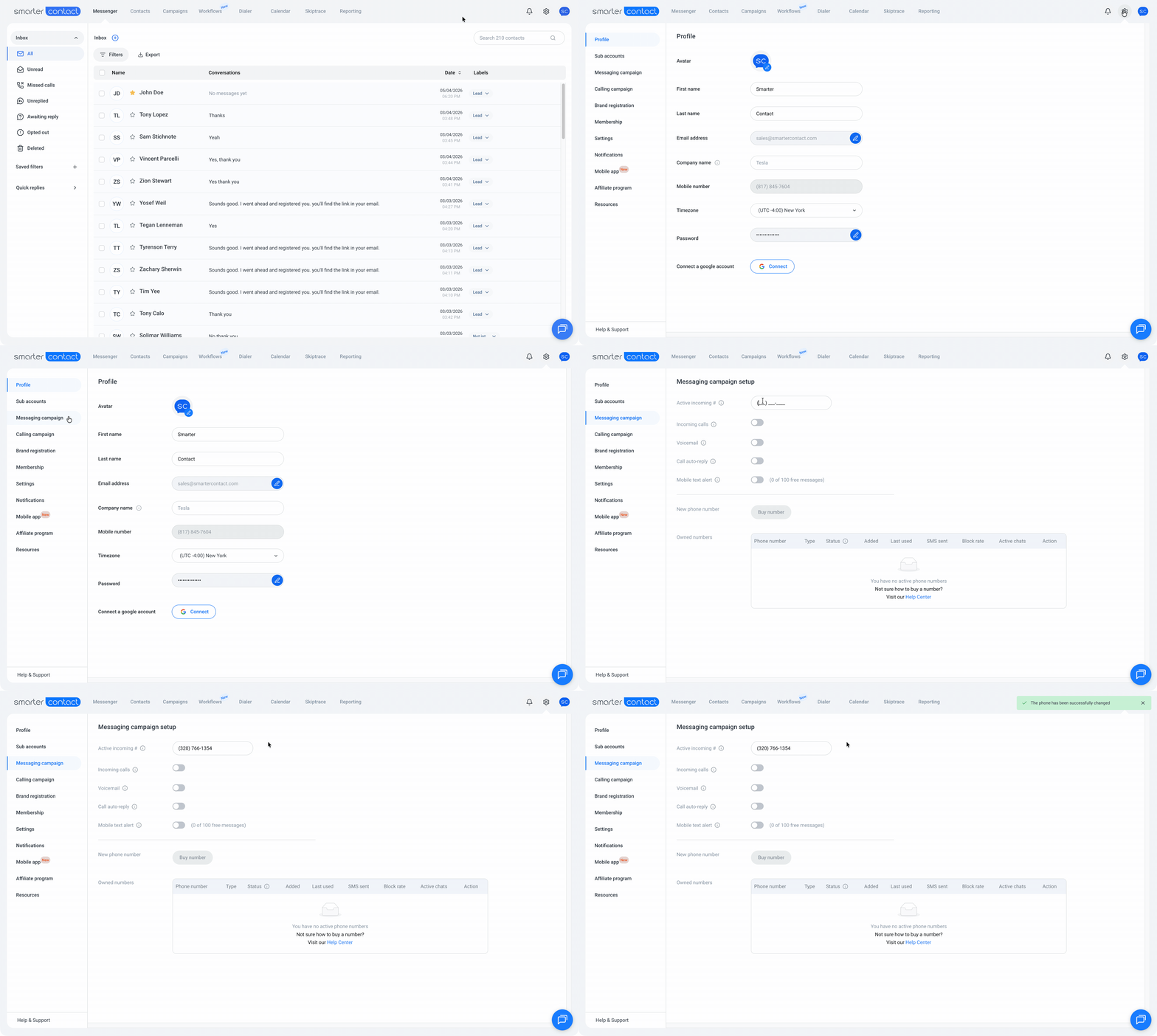
- Go to settings
- Click on Messaging Campaigns: Navigate to the Messaging Campaigns page from your account settings.
- Enter Your Forwarding Number: In the Active Incoming # field, type the number you want inbound calls routed to. It can be any working line — personal, business, a tracking number, or VoIP.
- Save Your Changes: Click anywhere. A "Successfully updated your active incoming number" confirmation will appear on screen.
From that moment on, every call placed to one of your outgoing numbers will route directly to the line you just set.
ⓘ Note: To learn how to set up the Active Incoming Number for your dialer, click here.
The number you use can be:
- Your business phone number
- Your personal mobile number or
- Any US-based number
💡 Pro tip: Choose area codes matching your target regions to increase answer rates. For example, if calling Texas leads, consider getting numbers with Texas area codes.
What Happens When a Lead Calls You Back
Understanding the routing logic behind the scenes is worth a minute — both for protecting your privacy and for setting clear expectations with anyone on your team handling inbound calls.
When a lead dials the outbound number they received a message from, the system automatically redirects the call to your active incoming number. The lead never sees the number they're actually reaching. From their side, they're simply returning a text — your personal line stays completely hidden.
This privacy layer is one of the more overlooked benefits of running campaigns through Smarter Contact: you stay reachable to motivated leads without ever exposing your personal cell number.
Bonus: Take Calls Directly Inside the Mobile App
If you'd rather not forward calls to a separate line at all, the Smarter Contact Mobile App can receive those calls itself — effectively turning your phone into a built-in dialer for your account.
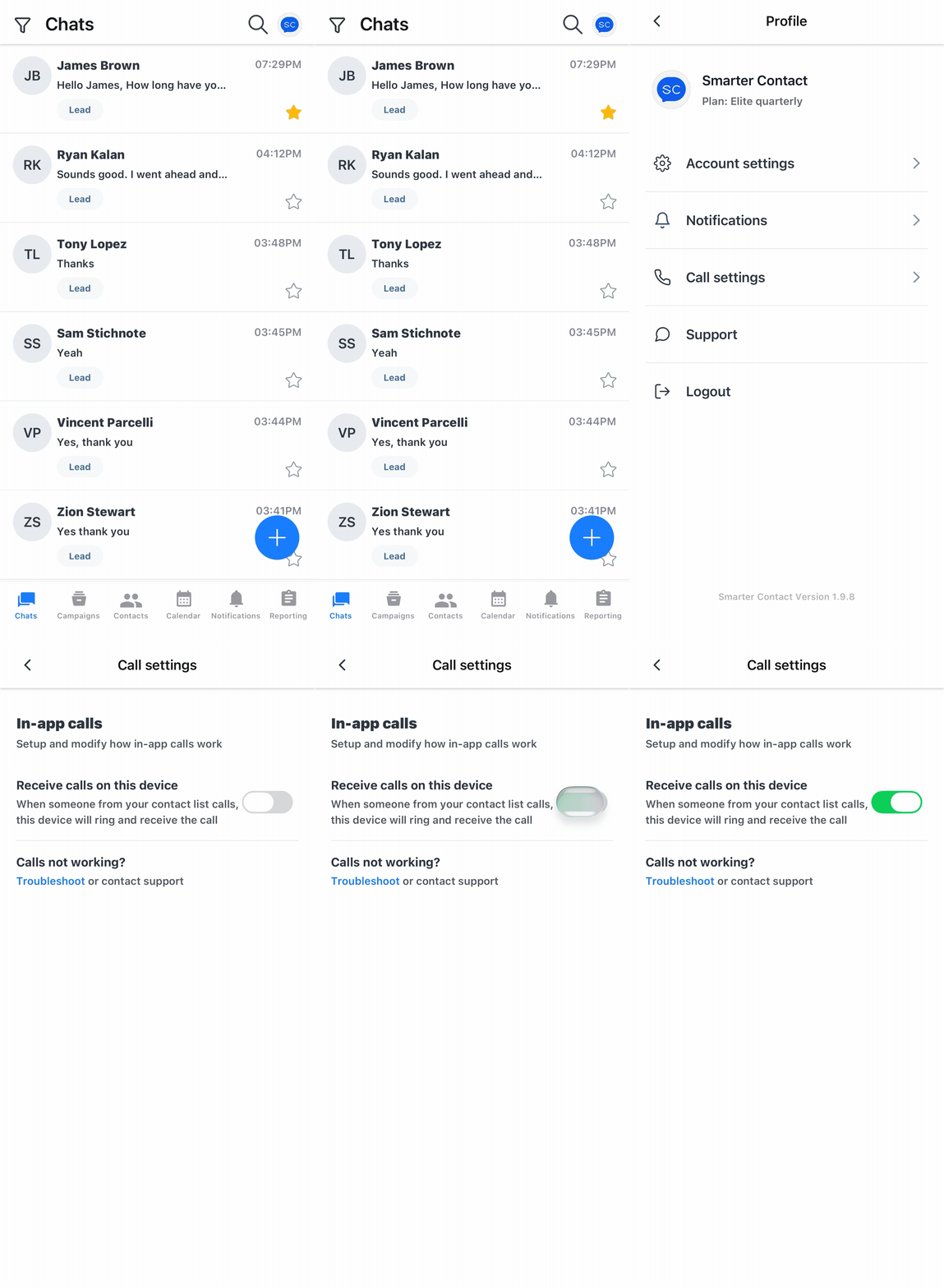
- Open Your Profile: Inside the mobile app, tap your profile picture in the top bar.
- Go to Call Settings: Select Call Settings from the menu.
- Enable Receive Calls on This Device: Toggle the switch on.
Once activated, any call placed to your active incoming number will ring directly inside the app — no forwarding, no third-party line required. Especially useful if you run your campaigns mostly from mobile, or simply prefer to keep every conversation tied to a single device.
A properly configured Active Incoming Number is the bridge between your SMS campaigns and the conversations that turn into deals. Whether you forward calls to a dedicated line or take them inside the app itself, the setup takes minutes and pays back every time a lead picks up the phone instead of typing back.