

The Smarter Contact Power Dialer is an enterprise-grade outbound calling system engineered to maximize agent talk time and optimize connection rates. By executing multiple simultaneous dials and automatically filtering out voicemails and unanswered calls, the system ensures your team spends their time speaking exclusively with live leads.
Core Capabilities
-
High-Volume Multi-Line Dialing: Configurable architecture allows the system to dial up to 20 simultaneous lines at once per agent, drastically reducing wait times between connections.
-
Intelligent Voicemail Detection: The system automatically identifies answering machines and disconnects, preventing agents from wasting time on dead lines.
-
Local Presence: Dynamically matches your outbound caller ID to the contact's local area code, significantly increasing answer rates.
-
Unified Agent Interface: Upon connection, the platform instantly displays the contact's profile, historical data, and your designated caller script.
-
Call Recording & Logging: Automatically records conversations and provides inline note-taking for seamless CRM synchronization and quality assurance.
What You Need to Start
Before initializing a Power Dialer campaign, ensure your account meets the following infrastructure requirements:
-
An active calling subscription.
-
At least one approved calling phone number.
-
A verified contact list.
How It Works
-
Simultaneous Execution: Once initiated, the dialer calls up to 20 numbers concurrently based on your configuration settings.
-
First-to-Connect Logic: As soon as a live contact answers, the system instantly routes that call to the agent and automatically drops the remaining ringing lines.
-
Automated Filtering: If a line hits a voicemail, the system detects the recording and hangs up automatically without agent intervention.
-
Retry Logic: If a number goes unanswered, the system logs the attempt and will automatically retry the number one additional time during the campaign cycle.
-
Real-Time Data Display: The moment the live call connects, the agent's screen populates with the designated script and the contact's operational data for immediate context.
How to Create Your First Power Dialer Campaign
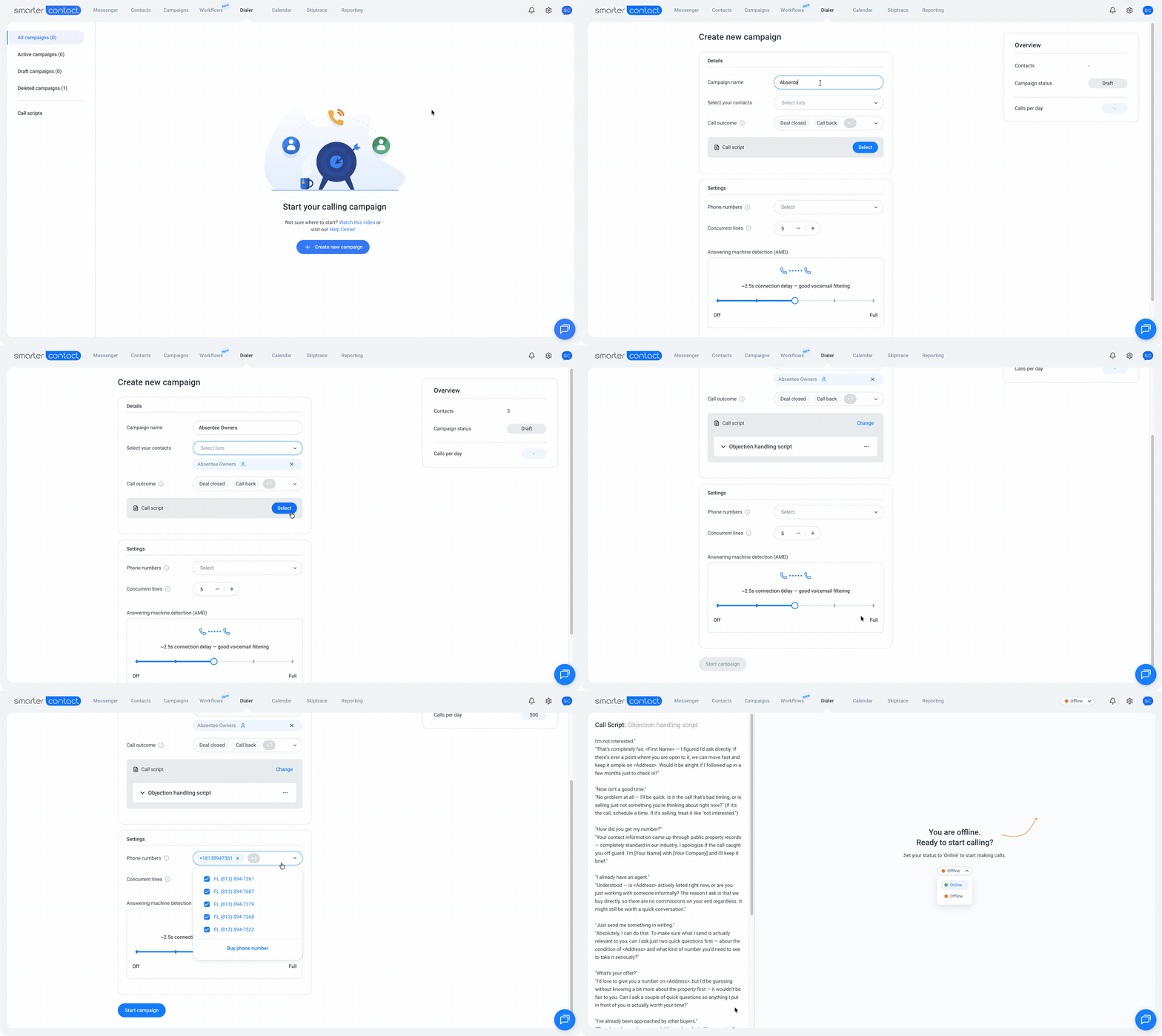
- Go to the Dialer Tab
Navigate to the Dialer tab in your Smarter Contact account. - Click 'New Campaign.'
Select New Campaign to begin setting up your campaign. - Enter Campaign Name
Give your campaign a name that reflects its purpose and date for easy reference. - Select Contact Groups
Choose the contact groups you want to include in this campaign. - Pick Your 5 Dialer Numbers
Choose the 5 dialer numbers you want to use for this campaign. - Set Call Outcomes/Labels
Select from default labels like Lead, Not Interested, Call Back, or Wrong Number, or create custom ones. - Choose a Call Script
Select an existing call script or create a new one. - Click 'Start Campaign.'
Once everything is set, click Start Campaign, send your first sequence.
Default Call Outcomes
The system includes default call labels like:
- Lead
- Not Interested
- Call Back
- Wrong Number
- Etc.
You can also create and customize labels in Settings > Edit Labels. Learn more about editing labels here.
Important Notes
-
Status Management: Agents can pause the dialer campaign at any time by toggling their status to Offline in the interface.
-
Tab Management: For optimal system performance and to prevent latency during live calls, ensure the agent only has a single Smarter Contact browser tab open while the Power Dialer is active.
Related Resources
To help you get started, we recommend tackling your Power Dialer setup in these three phases:
Phase 1: Setup & Configuration
-
Purchasing phone numbers: Secure the required lines to support your multi-line calling volume.
-
Setting up callbacks and voicemail for the Power Dialer: Configure your inbound routing for contacts who call you back.
-
Managing call scripts and custom fields in Power Dialer: Prepare your on-screen agent prompts and contact data fields.
Phase 2: Optimization & Analytics
-
Power Dialer campaign management and outcomes: How to track live progress and handle post-call dispositions.
-
Reporting Overview "Calling" part: Measure your team's talk time, connection rates, and overall performance.